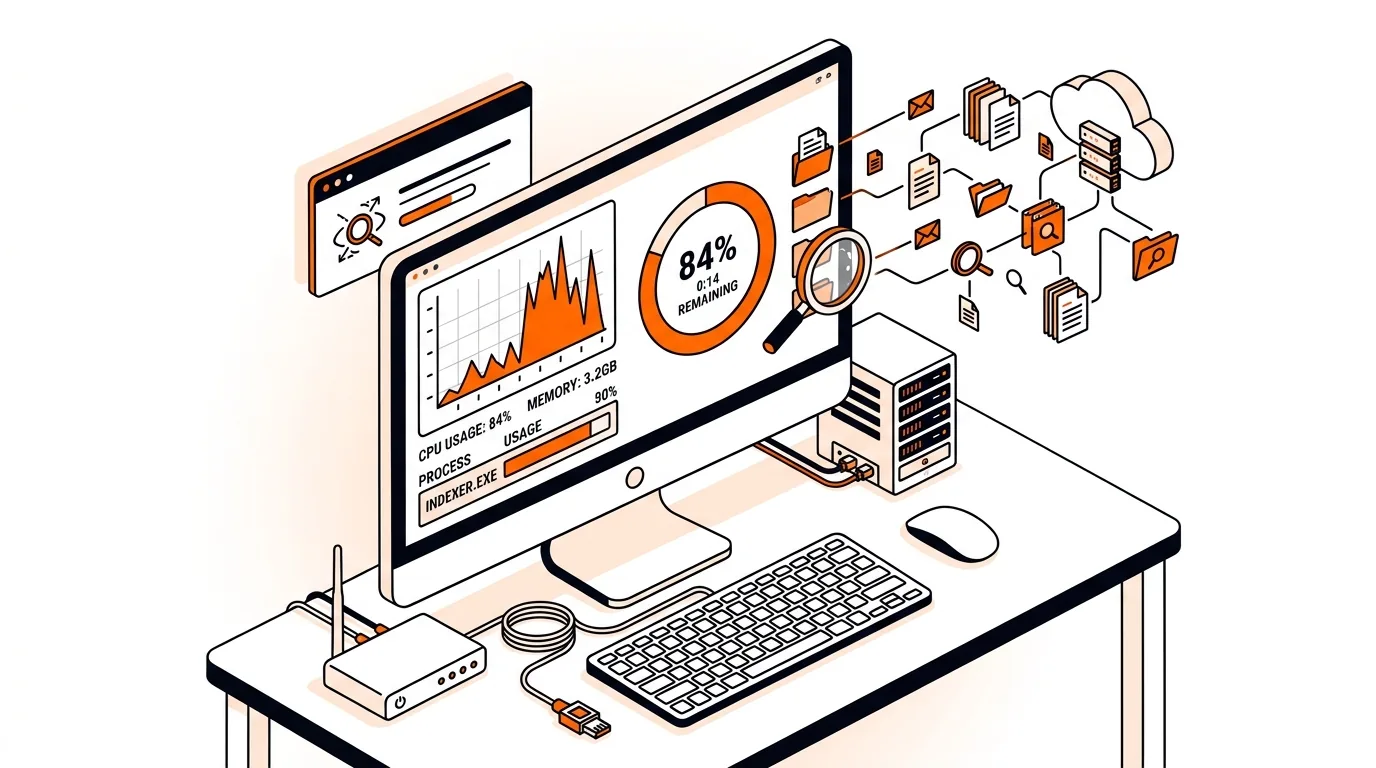
How to Fix Windows Search Indexer High CPU Usage
If SearchIndexer.exe is slowing your PC, these step-by-step fixes can lower CPU usage, restore responsiveness, and help stop the problem from returning.

Learn how to fix 100% disk usage in Windows 10 and 11 with practical steps that can reduce slow startups, freezing, and constant hard drive activity.

If your computer suddenly becomes sluggish, takes forever to open apps, or freezes while the disk stays pinned at 100% in Task Manager, you are not alone. This guide explains how to fix 100% disk usage in Windows 10 and 11 using practical steps that target the most common causes without jumping straight to risky changes.
High disk usage usually means Windows or an app is constantly reading from or writing to your drive. On older PCs with traditional hard drives, this can make the whole system feel unresponsive. Even on newer systems, background indexing, Windows updates, startup programs, driver issues, and low available memory can keep disk activity maxed out.
Sometimes the problem is temporary, such as after a major update or a full antivirus scan. In other cases, it keeps returning because of corrupted system files, failing storage hardware, or a service that repeatedly gets stuck in the background.
If you still see 100% disk usage after these steps, the root cause may be a failing hard drive, an outdated storage driver, malware, or a deeper Windows issue. At that point, it makes sense to back up important files and get a hands-on diagnosis before the system becomes less stable or data loss occurs.
No. It can happen because of updates, background services, indexing, low memory, or a busy application. However, if the issue is constant and comes with freezing, unusual noises, or file errors, the drive should be tested as soon as possible.
CPU and disk activity measure different things. Your processor may not be busy, but your storage drive can still be overwhelmed by read and write requests from Windows, apps, updates, or paging activity caused by low RAM.
In many cases, yes. Traditional hard drives are much slower than SSDs and are more likely to feel overwhelmed by normal Windows background tasks. If your PC still uses an HDD, upgrading to an SSD can significantly improve boot time, responsiveness, and overall performance.
Need help tracking down stubborn disk issues or a slow, freezing PC? Call 247TechTeam at 888-549-0702 or request a secure remote session.
Our technicians can help remotely.
If SearchIndexer.exe is slowing your PC, these step-by-step fixes can lower CPU usage, restore responsiveness, and help stop the problem from returning.
If Desktop Window Manager is using too much GPU, these targeted Windows fixes can reduce lag, heat, and fan noise without risky system changes.
Learn how to reduce Antimalware Service Executable high CPU usage safely so your Windows PC runs cooler, faster, and with fewer slowdowns.



Please sign in or create an account to interact with this article.