
How to Fix Apple ID Sign-Out Is Not Available on iPhone
Learn why Apple ID sign-out is grayed out on iPhone and follow safe steps to remove restrictions, update settings, and regain control of your device.

Learn how to fix Apple ID verification failed on iPhone with clear steps that restore sign-in, App Store access, and iCloud syncing faster.
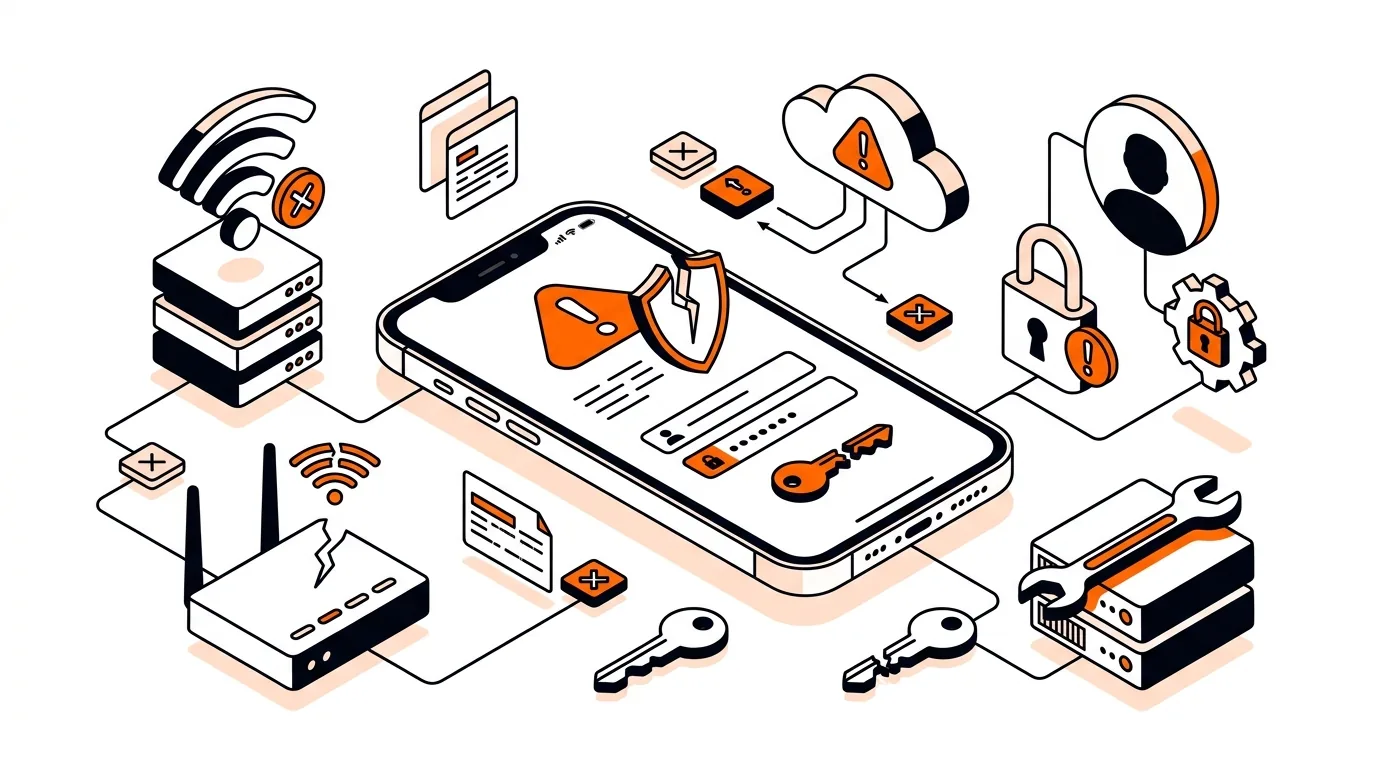
Seeing Apple ID verification failed on iPhone can stop you from downloading apps, using iCloud, or even finishing a simple sign-in. The good news is that this error is usually caused by a network, account, or device setting issue that you can fix in a few practical steps. This guide walks you through the most effective solutions and helps you know when it is time to use official Apple support or get hands-on help.
The verification process checks that your Apple ID, password, device time, and internet connection all line up correctly with Apple’s servers. If one piece is out of sync, your iPhone may show a verification error even when your password is correct.
Common causes include weak Wi-Fi, Apple system outages, an incorrect date and time setting, VPN or security filtering, or an account that needs extra confirmation. In some cases, the error appears after a password change, iOS update, or when signing in on an older device.
If Apple ID verification failed on iPhone keeps returning, the issue may be tied to your Apple account security, a device-specific software conflict, or a recurring network problem. At that point, using official Apple account recovery tools is the safest next step, especially if you suspect suspicious activity or repeated password prompts. If you want guided help sorting out whether the issue is with the iPhone, the network, or the account itself, 247TechTeam can help you work through the checks remotely without guesswork.
This usually means the problem is not the password itself. Incorrect date and time, Apple server issues, network filtering, outdated iOS, or a stuck App Store sign-in can all block account verification even when the password is right.
No. Resetting network settings does not erase your photos, messages, apps, or files. It only removes saved network-related settings such as Wi-Fi passwords, Bluetooth pairings, and VPN details, so you will need to reconnect afterward.
If you need password recovery, account unlocking, or help with Apple ID ownership verification, official Apple support is usually the best choice. If you want broader troubleshooting for your iPhone, Wi-Fi, sync issues, or sign-in errors across multiple devices, an independent service like 247TechTeam may be more convenient for step-by-step assistance.
Need help fixing an Apple ID sign-in problem or deciding whether to use official support tools? Call 247TechTeam at 888-549-0702 or request a secure remote session.
Our technicians can help remotely.
Learn why Apple ID sign-out is grayed out on iPhone and follow safe steps to remove restrictions, update settings, and regain control of your device.
If Apple ID account recovery will not begin, this guide walks you through the exact checks that can get the request moving again on iPhone, iPad, or Mac.
Learn how to fix a Microsoft account password not syncing across Windows, Outlook, and web services so you can sign in normally again.



Please sign in or create an account to interact with this article.