How to Fix Windows Slow Login After Entering Password
If Windows takes too long to load your desktop after you sign in, these focused steps can shorten login time without risky system changes.

Learn how to track down high memory usage after Windows startup and free up RAM safely so your PC feels faster, steadier, and less sluggish.
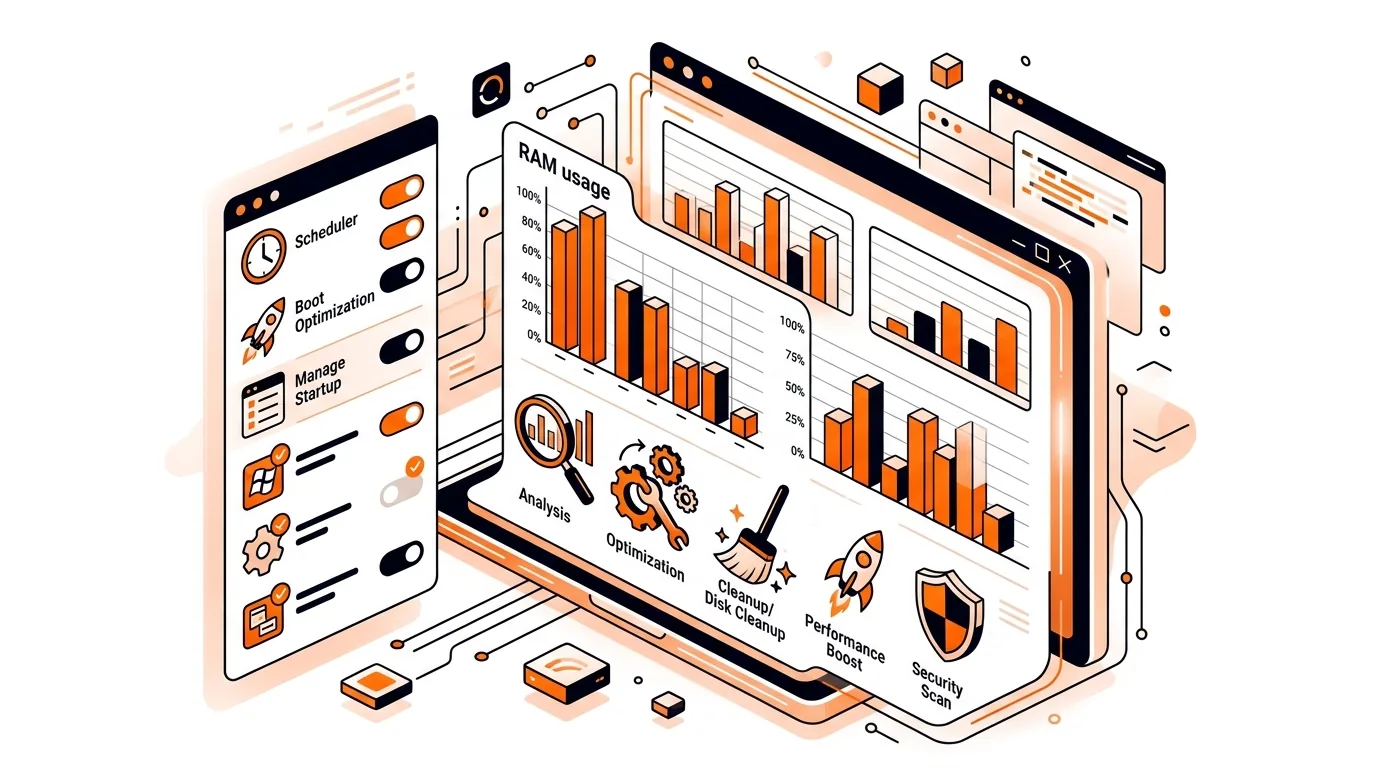
If your PC feels fine once it has been running for a while but crawls right after you sign in, high memory usage after Windows startup may be the real problem. The good news is that this issue is often caused by background apps, overloaded startup items, or a single process using too much RAM, and you can usually narrow it down without advanced tools.
In this guide, you will learn how to identify what is eating memory after startup, how to reduce RAM usage safely, and what to do if the problem keeps returning. These steps apply to most Windows 10 and Windows 11 PCs.
When Windows starts, it loads system services, security tools, drivers, sync apps, update helpers, and anything else set to launch at sign-in. Even on a healthy computer, memory use rises quickly during the first few minutes. If several heavy apps start together, or if one app has a memory leak, available RAM can drop fast and make the whole system feel slow.
High memory usage after Windows startup can also happen when your PC does not have much installed RAM, when browser apps reopen large sessions automatically, or when cloud storage, chat apps, and hardware utilities all start at once. The goal is not to force memory usage as low as possible, but to stop unnecessary RAM drain that hurts performance.
If memory usage improves for a day or two and then spikes again, a recently installed app, browser extension, update utility, or sync service may be re-adding itself to startup or developing a memory leak. Keep notes on what changed before the issue returned, and check Task Manager after each reboot until you spot the pattern. If you want hands-on help diagnosing Windows using too much RAM, 247TechTeam can walk you through the checks remotely.
No. Windows uses memory to cache files and speed up common tasks, so moderate RAM use is normal. It becomes a problem when the computer stays sluggish, apps freeze, or available memory remains very low for more than a few minutes after startup.
That depends on how much RAM your PC has. On an 8 GB system, startup usage above 70% to 80% can cause noticeable slowdowns. On a 16 GB system, the same tasks may feel normal. Focus on symptoms and which processes are using memory, not just the percentage alone.
Usually no. Security software can use extra memory briefly during startup scans, but disabling it can expose your PC to risk. It is better to identify nonessential startup apps first, then review antivirus settings only if a trusted technician recommends it.
Need help tracking down high memory usage after Windows startup? Call 247TechTeam at 888-549-0702 or request a secure remote session.
Our technicians can help remotely.
If Windows takes too long to load your desktop after you sign in, these focused steps can shorten login time without risky system changes.
If Windows shows a black screen before sign-in, this step-by-step guide helps you isolate display, startup, and system issues safely.
If your PC becomes unresponsive right after sign-in, this step-by-step guide can reduce 100% disk usage on Windows and help restore normal speed safely.

Please sign in or create an account to interact with this article.