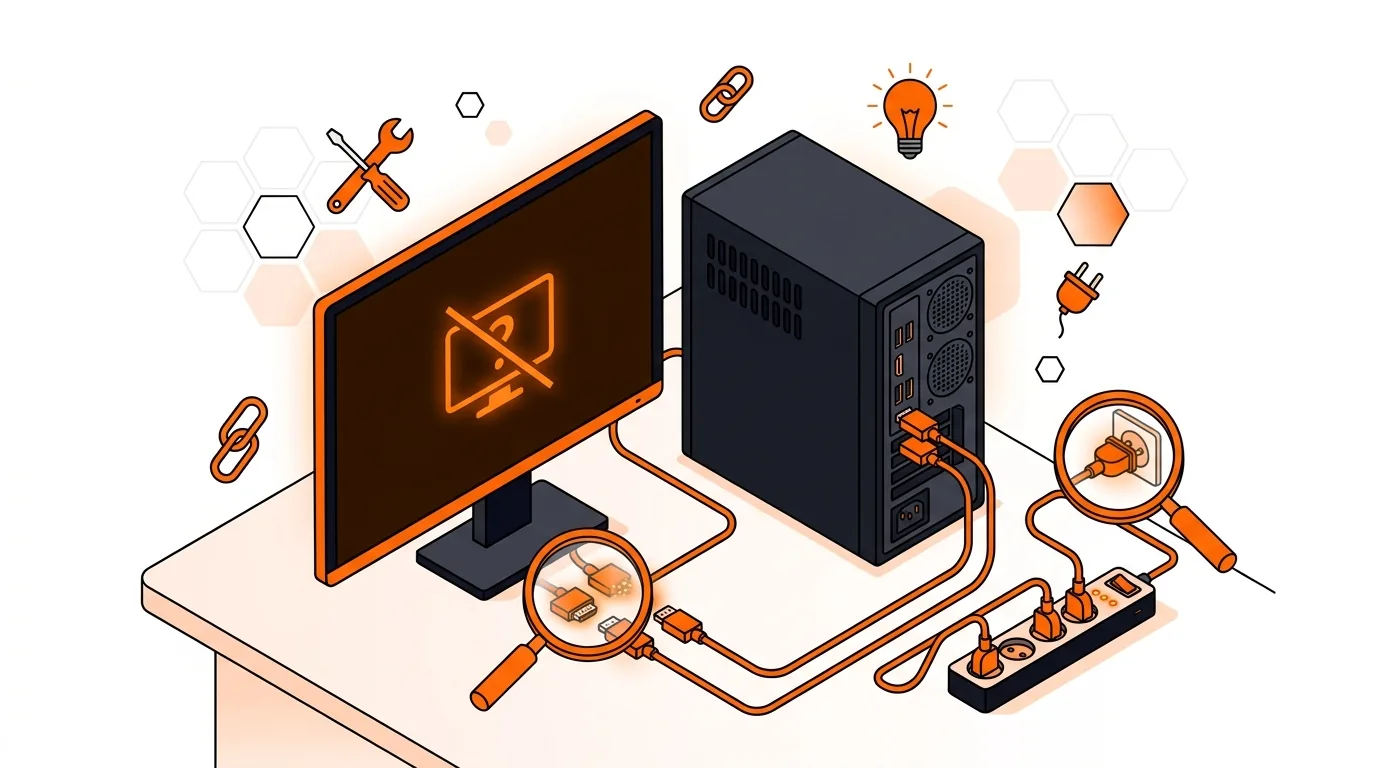
How to Fix a Monitor That Says No Signal on Startup
If your monitor says No Signal when your PC starts, use these practical steps to pinpoint the cause and get your screen working again fast.

If your laptop keyboard types the wrong characters, these step-by-step fixes can restore normal typing fast without replacing the keyboard.

It’s frustrating when you press one key and a completely different character appears on screen. If your laptop keyboard typing wrong characters is slowing down work, school, or online sign-ins, the good news is that the cause is often a simple setting, not a failed keyboard. In this guide, you’ll learn how to check layout settings, Num Lock behavior, drivers, and a few hardware clues so you can get back to normal typing.
When a laptop keyboard types the wrong characters, the most common reason is that the keyboard layout changed accidentally. For example, Windows may switch from US to UK or another language layout after a shortcut key combination, an update, or adding a second input language.
Another common cause is Num Lock on compact laptop keyboards. On some models, part of the letter area doubles as a numeric keypad, so keys may type numbers instead of letters. Less often, the issue comes from a stuck key, outdated keyboard driver, accessibility setting, or liquid or physical damage.
⚠️ Safe Mode is useful for testing, but startup options can vary by Windows version and manufacturer. If you are unsure which options to choose, get help before making broader startup changes.
If your settings keep changing or the same wrong-character problem returns after restarts, check whether multiple languages are still installed, whether a keyboard shortcut is switching layouts, or whether manufacturer hotkey software is reapplying a profile. Repeated issues after a spill, impact, or key swelling point more toward hardware damage than software. At that stage, hands-on diagnosis can save time and prevent buying parts you may not need.
This usually happens because the keyboard layout changed or a modifier key is active. First check the active language and layout in Windows, then test whether Num Lock, Shift, or AltGr behavior is affecting input.
On many laptops, part of the keyboard doubles as a number pad. Press the Num Lock key, or use the Fn key combination shown on your keyboard, then test again. If that does not help, verify the correct keyboard layout is selected in system settings.
Not always. Many cases are caused by settings, language layouts, or driver glitches and can be fixed without replacing hardware. Replacement becomes more likely when only the built-in keyboard fails, specific keys misbehave consistently, or the issue started after physical damage or a spill.
Need help fixing a laptop keyboard typing wrong characters? Call 247TechTeam at 888-549-0702 or request a secure remote session.
Our technicians can help remotely.
If your monitor says No Signal when your PC starts, use these practical steps to pinpoint the cause and get your screen working again fast.
Get your USB ports working again with clear steps to check power, drivers, and hardware issues before you spend money on repairs or replacements.
Learn how to fix a Windows laptop stuck on restarting with safe, step-by-step checks that can get you back to your desktop without guesswork.


Please sign in or create an account to interact with this article.