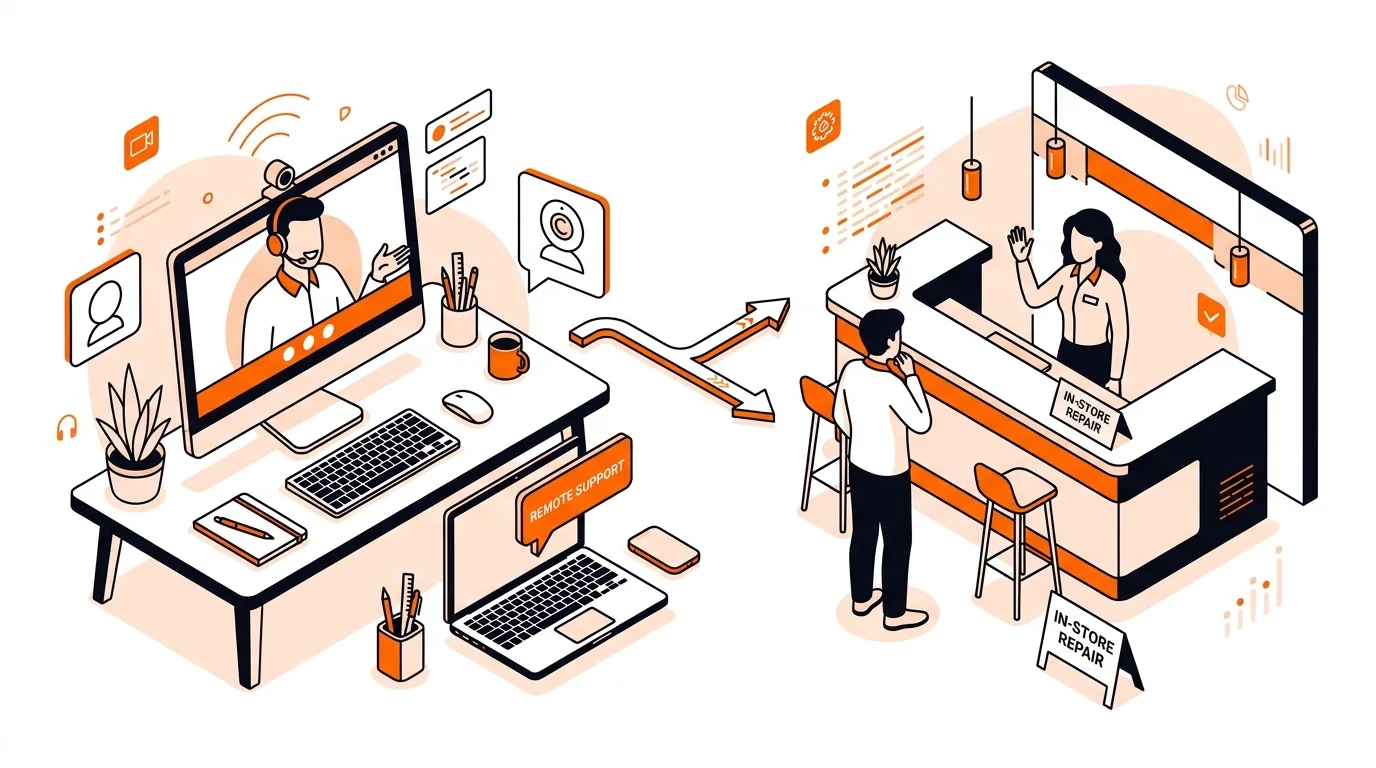
Webcam Not Working? Remote Fix or Best Buy Visit First?
Learn when a webcam issue can be solved remotely in minutes and when an in-store visit makes more sense, so you can restore video calls faster.

Learn when a printer offline issue can be fixed remotely in minutes and when an in-store visit makes more sense, so you save time and avoid extra hassle.
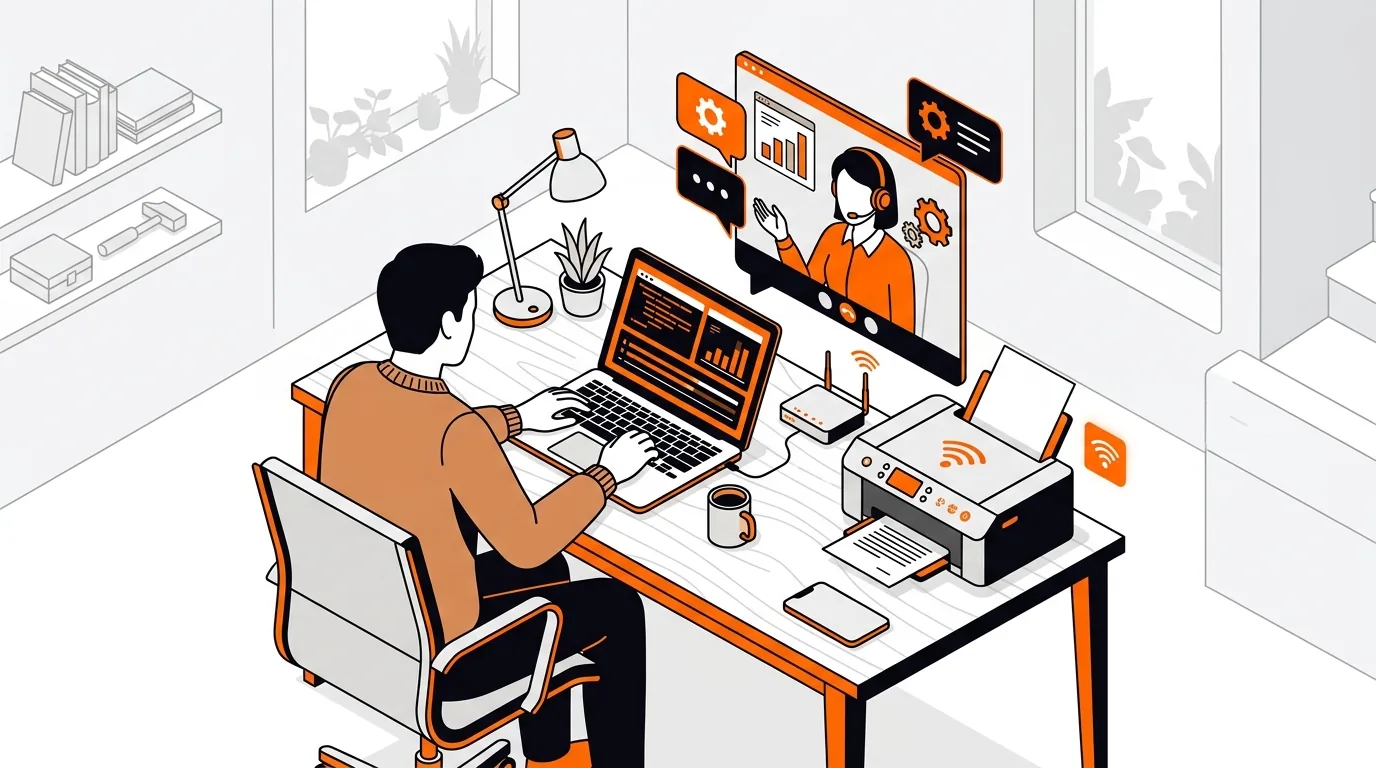
Your printer worked yesterday, but today it suddenly says offline even though it is powered on and connected to Wi-Fi. That is one of the most common support issues for home users, and in many cases, a printer offline fix can be handled remotely without packing up the device or driving to a store. In this guide, you will learn why the problem happens, what steps to try at home, and when remote help is enough versus when an in-store visit may be the better option.
A printer can appear offline for several different reasons, even when nothing looks obviously wrong. Common causes include a weak Wi-Fi connection, a stuck print queue, the wrong default printer selected in Windows or macOS, outdated printer drivers, or a printer that changed its IP address on your network.
This is why remote support often works well for printer problems. If the issue is caused by software settings, drivers, print spooler errors, or network configuration on your computer, a technician can usually diagnose and correct it over a secure remote session. An in-store repair becomes more likely only if the printer has physical damage, repeated hardware errors, paper feed failures, or it will not power on at all.
If you repeatedly need a printer offline fix, the issue may be less about the printer and more about your network setup, old drivers, or conflicting printer entries saved on your computer. Remote support is often the most practical next step because a technician can check your computer settings, remove stale printer ports, verify driver versions, and test the connection live without waiting for a store appointment. If the printer still fails after software and network checks, then an in-store or manufacturer hardware evaluation may be worth the trip.
Yes, in many cases it can. If the problem involves print queue errors, driver issues, default printer settings, network configuration, or reconnecting the device in Windows or macOS, remote support is often enough. It is less effective only when the printer has a physical hardware fault.
An in-store visit makes more sense if the printer will not power on, has a broken screen, makes grinding noises, constantly jams despite clean paper paths, or shows persistent hardware error codes. Those problems usually need physical inspection rather than software troubleshooting.
Have your printer brand and model number, the exact wording of any error message, your Wi-Fi network name, and your computer type ready. It also helps to know whether the printer is connected by USB or Wi-Fi and whether the issue started after a software update, router change, or power outage.
Need help now? Call 247TechTeam at 888-549-0702 or request a secure remote session for hands-on troubleshooting.
Our technicians can help remotely.
Learn when a webcam issue can be solved remotely in minutes and when an in-store visit makes more sense, so you can restore video calls faster.
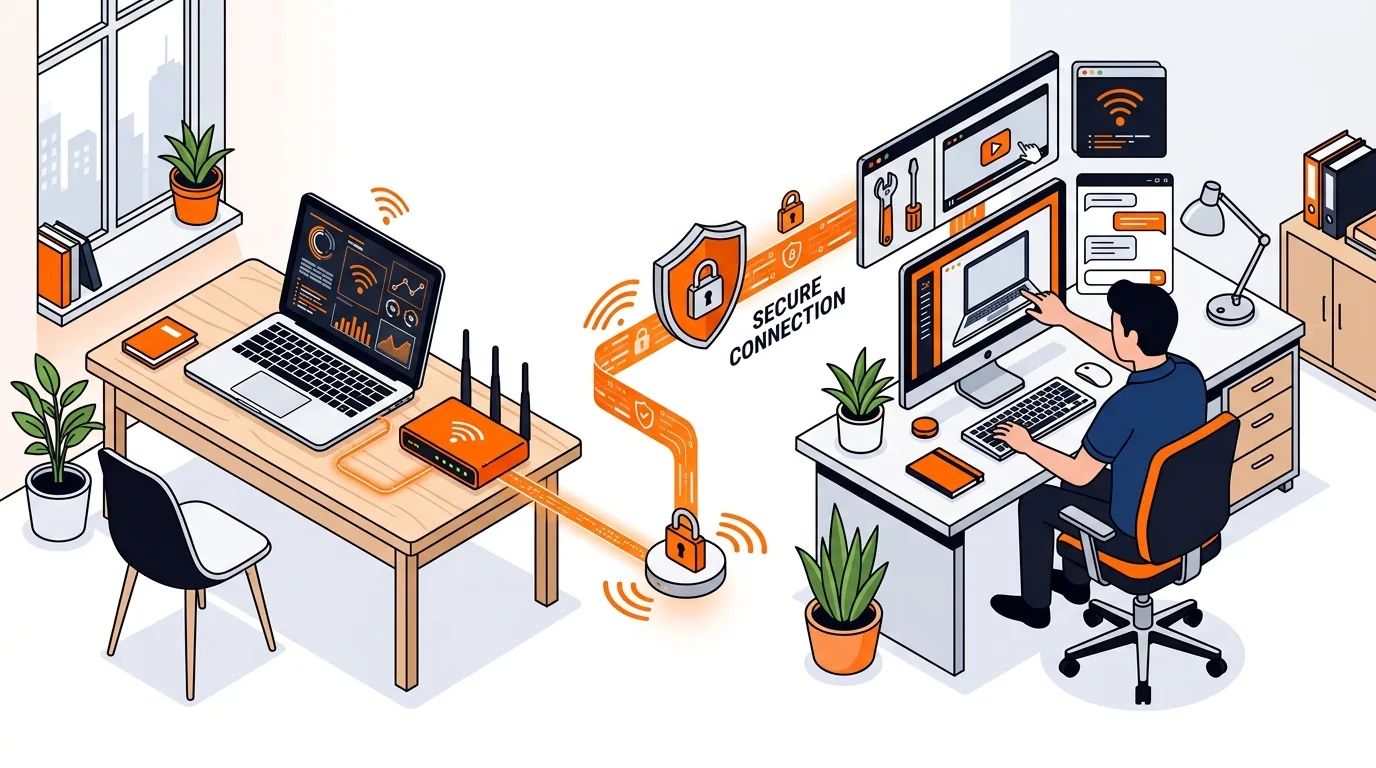
Learn when a dropping Wi-Fi connection can be fixed remotely at home and when an in-store visit makes more sense, so you save time and avoid guesswork.
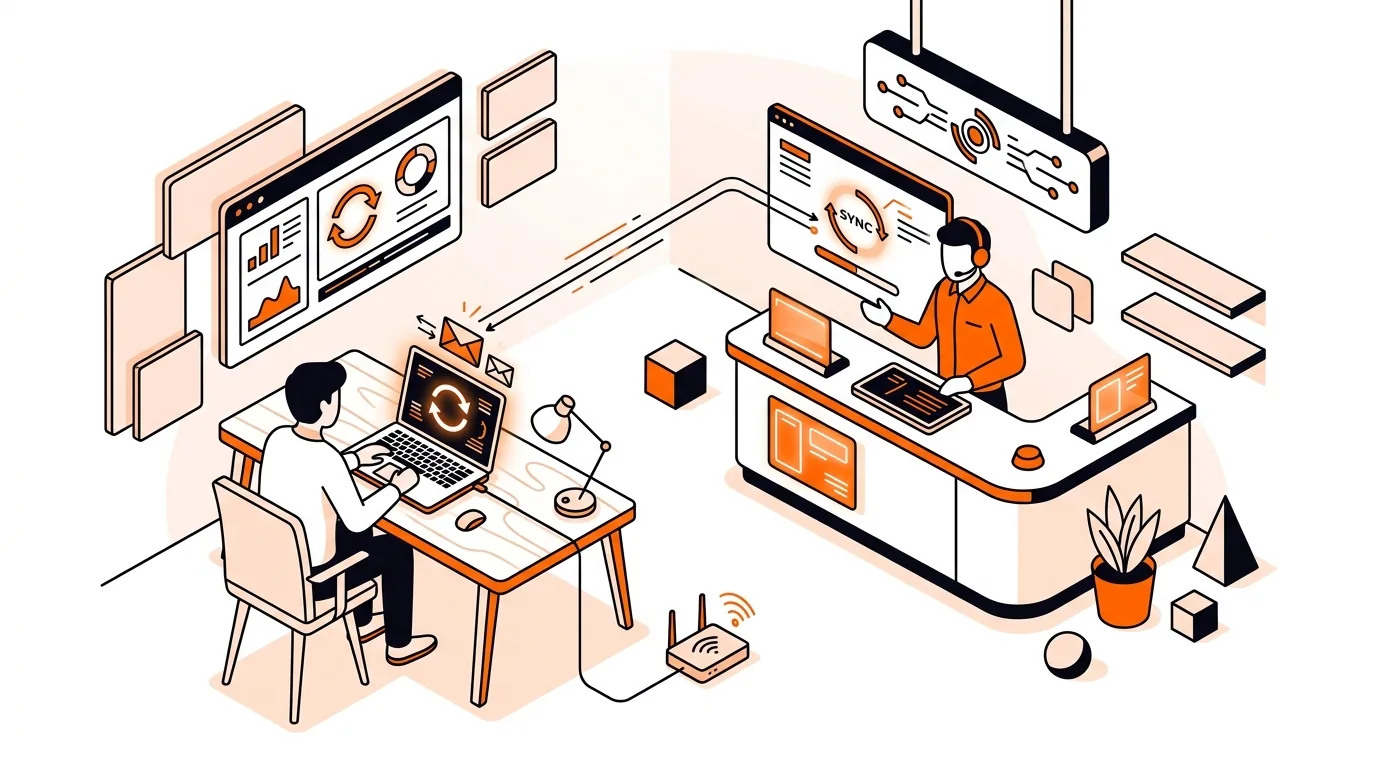
Learn when an email sync problem can be solved safely with remote tech support and when an in-store visit makes more sense, saving time and frustration.

Please sign in or create an account to interact with this article.