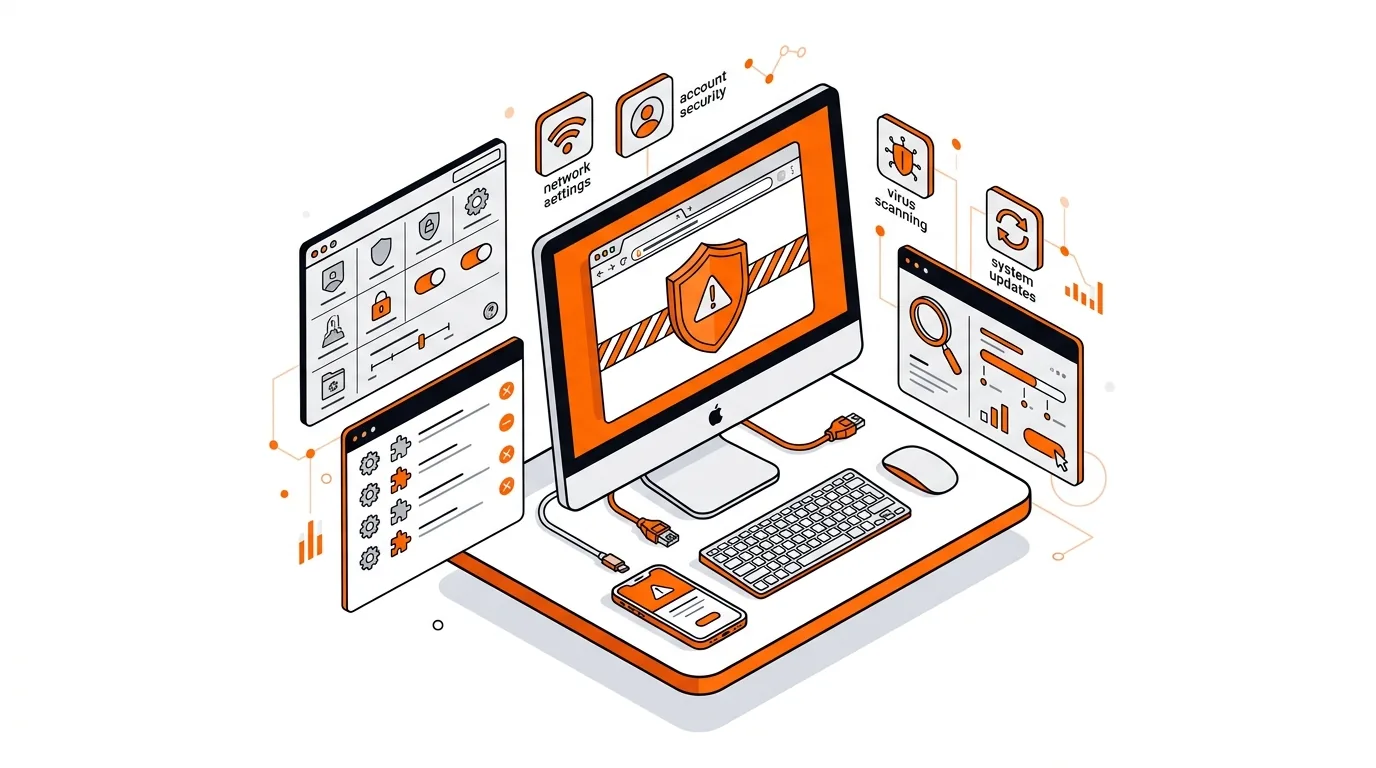
How to Remove Search Marquis From a Mac Browser
Learn how to remove Search Marquis from your Mac browser and stop unwanted redirects by checking profiles, login items, extensions, and settings.

Stop a browser hijacker from resetting your homepage and search engine by cleaning the browser, startup items, and hidden apps the right way.

If your browser keeps opening the wrong homepage, sending you to odd search sites, or reinstalling a shady extension after you remove it, you may be dealing with a browser hijacker. The good news is that you can usually remove a browser hijacker without wiping your whole computer, as long as you clean both the browser and the hidden software causing it.
In this guide, you will learn why browser hijackers keep returning, how to remove them step by step on Windows or Mac, and what to do if the redirects come back after a restart.
A browser hijacker is usually more than just one bad extension. It may arrive bundled with a free app, fake update, download helper, coupon tool, or sketchy PDF converter. Once installed, it can change your default search engine, new tab page, homepage, notifications, and shortcut settings so traffic gets redirected through sites you did not choose.
The reason it often returns is that part of it remains behind. A leftover extension, login item, scheduled task, browser profile setting, or unwanted app can reapply the hijack every time you sign in. That is why a simple browser reset does not always solve the issue by itself.
If redirects or fake search pages return after all of the steps above, the computer may have a deeper adware infection, a synced browser profile issue, or a configuration policy that needs manual cleanup. In that case, stop entering passwords into the affected browser until the system is clean, update your operating system fully, and consider getting hands-on help so the remaining files, tasks, and browser policies can be removed safely.
Some can collect search history, browsing habits, and form data, while more aggressive threats may try to capture credentials or push you to phishing pages. If you used the infected browser for banking, shopping, or email, change your passwords after cleanup and enable two-factor authentication where possible.
Not always. Deleting the extension may remove the visible symptom, but the hidden app or startup item that installed it can simply put it back. That is why it is important to uninstall unwanted software and run a full malware scan too.
Usually, a browser reset removes extensions and restores settings, but bookmarks are often kept. Still, it is smart to export or sync your bookmarks safely before making major changes, especially if you are troubleshooting more than one browser profile.
Need help to remove a browser hijacker completely? Call 247TechTeam at 888-549-0702 or request a secure remote session.
Our technicians can help remotely.
Learn how to remove Search Marquis from your Mac browser and stop unwanted redirects by checking profiles, login items, extensions, and settings.
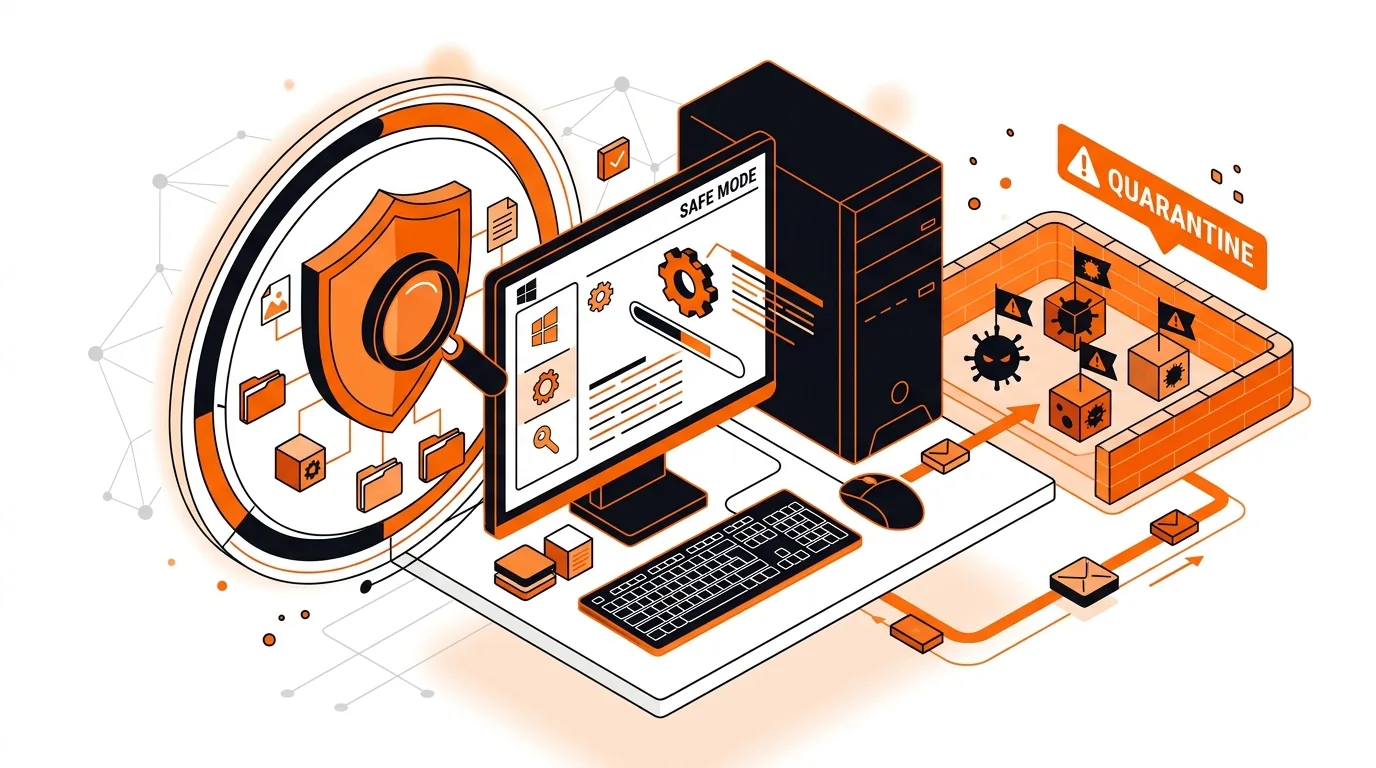
Learn how to remove a Trojan using Windows Safe Mode so you can stop suspicious processes, scan hidden files, and restore normal PC performance.
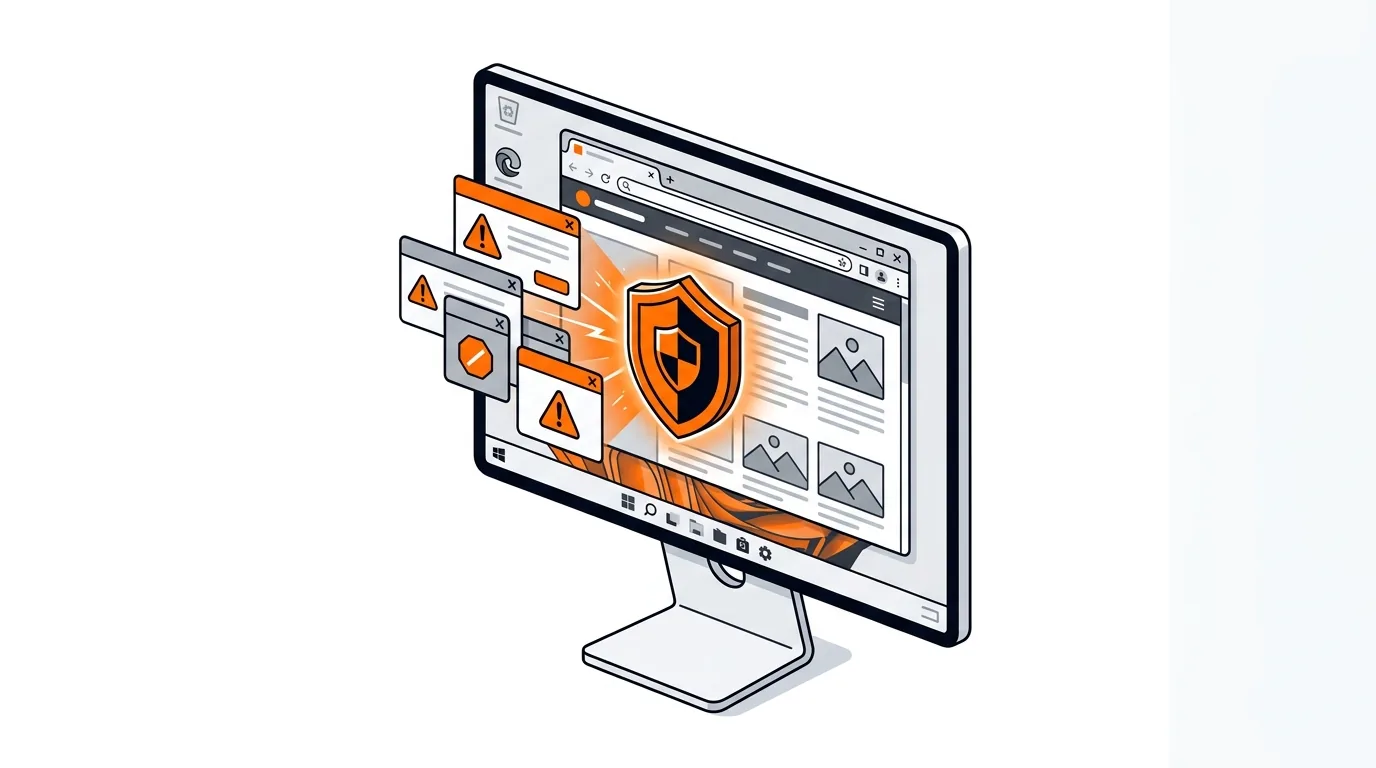
Stop fake virus pop-ups that lock your browser or demand payment with safe, step-by-step cleanup methods for Windows users.

Please sign in or create an account to interact with this article.