
How to Stop Fake Virus Pop-Ups in Your Web Browser
Learn how to stop fake virus pop-ups in your browser, block repeat alerts, and secure your settings without risking your files or passwords.

Learn how to remove a suspicious Chrome extension, reset changed browser settings, and reduce the chance of tracking, pop-ups, or search hijacking.
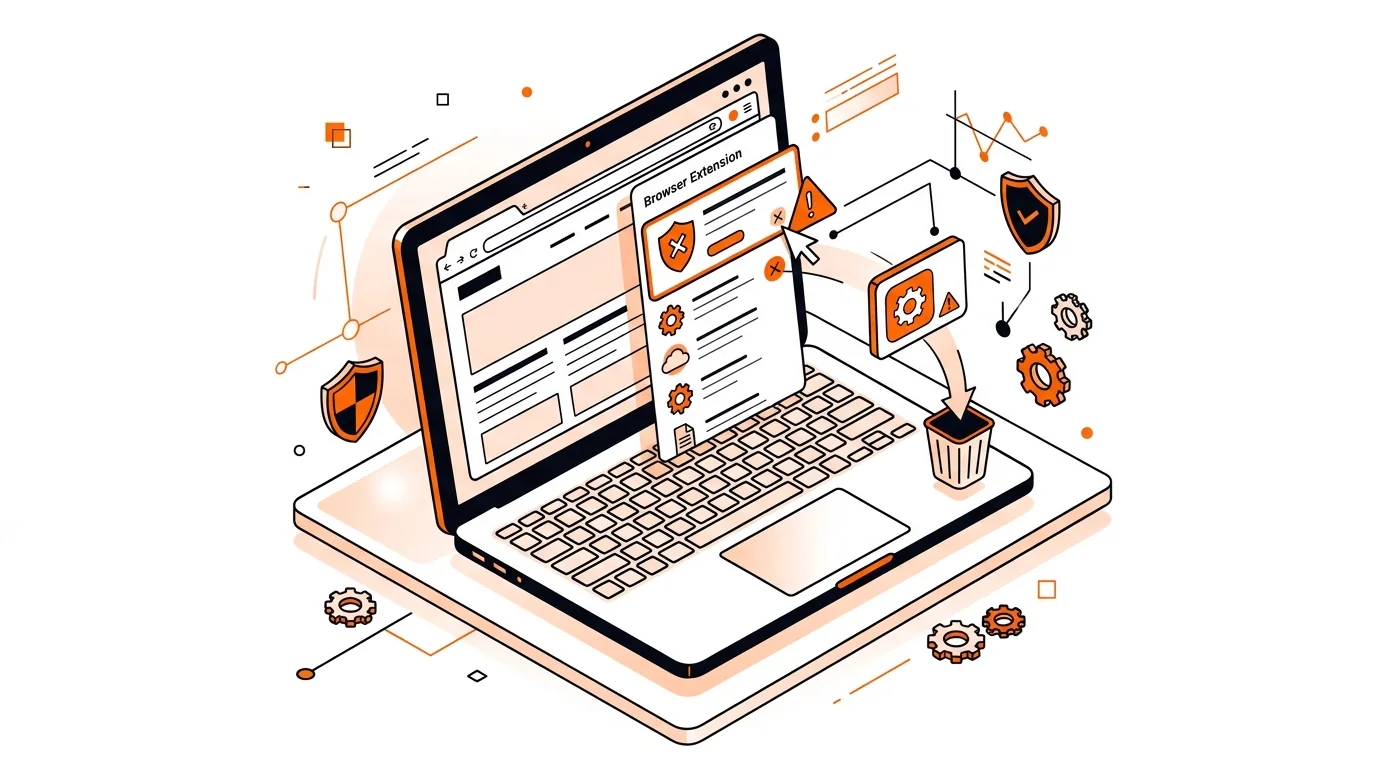
If Chrome suddenly shows extra ads, redirects your searches, or changes your homepage without permission, a bad extension may be the cause. This guide explains how to remove a suspicious Chrome extension safely, check what it changed, and lock down your browser so the issue does not return.
Browser extensions can read and change data on websites, control search settings, and interact with other software on your computer. While many add-ons are useful, some are deceptive, poorly maintained, or bundled with free downloads and can start showing pop-ups, tracking activity, or redirecting searches.
In some cases, the extension is not technically malware but still behaves in a risky way. It may ask for broad permissions, install itself after another program, or reappear because a related app on the computer keeps pushing it back into Chrome.
If the extension returns after removal, another app, browser policy, or synced browser profile may be restoring it. Try turning off Chrome sync temporarily, scan the computer again, and recheck installed apps. If the browser says it is managed when it should not be, or if search hijacking continues across restarts, it is smart to get hands-on help before entering any passwords or payment details online.
Common warning signs include sudden redirects, more ads than usual, fake virus alerts, a changed default search engine, or an extension asking for broad permissions it does not seem to need. Reviews can help, but they are not always reliable, so focus on behavior and permissions first.
A malicious or overly permissive extension may capture what you type on web pages or read data from sites you visit. That is why it is best to avoid logging in until you remove the extension and scan the computer. If you entered passwords while it was active, change them as a precaution.
Usually that means another program on the computer is connected to it, Chrome sync is restoring it, or a browser policy was added by unwanted software. Removing the extension alone may not be enough, so checking installed apps and scanning for potentially unwanted programs is important.
If you want expert help cleaning up a suspicious browser add-on or securing Chrome afterward, call 247TechTeam at 888-549-0702 or request a secure remote session.
Our technicians can help remotely.
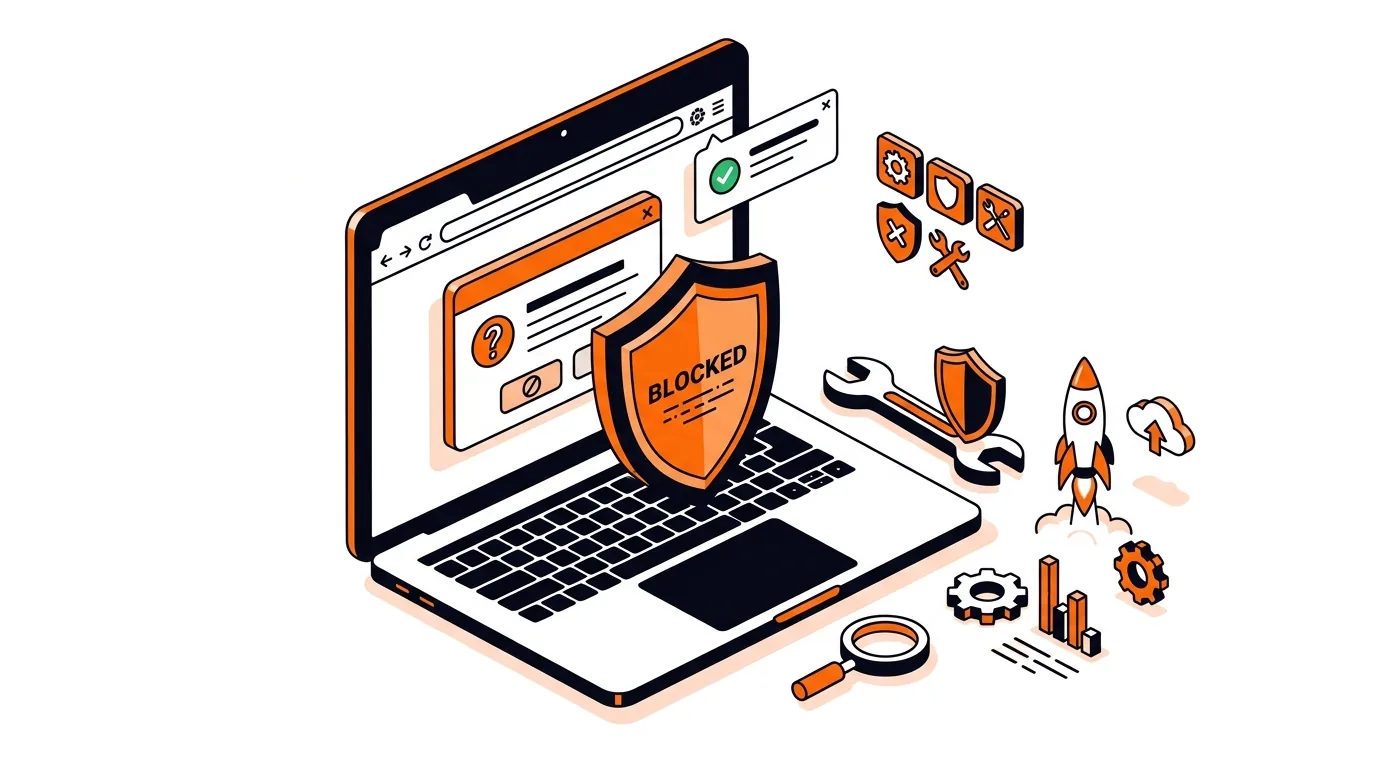
Learn how to stop fake virus pop-ups in your browser, block repeat alerts, and secure your settings without risking your files or passwords.
Learn how to close a fake virus alert safely, stop repeat pop-ups, and check your browser for risky settings or extensions without making things worse.
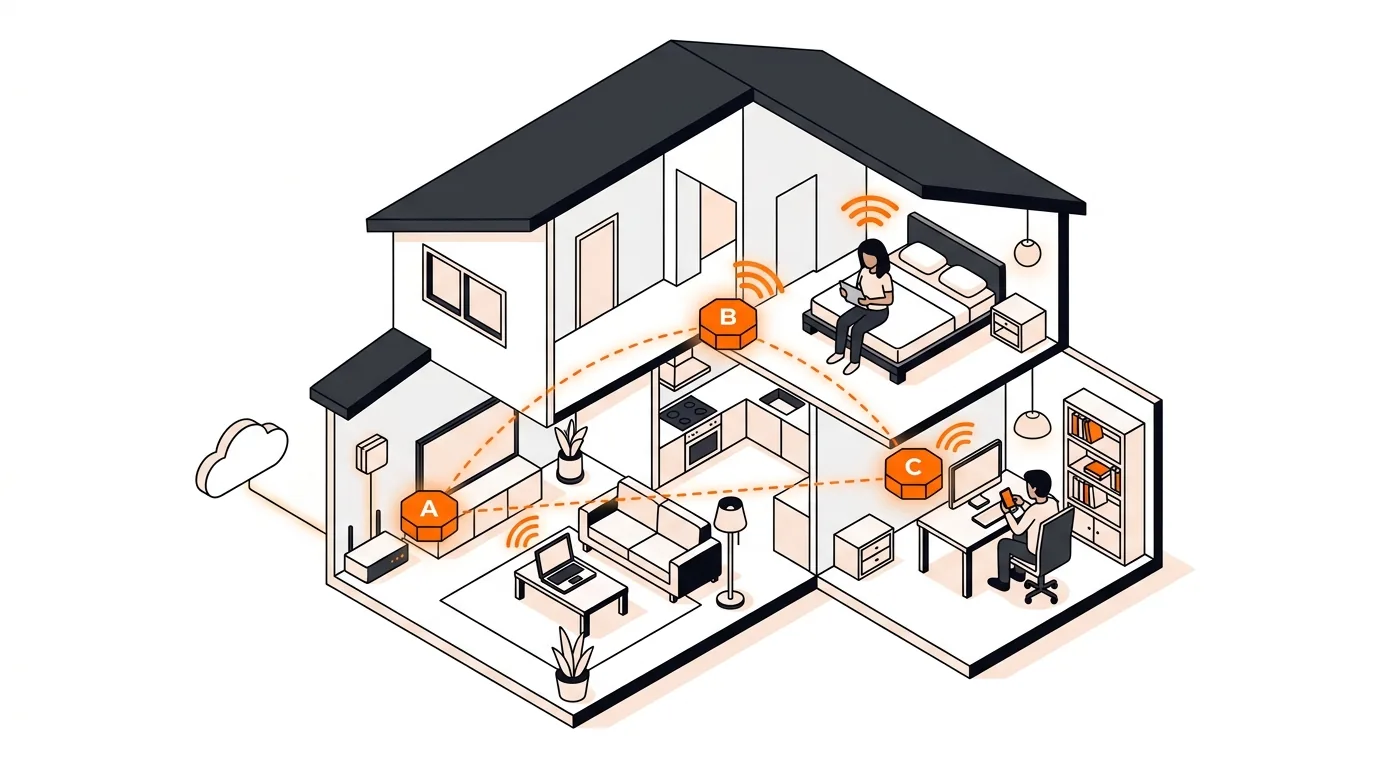
If your phone or laptop clings to the wrong mesh node, these steps can improve roaming, boost speed, and stop dead-zone frustration.

Please sign in or create an account to interact with this article.