Browser Privacy Settings That Matter Most
Learn which browser privacy settings are worth changing on Windows and Mac to reduce tracking, limit data sharing, and browse with fewer surprises.

If you got a password leak alert, turning on 2FA quickly can block unauthorized sign-ins and help you secure your email, banking, and shopping accounts.
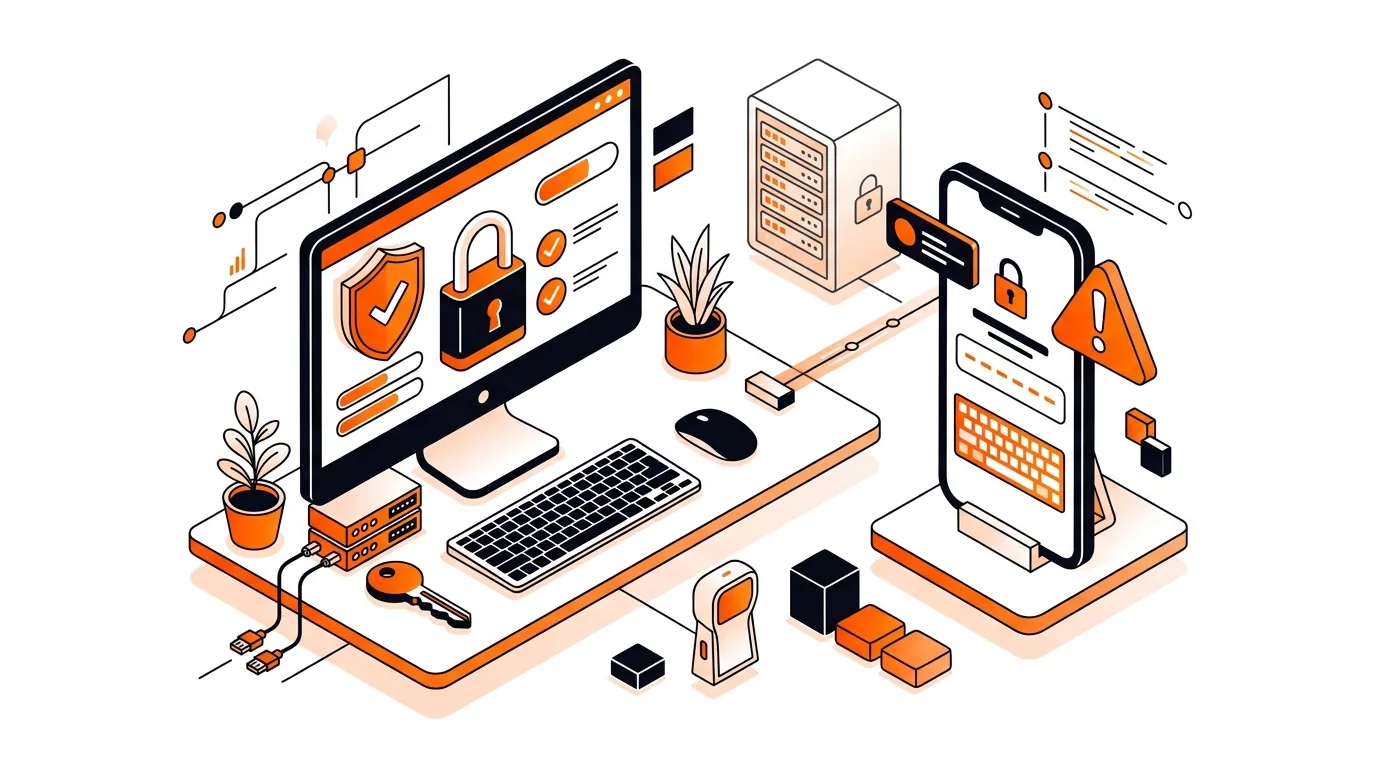
A password leak alert can be unsettling, especially if it involves your email, bank, or shopping accounts. The good news is that you can take immediate action: update the exposed password and turn on two-factor authentication (2FA) so a stolen password alone is no longer enough to get in.
In this guide, you will learn why these alerts happen, how to turn on 2FA after a password leak alert, and which accounts to secure first so you can lower the risk of fraud or account takeover.
Password leak alerts usually appear when your browser, password manager, or security app detects that one of your saved passwords has shown up in a known data breach. This does not always mean someone has already signed in to your account, but it does mean that password should be treated as exposed.
The risk becomes much higher if you reused the same password on more than one website. Attackers often try leaked email-and-password combinations on popular services like Gmail, Outlook, Apple ID, Amazon, PayPal, and banking sites. That is why enabling 2FA matters: it adds a second proof of identity, such as an app code, security key, or one-time text code.
If you keep getting password leak alerts, the bigger issue may be password reuse across multiple websites or a compromised email account that is still being targeted. In that case, work through all accounts that share similar passwords, enable 2FA wherever possible, and consider moving your passwords into a trusted manager so each site has its own unique login. If you want help checking your browser, email settings, and account security without guessing, 247TechTeam can walk you through it safely.
Start with email, banking, shopping, cloud storage, social media, and any account that stores payment details or personal information. If 2FA is available on other accounts too, enabling it there is a smart extra layer of protection.
SMS-based 2FA is better than using only a password, but an authenticator app or security key is generally more secure. If SMS is the only option a website offers, it is still worth turning on rather than leaving the account protected by password alone.
Use your saved backup codes or the account’s recovery process to regain access. Once you are back in, update your 2FA settings to a new device and remove the lost phone from your trusted devices if the service allows it.
Need help securing your accounts after a password leak alert? Call 247TechTeam at 888-549-0702 or request a secure remote session.
Our technicians can help remotely.
Learn which browser privacy settings are worth changing on Windows and Mac to reduce tracking, limit data sharing, and browse with fewer surprises.
Use this household cybersecurity checklist to improve passwords, updates, user accounts, browsing habits, and backups on shared Windows and Mac computers.
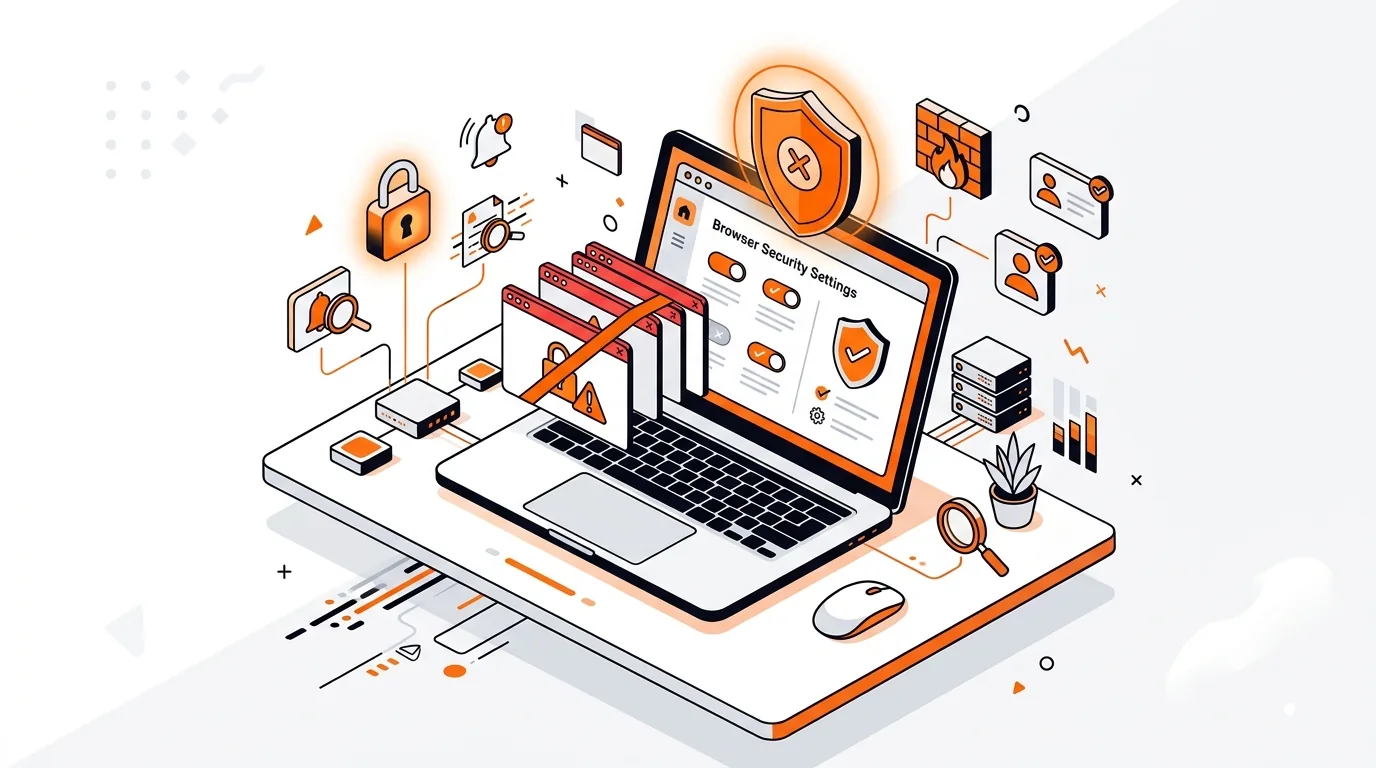
Learn how to stop fake virus pop-ups in your browser, block repeat alerts, and secure your settings without risking your files or passwords.

Please sign in or create an account to interact with this article.