5 Signs Your Computer May Have Malware

247TechTeam Support Team · October 16, 2026 · Computer Security

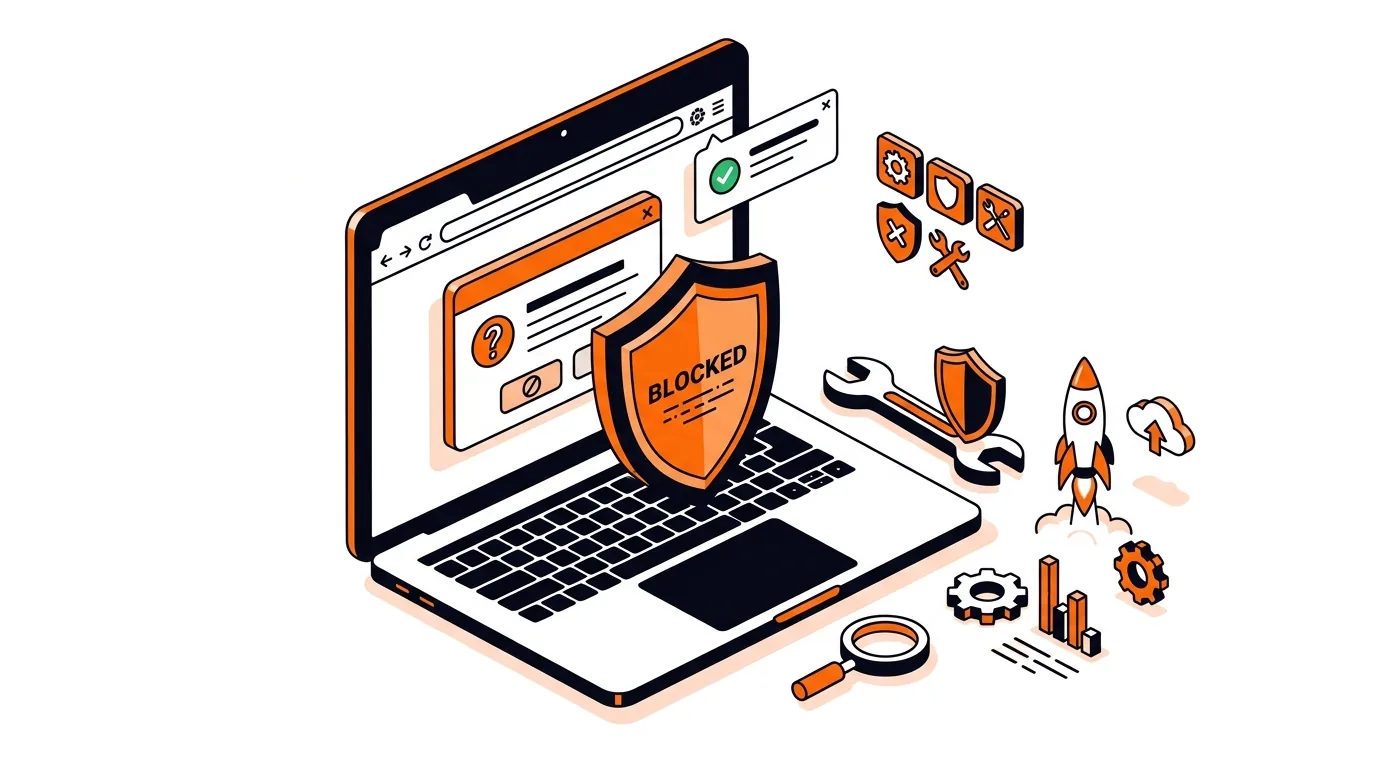
Laptop browser with scam pop-up blocked and security tools shown nearby

A sudden full-screen warning in your browser claiming your PC is infected can be alarming, especially if it urges you to call a number right away. In most cases, this is a browser-based scam, not a real system virus alert. This guide explains how to remove a fake virus alert safely, stop the page from reappearing, and check for browser settings or extensions that may be causing it.

Why this happens

Fake virus alerts usually come from a malicious website, a misleading ad, spam browser notifications, or a suspicious extension. The goal is to scare you into calling a fake support number, downloading unwanted software, or giving away payment details.

These warnings can look convincing because they mimic Windows, Apple, or antivirus branding. But a web page cannot scan your computer and then suddenly lock it because of “critical threats.” If the alert appeared inside your browser, treat it as a scam unless it came directly from security software you knowingly installed.

Fix it step by step

  1. Do not click the alert, call the number, or download anything. If the page says your device is blocked, infected, or being monitored, do not interact with its buttons. Scam pages often trigger more pop-ups when you click “OK,” “Scan,” or “Close.” If audio is playing, mute your computer if needed, but stay off the page itself.
  2. Force-close the browser. On Windows, press Ctrl + Shift + Esc to open Task Manager, select your browser, and choose End task. On Mac, press Option + Command + Esc, select the browser, and click Force Quit. If your browser normally reopens old tabs after a crash, make a note to choose a new session when you open it again.
  3. Reopen the browser without restoring the scam page. Launch the browser and choose New Tab or Start New Session if prompted. If it instantly reloads the same warning, disconnect from the internet briefly, reopen the browser, close the bad tab, then reconnect. This can help stop a looping scam page from loading before you can act.
  4. Clear recent browsing data. In your browser settings, clear cached images/files and cookies/site data for at least the recent period when the pop-up started. This removes stored website data that may be re-triggering the fake virus alert. If you want to avoid signing out of every website, first look for an option to clear data for just the affected site.
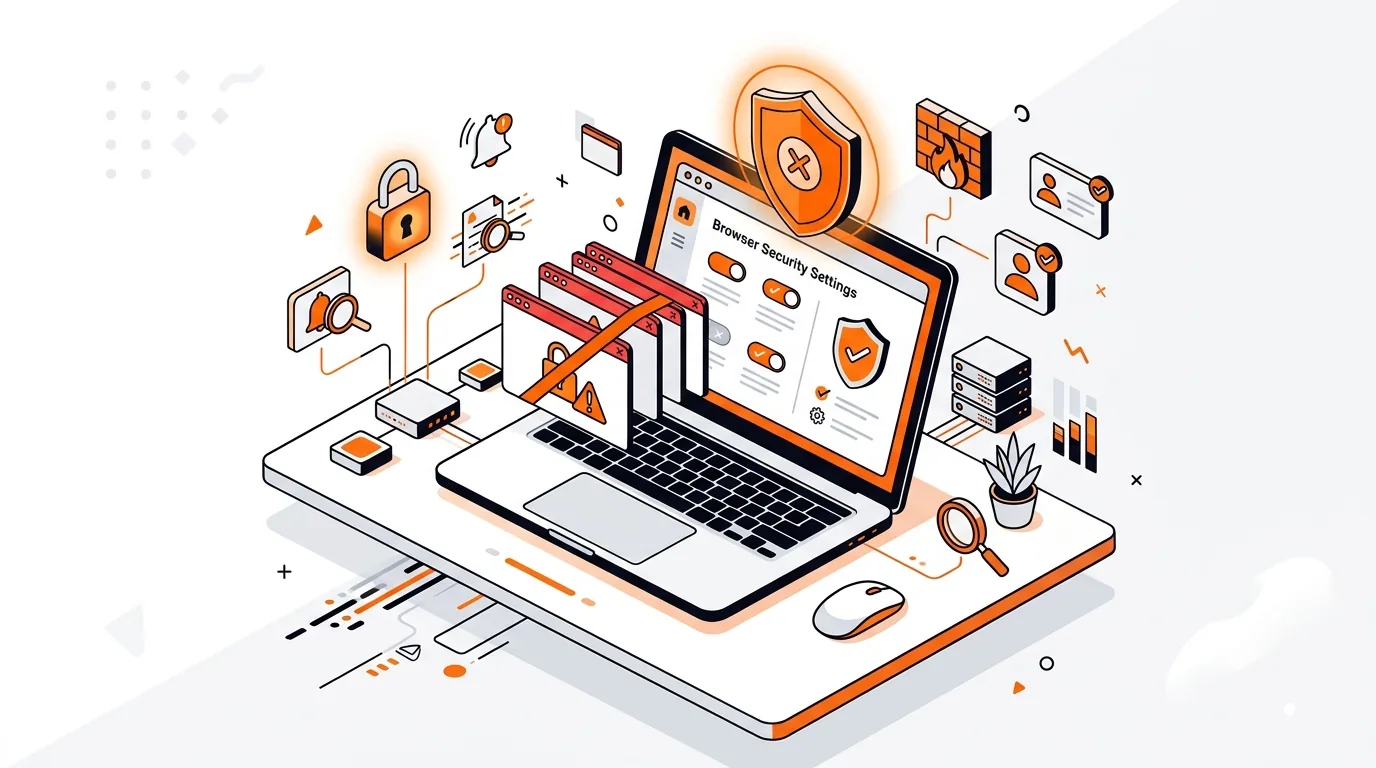
  5. Turn off suspicious site notifications. Scam websites often trick people into clicking Allow on notification prompts. Go to your browser's Site Settings or Notifications list and remove or block unfamiliar websites. If you see odd domains sending alerts about viruses, expired subscriptions, or prizes, revoke their permission immediately.
  6. Review and remove suspicious browser extensions. Open your browser's extensions or add-ons page and disable anything you do not recognize, recently added items, coupon/shopping tools you did not intend to install, or anything with poor reviews. Re-enable trusted extensions one at a time only if needed. If the fake virus pop-up started soon after installing an extension, remove that extension completely.
  7. Check your startup and search settings. In browser settings, review the On startup, Homepage, and Search engine sections. Remove unknown pages that launch automatically and switch your default search back to a trusted provider if it changed. Browser hijackers often modify these settings to keep scam pages coming back.
  8. Run a scan with your trusted security software. While a fake virus alert is usually a browser scam, it is still smart to run a full scan with Windows Security, Microsoft Defender, or reputable antivirus software already on your computer. This helps rule out adware or potentially unwanted programs that may be opening bad pages in the background.
  9. Change passwords only if you interacted with the scam. If you downloaded a file, entered passwords, gave payment details, or called the number, take extra action right away. Change important passwords from a clean device if possible, contact your bank if payment information was shared, and monitor your accounts for suspicious activity. If remote access was granted to a scammer, disconnect the computer from the internet and get professional help before using it again.

If the problem keeps coming back

If you still see fake warnings after clearing data and removing suspicious extensions, the issue may involve adware, a rogue notification setting, or a profile-level browser change that needs deeper cleanup. At that point, it is a good idea to have the computer checked thoroughly so the scam page does not keep returning or lead to a larger security problem.

Frequently asked questions

Is a browser virus alert ever real?

A website itself cannot run a full virus scan on your computer and then display a legitimate system infection notice. Real security alerts usually come from your installed antivirus or built-in security tools, not a random web page asking you to call a phone number.

What if I clicked the fake warning by accident?

If you only clicked the page but did not download anything or enter information, close the browser, clear browsing data, and check notifications and extensions. If you downloaded a file or allowed remote access, run a security scan immediately and change passwords for important accounts.

Can fake virus pop-ups happen on Mac too?

Yes. Tech support scam pop-ups and fake virus warnings can appear on both Windows PCs and Macs because they usually come through the browser. The cleanup steps are similar: force-close the browser, remove suspicious permissions or extensions, and scan for unwanted software.

Need help cleaning up a suspicious browser or checking whether a scam changed your settings? Call 247TechTeam at 888-549-0702 or request a secure remote session.

Need a hand with this?

Our technicians can help remotely.

Book a service

Related articles

Software Support

How to Fix Outlook Error 0x800CCC0E on Windows

Fix Outlook error 0x800CCC0E with clear steps to restore sending and receiving, verify server settings, and rule out firewall or profile issues.

Oct 16, 2026 · 247TechTeam Support Team

Fraud & scam prevention: 247TechTeam will never make unsolicited calls demanding payment, send fake invoices, or request refund fees. Always verify the sender and official domain before trusting a message. Read the full security notice