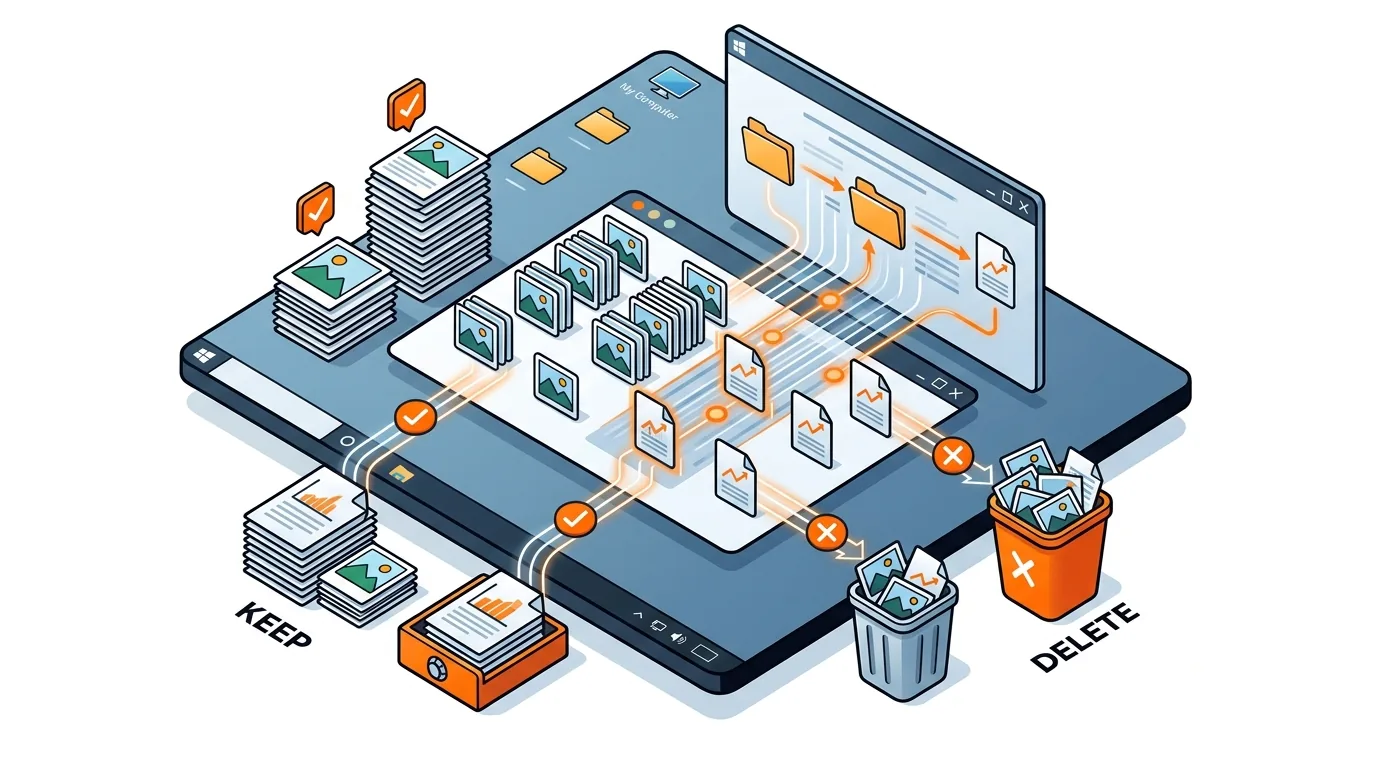
How to Find and Remove Duplicate Files on Windows Safely
Free up storage and speed up file cleanup by finding and removing duplicate files on Windows without deleting the wrong photos, documents, or videos.

Learn how to clean a bloated Downloads folder safely so you can free up storage, find important files faster, and avoid deleting something you still need.
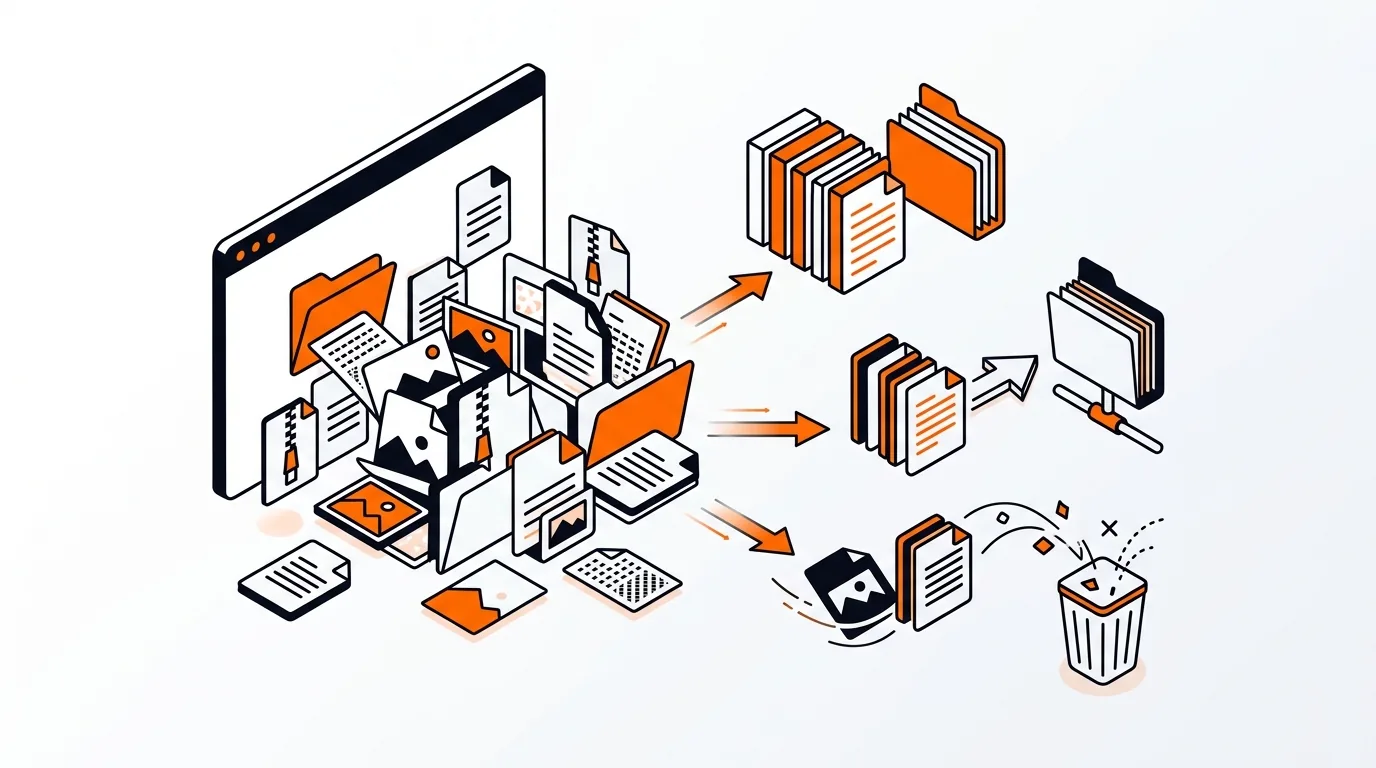
If your computer keeps warning you about low storage, your Downloads folder may be doing more damage than you realize. Learning how to clean a bloated Downloads folder can quickly recover space, reduce clutter, and make it easier to find the files you actually need.
The good news is that you do not need special software to do this safely. Below, you will learn how to review large downloads, separate important files from junk, and avoid deleting installers, PDFs, or photos you still plan to use.
The Downloads folder is one of the easiest places for digital clutter to build up because web browsers, email attachments, software installers, and exported documents often land there automatically. Over time, it can collect duplicate files, old ZIP archives, outdated app installers, and large videos you only needed once.
Unlike folders such as Documents or Pictures, Downloads often becomes a temporary holding area that never gets cleaned out. That means even a few months of neglected downloads can take up several gigabytes of storage on a Windows PC or Mac.
If your Downloads folder fills up again within days or weeks, check which apps are saving files there automatically. Web browsers, email programs, messaging apps, and meeting software may all be using Downloads as the default save location. You may want to change those save settings or start saving large files directly to Documents, an external drive, or cloud storage. If your computer is still low on space after a Downloads folder cleanup, a broader hard drive storage audit can help identify larger issues such as video files, backups, or app data stored elsewhere.
Not always. Many files in Downloads are temporary, but some may be important documents, installers, or photos you have not moved yet. Review the folder carefully before deleting anything, especially larger files you do not immediately recognize.
Common space-hogging files include videos, ZIP archives, software installers, disk images, exported presentations, and duplicate downloads. Sorting by size is the fastest way to find them.
Usually, you can delete installer files after installation if the app is working correctly. However, if it is a hard-to-find program, a printer driver, or software you may need to reinstall without downloading again, move the installer to a labeled backup folder instead of deleting it.
Need help organizing files or freeing up storage safely? Call 247TechTeam at 888-549-0702 or request a secure remote session.
Our technicians can help remotely.
Free up storage and speed up file cleanup by finding and removing duplicate files on Windows without deleting the wrong photos, documents, or videos.
Learn how to fix an Outlook mailbox full warning by finding oversized items, emptying hidden clutter, and reducing mailbox size without losing important email.
A corrupted browser cache can cause pages to load wrong or not at all; this guide shows how to clear it safely and restore normal browsing fast.

Please sign in or create an account to interact with this article.