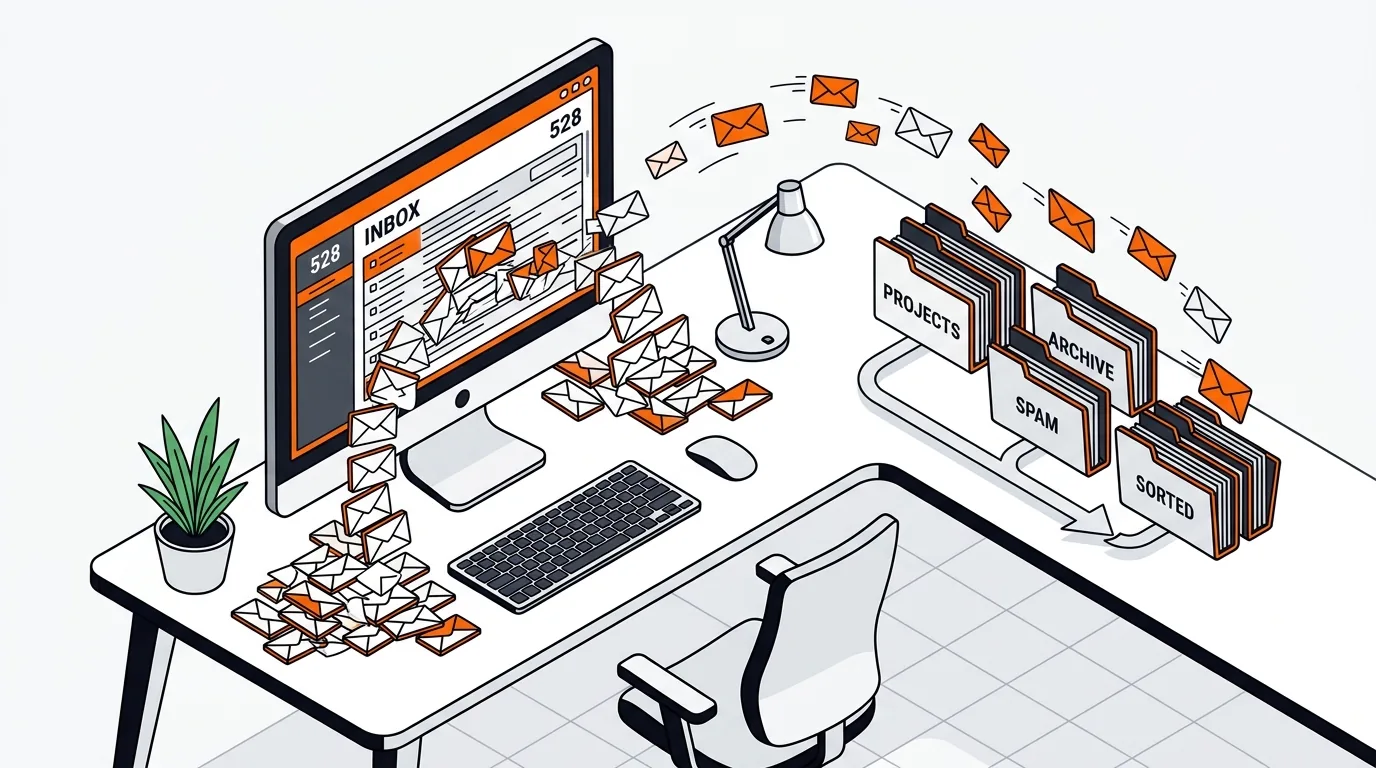
How to Fix Outlook Mailbox Full Without Deleting Emails
Learn how to fix an Outlook mailbox full warning by finding oversized items, emptying hidden clutter, and reducing mailbox size without losing important email.

Free up storage and speed up file cleanup by finding and removing duplicate files on Windows without deleting the wrong photos, documents, or videos.

If your PC keeps warning that storage is low, duplicate files may be taking up far more space than you realize. Repeated downloads, copied photo folders, synced cloud files, and backup imports can leave you with multiple copies of the same file scattered across your drive. In this guide, you’ll learn how to remove duplicate files on Windows safely so you can recover space without accidentally deleting something important.
Duplicate files often build up slowly. You might save the same email attachment more than once, import phone photos into different folders, or download a file again because you can’t find the original. Cloud services can also create extra copies during sync conflicts, sometimes adding words like “copy” or “conflicted” to the file name.
Windows does not include a one-click duplicate remover in File Explorer, so the clutter tends to grow unnoticed. The biggest risk is not the duplicates themselves, but deleting the wrong version. That’s why a safe duplicate file cleanup Windows process should start with review, backup awareness, and sorting by folder, size, and date.
If duplicate files return every few weeks, the cause is usually a habit or sync issue rather than a one-time mess. Watch for repeated imports from your phone, multiple backup locations, browser downloads saved again instead of opened, or cloud sync conflicts in OneDrive, Google Drive, or Dropbox. A simple file organization system with one main photo folder, one downloads review routine, and one backup method can prevent duplicate buildup. If you’re not sure why duplicates keep appearing, 247TechTeam can help trace the source and clean things up safely.
Windows can help you search and sort files, but it does not have a built-in duplicate finder that removes matching files automatically. You can still remove duplicate files on Windows using File Explorer by comparing names, sizes, dates, and folder locations carefully.
Yes, but only after you confirm they are true duplicates. Photos may look the same but have different edits, resolutions, or metadata. Always preview them first and delete through the Recycle Bin so you can restore a file if needed.
Be especially careful with documents, project files, accounting records, and anything stored in cloud-synced folders. Files with similar names can be different versions. If you are unsure, move them to a review folder first instead of deleting them immediately.
Need help cleaning up duplicate files or checking what is safe to remove? Call 247TechTeam at 888-549-0702 or request a secure remote session.
Our technicians can help remotely.
Learn how to fix an Outlook mailbox full warning by finding oversized items, emptying hidden clutter, and reducing mailbox size without losing important email.
A corrupted browser cache can cause pages to load wrong or not at all; this guide shows how to clear it safely and restore normal browsing fast.
Learn how to clean a bloated Downloads folder safely so you can free up storage, find important files faster, and avoid deleting something you still need.



Please sign in or create an account to interact with this article.