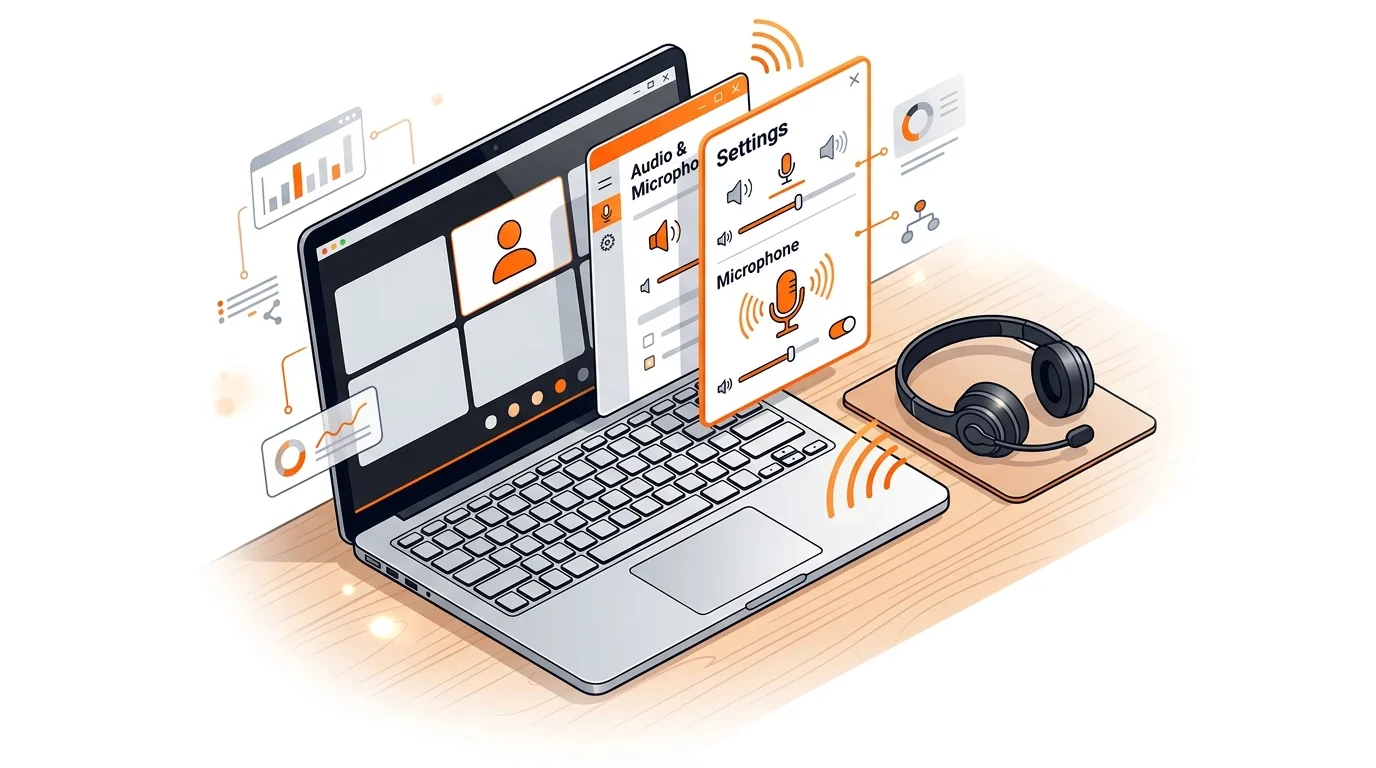
How to Fix Zoom Microphone Not Working on Windows
Get Zoom audio working again with clear, step-by-step fixes for microphone permission, device selection, drivers, and app conflicts on Windows.

If Chrome keeps closing, freezing, or crashing on Windows 11, these step-by-step fixes can help you restore stable browsing without a full PC reset.
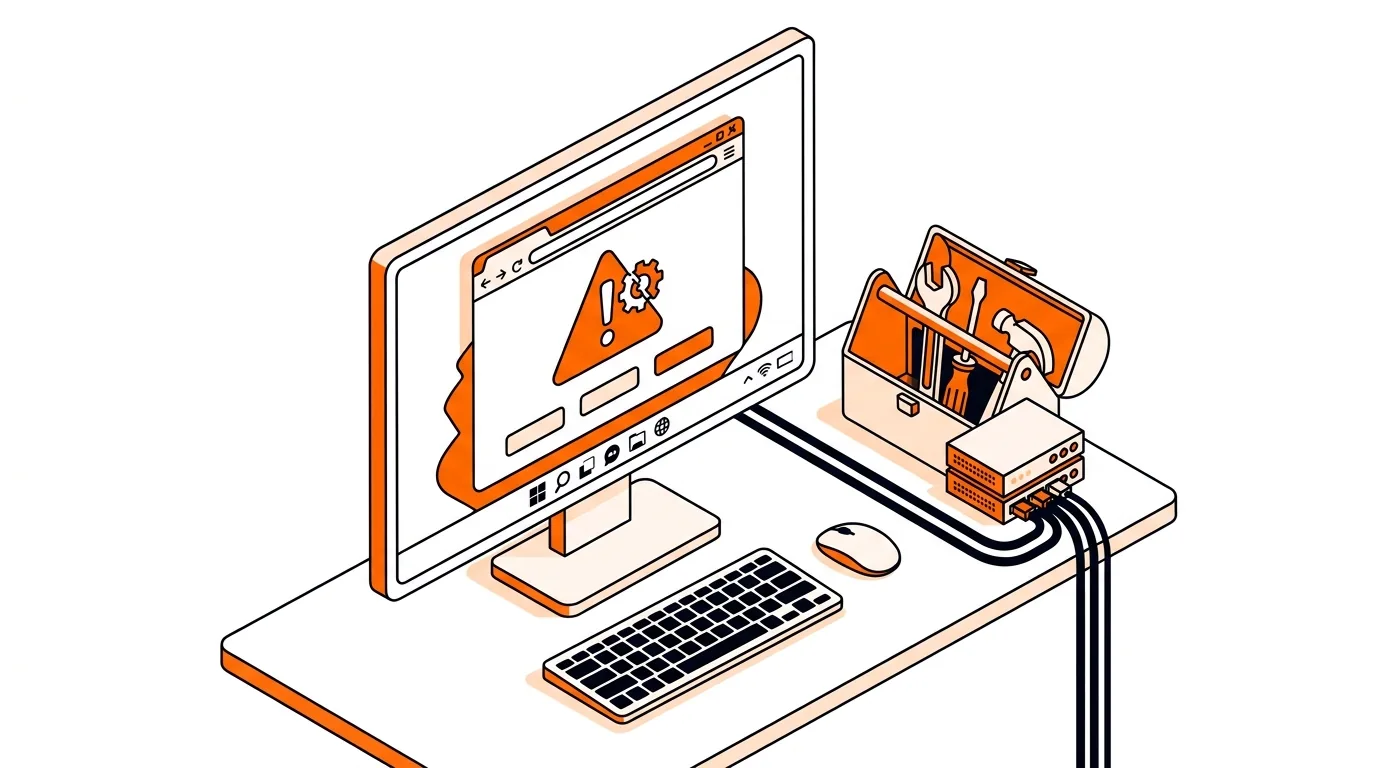
When Chrome crashes over and over on Windows 11, even simple tasks like checking email or opening tabs can become frustrating fast. If Chrome keeps crashing on Windows 11, the cause is often a damaged browser profile, conflicting extension, outdated graphics component, or corrupted app files—and the good news is that you can usually fix it without reinstalling Windows.
In this guide, you will learn the most effective steps to stop Chrome from freezing, closing unexpectedly, or crashing at launch. Start at the top and work through the fixes in order until the browser is stable again.
Chrome relies on several moving parts to run smoothly, including your user profile, extensions, graphics acceleration, background processes, and Windows system files. If any of those become corrupted or incompatible after an update, Chrome may start crashing when you open it, load certain websites, or use multiple tabs.
On Windows 11, browser crashes can also be triggered by security software conflicts, low available memory, or an outdated video driver. That is why the best approach is to test one possible cause at a time instead of jumping straight to a full reinstall.
If Chrome works for a while and then starts crashing again, look for a pattern. It may only happen after installing a new extension, using a specific antivirus setting, visiting one site, or resuming from sleep mode. In that case, test with a new Windows user account and keep only essential extensions enabled. If you want hands-on help identifying the exact cause, 247TechTeam can walk through the issue with you remotely and help stabilize your browser safely.
This usually points to a corrupted user profile, a bad extension, or damaged Chrome program files. Start by launching Chrome with extensions disabled, then rename the Default profile folder if needed.
If you sync Chrome with a Google account, your bookmarks should come back after you sign in again. If you do not use sync, back up important bookmarks before uninstalling whenever possible.
Yes, sometimes a security program can interfere with browser files, web filtering, or HTTPS scanning. Before changing security settings, check for antivirus updates and test Chrome after a clean restart. Avoid disabling protection unless you understand the risks and can turn it back on right away.
Still need help? Call 247TechTeam at 888-549-0702 or request a secure remote session for expert assistance fixing Chrome crashes on Windows 11.
Our technicians can help remotely.
Get Zoom audio working again with clear, step-by-step fixes for microphone permission, device selection, drivers, and app conflicts on Windows.
Learn how to fix Microsoft 365 error 0x8004FC12 with clear steps to restore Office activation and get Word, Excel, and Outlook working again.
Fix Outlook error 0x800CCC0E with clear steps to restore sending and receiving, verify server settings, and rule out firewall or profile issues.

Please sign in or create an account to interact with this article.