How to Fix Microsoft 365 Error 0x8004FC12 Fast
Learn how to fix Microsoft 365 error 0x8004FC12 with clear steps to restore Office activation and get Word, Excel, and Outlook working again.

Get Zoom audio working again with clear, step-by-step fixes for microphone permission, device selection, drivers, and app conflicts on Windows.
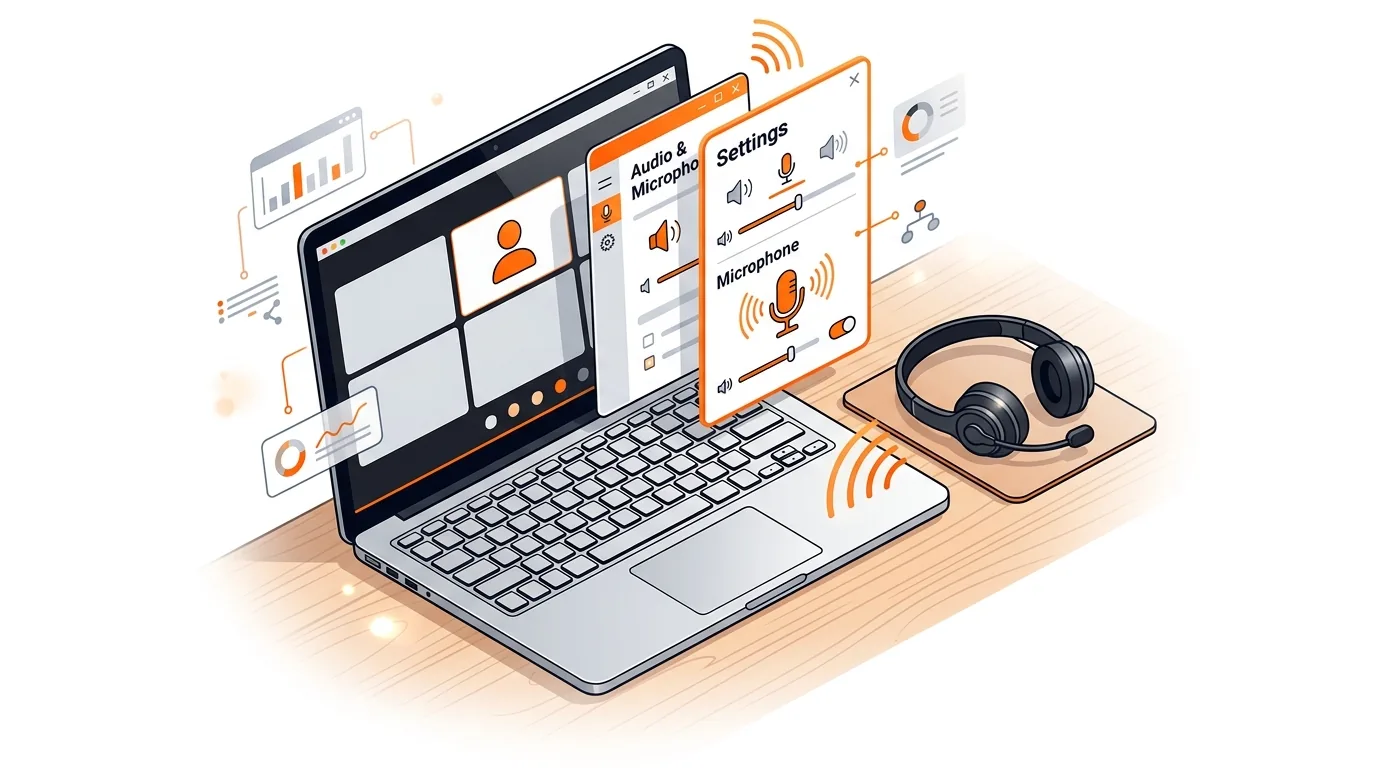
If your mic works everywhere except Zoom, or nobody can hear you during meetings, the issue is usually tied to Windows permissions, Zoom audio settings, or another app taking control of the microphone. The good news is that you can often fix Zoom microphone not working on Windows in just a few minutes without reinstalling your whole system.
In this guide, you will learn the most common causes, the exact checks to run, and the steps that usually restore Zoom audio input on Windows 10 and Windows 11.
When Zoom cannot hear you, the problem is often not the microphone itself. Windows may be blocking microphone access, Zoom may be using the wrong input device, or a headset, webcam, or USB mic may not be fully selected after an update or restart. This is especially common if you switch between built-in laptop audio, Bluetooth earbuds, and USB headsets.
Another common cause is an audio driver glitch or a background app such as Teams, Discord, or a browser tab already using the microphone. In some cases, Zoom audio enhancements or exclusive control settings in Windows can also stop your voice from coming through clearly.
Confirm your microphone works outside Zoom. Open Windows Sound Recorder or the Voice Recorder app and make a short test recording. If your voice plays back normally, the hardware is likely fine and the issue is within Zoom or Windows permissions. If the recording is silent, check your headset cable, USB connection, Bluetooth pairing, or webcam mic first.
Check Windows microphone permissions. On Windows 11, go to Settings > Privacy & security > Microphone. On Windows 10, go to Settings > Privacy > Microphone. Make sure Microphone access is turned on, Let apps access your microphone is enabled, and Zoom is allowed if listed. If these permissions are off, Zoom may open normally but still capture no sound.
Select the correct mic in Zoom. Open Zoom, click the gear icon, then go to Audio. Under Microphone, choose the exact device you want to use instead of leaving it on automatic if you have multiple options. Speak and watch the input level meter. Then click Test Mic to confirm Zoom records and plays your voice back.
Turn off mute settings that are easy to miss. In Zoom, make sure you are not muted in the meeting window. Also check your keyboard for a hardware mute key, your headset inline mute switch, and any webcam or USB microphone mute button. Some headsets stay muted even when Zoom shows the correct device selected.
Set your preferred microphone as the default input in Windows. Go to Settings > System > Sound, then under Input select the microphone you actually want to use. Click it and verify the input volume is not too low. If your system keeps switching devices, disconnect unused audio accessories temporarily, then reopen Zoom and test again.
Close other apps that may be using the mic. Quit Microsoft Teams, Skype, Discord, recording apps, browser-based meeting tabs, and game overlays before launching Zoom. Some programs can hold onto the microphone or change the active input device in the background, which makes Zoom appear broken even though the mic works elsewhere.
Disable exclusive control for the microphone. Press Win + R, type mmsys.cpl, and press Enter. Open the Recording tab, double-click your microphone, then go to Advanced. Uncheck Allow applications to take exclusive control of this device, click Apply, and restart Zoom. This often fixes cases where Zoom cannot access the mic after another app used it first.
Update or reinstall the audio input driver. Right-click the Start button and open Device Manager. Expand Audio inputs and outputs, right-click your microphone, and choose Update driver. If that does not help, choose Uninstall device, restart the PC, and let Windows reinstall it. If you use a USB headset or webcam mic, also check the device maker's support page for a newer Windows driver or firmware.
Update Zoom and reboot the computer. In Zoom, click your profile picture and choose Check for Updates. Install any available update, then restart Windows. A simple reboot can clear stuck audio services and restore a microphone that suddenly stopped working after sleep mode, a Windows update, or docking and undocking a laptop.
If Zoom microphone not working on Windows becomes a repeated issue, the most likely causes are a flaky USB port, unstable Bluetooth audio, outdated chipset or sound drivers, or Windows repeatedly switching to the wrong input device after updates. Keeping one microphone set as the default, disconnecting unused audio devices, and updating Zoom plus your PC audio drivers can make the fix stick. If the issue happens only at work, your company security or device management settings may also be limiting microphone access.
This usually means Zoom is set to the wrong input device, Windows microphone permission for desktop apps is off, or another communication app used the mic first and did not release it. Checking Zoom's Audio settings and disabling exclusive control often solves it.
First, reconnect the headset, webcam, or USB microphone and confirm Windows sees it under Sound input settings. Then open Zoom Audio settings and manually choose that device. If it still does not appear, update the driver in Device Manager and restart the computer.
Reinstalling Zoom can help, but it is usually not the first fix to try. Most microphone problems come from permissions, device selection, mute switches, or driver issues. Reinstall Zoom only after you have tested the microphone in Windows and reviewed both Windows and Zoom audio settings.
Need hands-on help getting your audio working? Call 247TechTeam at 888-549-0702 or request a secure remote session.
Our technicians can help remotely.
Learn how to fix Microsoft 365 error 0x8004FC12 with clear steps to restore Office activation and get Word, Excel, and Outlook working again.
Fix Outlook error 0x800CCC0E with clear steps to restore sending and receiving, verify server settings, and rule out firewall or profile issues.
If your phone or laptop clings to the wrong mesh node, these steps can improve roaming, boost speed, and stop dead-zone frustration.

Please sign in or create an account to interact with this article.