How to Choose Antivirus for One Windows or Mac PC
Learn how to choose antivirus for a home or small-business PC, avoid common setup mistakes, and configure scans, updates, and exceptions safely.

Resolve Microsoft Defender error 0x80070643 with clear steps that restore security updates, repair corrupted files, and help prevent repeat failures.
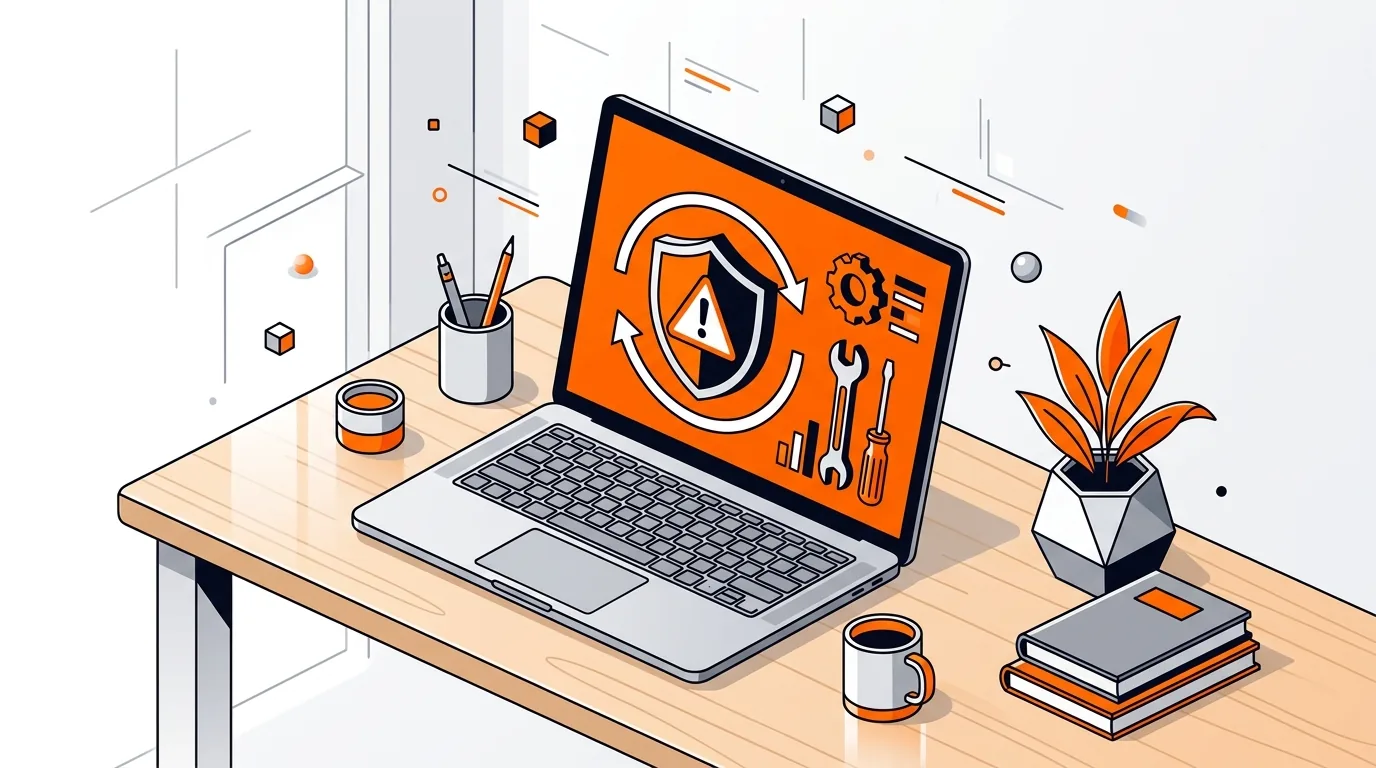
If Microsoft Defender throws error 0x80070643 during an update, it can leave your PC without the latest protection when you need it most. The good news is that this problem is usually tied to corrupted update files, Windows component issues, or a security platform update that did not install correctly, and you can often fix it yourself in under an hour.
Microsoft Defender error 0x80070643 commonly appears when Windows tries to install a Defender intelligence or platform update and something interrupts the process. A damaged Windows Update cache, corrupted system files, a stuck pending update, or interference from another antivirus can all trigger the failure.
In some cases, the error is not caused by Defender itself but by the Windows servicing components that deliver updates in the background. That is why the best fix is usually a combination of checking for antivirus conflicts, repairing Windows files, and resetting the update components in a safe way.
⚠️ Use Safe Mode only if normal uninstall steps fail. Before making changes, save your work and make sure you know your Windows sign-in password. Do not disable Microsoft Defender or any antivirus permanently just to force an update.
If Microsoft Defender error 0x80070643 returns after these fixes, the system may have a deeper Windows servicing problem or leftovers from an old antivirus suite. At that point, it is smart to check your update history for repeated failures, note the exact update name, and get hands-on help before trying advanced repairs. If you want guided assistance, 247TechTeam can help troubleshoot Windows security update errors remotely without the guesswork.
No. Microsoft Defender error 0x80070643 is usually an installation or update failure code, not a sign of malware by itself. It often points to damaged update files, system corruption, or software conflicts.
Yes. Running more than one antivirus product, or leaving behind components from a previously removed security suite, can interfere with Defender services and updates. Keeping only one primary antivirus active is the safest setup for most home users.
No. Deleting the contents of the SoftwareDistribution folder only clears temporary Windows Update files. It does not remove your personal documents, photos, or installed applications, but Windows will need to download update files again afterward.
Need help fixing a stubborn Defender update error? Call 247TechTeam at 888-549-0702 or request a secure remote session.
Our technicians can help remotely.
Learn how to choose antivirus for a home or small-business PC, avoid common setup mistakes, and configure scans, updates, and exceptions safely.
Learn how to fix a Microsoft Defender scan stuck at 0% so you can restore protection, complete scans successfully, and rule out software conflicts.
If Microsoft Defender security intelligence will not update, these steps can clear corrupted files, restart key services, and restore real-time protection.



Please sign in or create an account to interact with this article.