Windows Security Settings to Check After Setup
Learn which Windows Security app settings are worth reviewing after setup so your PC keeps stronger built-in protection with fewer surprises.

Learn how to fix the Windows 11 Driver Power State Failure blue screen with clear steps to update drivers, repair power settings, and stop repeat crashes.
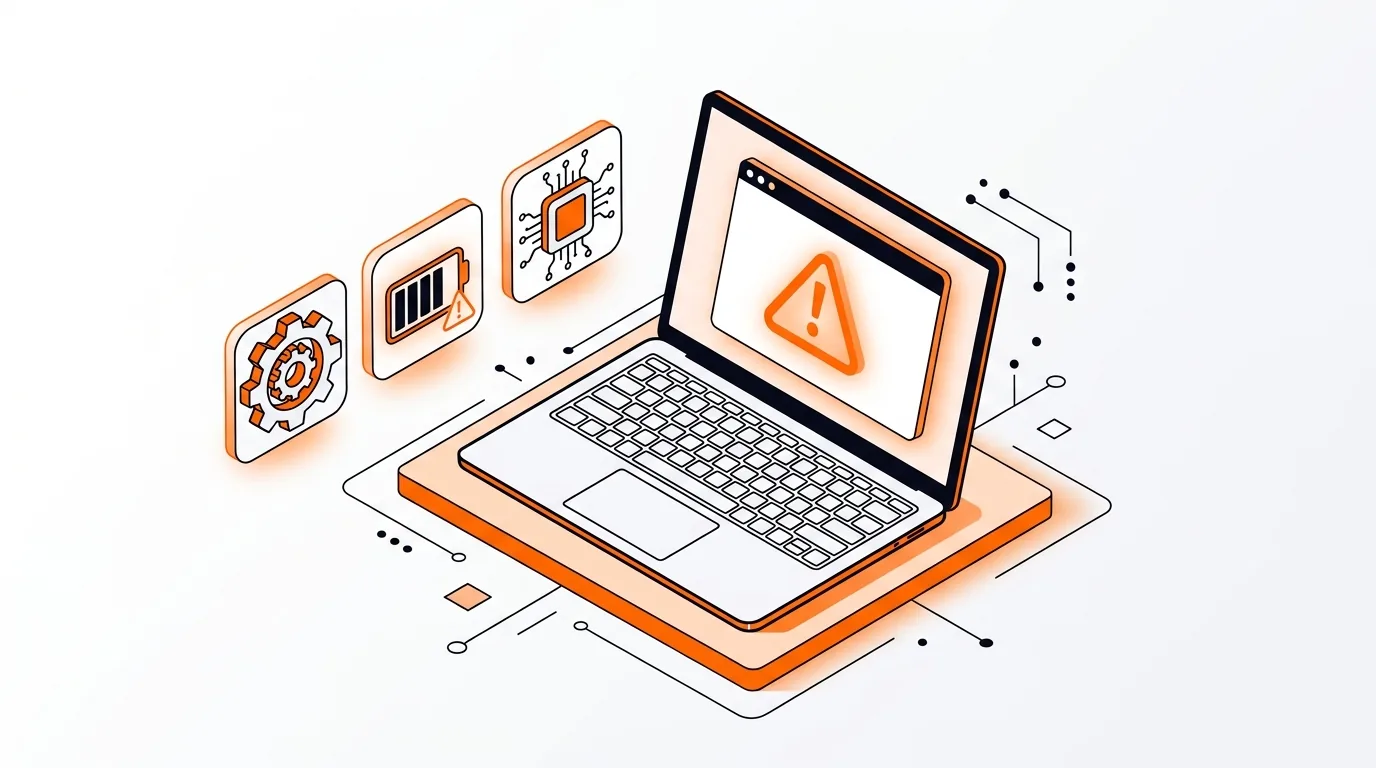
A sudden blue screen with the DRIVER_POWER_STATE_FAILURE message can be frustrating, especially if it happens when your PC wakes from sleep, shuts down, or switches between battery and power. The good news is that this Windows 11 driver problem is often tied to one faulty driver or power-management setting, and you can usually fix it without reinstalling Windows.
In this guide, you will learn why the Windows 11 Driver Power State Failure error appears, how to troubleshoot it step by step, and what to do if it keeps returning.
The Windows 11 Driver Power State Failure blue screen usually appears when Windows tells a device to change power states, such as going to sleep, waking up, restarting, or shutting down, and the device driver does not respond correctly. Common causes include outdated graphics, Wi-Fi, Bluetooth, storage, or chipset drivers.
It can also happen after a major Windows update, after installing new hardware, or when power settings conflict with a device driver. In many cases, the computer works normally until a sleep or restart event triggers the crash.
⚠️ Use Safe Mode only if normal startup is unstable. It loads limited drivers and features, so be careful not to remove hardware or drivers unless you are confident they are related to the problem.
If Windows 11 Driver Power State Failure continues after updating and rolling back drivers, check your computer manufacturer's support page for a BIOS or firmware update designed for your exact model. Firmware updates can improve power management and hardware compatibility, but they should be installed carefully and only from the official manufacturer source. If you are not sure which driver is failing, professional troubleshooting can save time and prevent more crashes.
The most common causes are graphics, Wi-Fi, Bluetooth, chipset, and storage drivers. On laptops, wireless and graphics drivers are frequent triggers because they are heavily involved in sleep and wake transitions.
Yes, but less often. In most cases, this error points to a driver or power-management conflict rather than failing memory. If driver fixes do not help, hardware diagnostics may be the next step.
Usually no. Reinstalling Windows is a last resort. Most people can fix the problem by updating, rolling back, or reconfiguring the driver that fails during sleep, wake, shutdown, or restart.
Need help tracking down a stubborn blue screen? Call 247TechTeam at 888-549-0702 or request a secure remote session.
Our technicians can help remotely.
Learn which Windows Security app settings are worth reviewing after setup so your PC keeps stronger built-in protection with fewer surprises.
Learn how to fix the Windows 11 INACCESSIBLE_BOOT_DEVICE error with clear steps to restore startup, check disk health, and get your PC booting again.
Learn how to fix Windows 11 update error 0x800f081f with clear steps that repair system files and get cumulative updates installing again.

Please sign in or create an account to interact with this article.