
How to Fix Windows 11 Update Error 0x800f081f
Learn how to fix Windows 11 update error 0x800f081f with clear steps that repair system files and get cumulative updates installing again.

Learn how to fix the Windows 11 INACCESSIBLE_BOOT_DEVICE error with clear steps to restore startup, check disk health, and get your PC booting again.
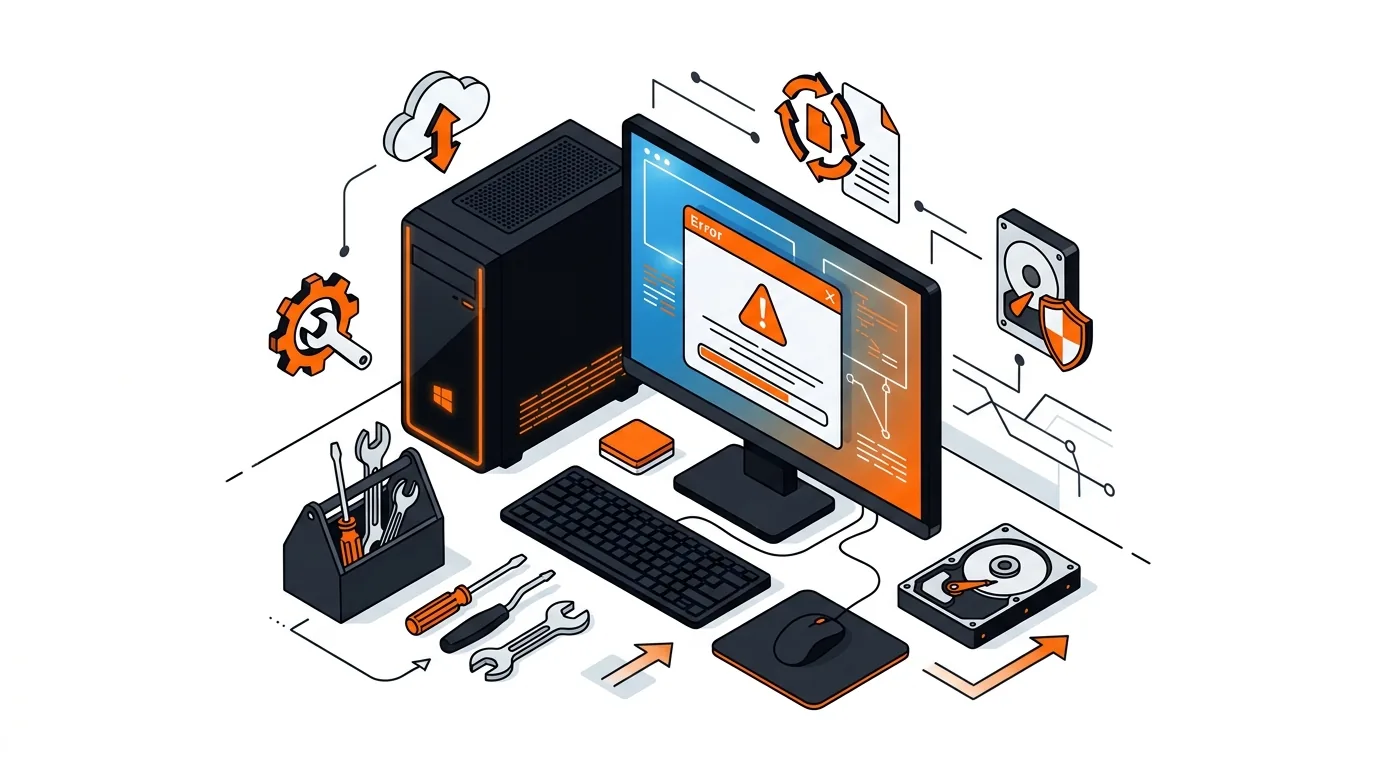
A blue screen right after you power on your PC can be alarming, especially when it shows the Windows 11 INACCESSIBLE_BOOT_DEVICE error. This problem usually means Windows cannot properly reach the drive it needs to start, but in many cases you can fix it without replacing your computer. In this guide, you will learn the most common causes and the safest step-by-step fixes to get Windows loading again.
The Windows 11 INACCESSIBLE_BOOT_DEVICE error typically appears when Windows loses access to the system drive during startup. That can happen after a failed update, storage driver corruption, BIOS or UEFI setting changes, file system errors, or a damaged boot configuration.
It can also happen if the SSD or hard drive is starting to fail, or if the PC was interrupted during an update or repair process. The good news is that you can often narrow down the cause by using Windows Recovery tools and a few built-in commands.
⚠️ Safe Mode is a useful diagnostic tool, but only remove software or drivers you recognize. If you are unsure what a driver does, stop and get help before uninstalling it.
diskpart, then list volume, then exit. Once you know the Windows drive letter, run chkdsk C: /f /r replacing C: if needed. After that, run sfc /scannow /offbootdir=C:\ /offwindir=C:\Windows. These tools check for file system corruption and damaged Windows files.If you can temporarily boot but the Windows 11 INACCESSIBLE_BOOT_DEVICE error returns after updates or restarts, focus on storage drivers, firmware updates from your PC or motherboard manufacturer, and the health of the SSD or hard drive. Repeated boot-device errors often point to a deeper hardware issue or a damaged Windows installation, so it is smart to back up your files before the problem gets worse.
Yes. A failed or incomplete update can damage boot files, change storage drivers, or leave pending changes that prevent Windows from accessing the startup drive. That is why uninstalling the latest update is often an effective fix.
Sometimes. Startup Repair can resolve missing or damaged boot files, but it may not fix driver conflicts, firmware setting changes, or physical drive problems. If Startup Repair does not work, the other steps in this guide can help narrow down the cause.
It can be. If the blue screen happens repeatedly, the system freezes during disk checks, or drive diagnostics show warnings, the SSD or hard drive could be failing. Back up important data right away and consider professional help if you are not comfortable testing or replacing the drive.
Need help getting your PC to start again? Call 247TechTeam at 888-549-0702 or request a secure remote session for hands-on support.
Our technicians can help remotely.
Learn how to fix Windows 11 update error 0x800f081f with clear steps that repair system files and get cumulative updates installing again.
Learn how to fix Wi-Fi connected but no internet on Windows with clear steps that restore browsing, apps, and updates without advanced tools.
Learn how to fix Windows Update error 0x800f081f with built-in repair tools and simple checks so updates install again without resetting your PC.


Please sign in or create an account to interact with this article.