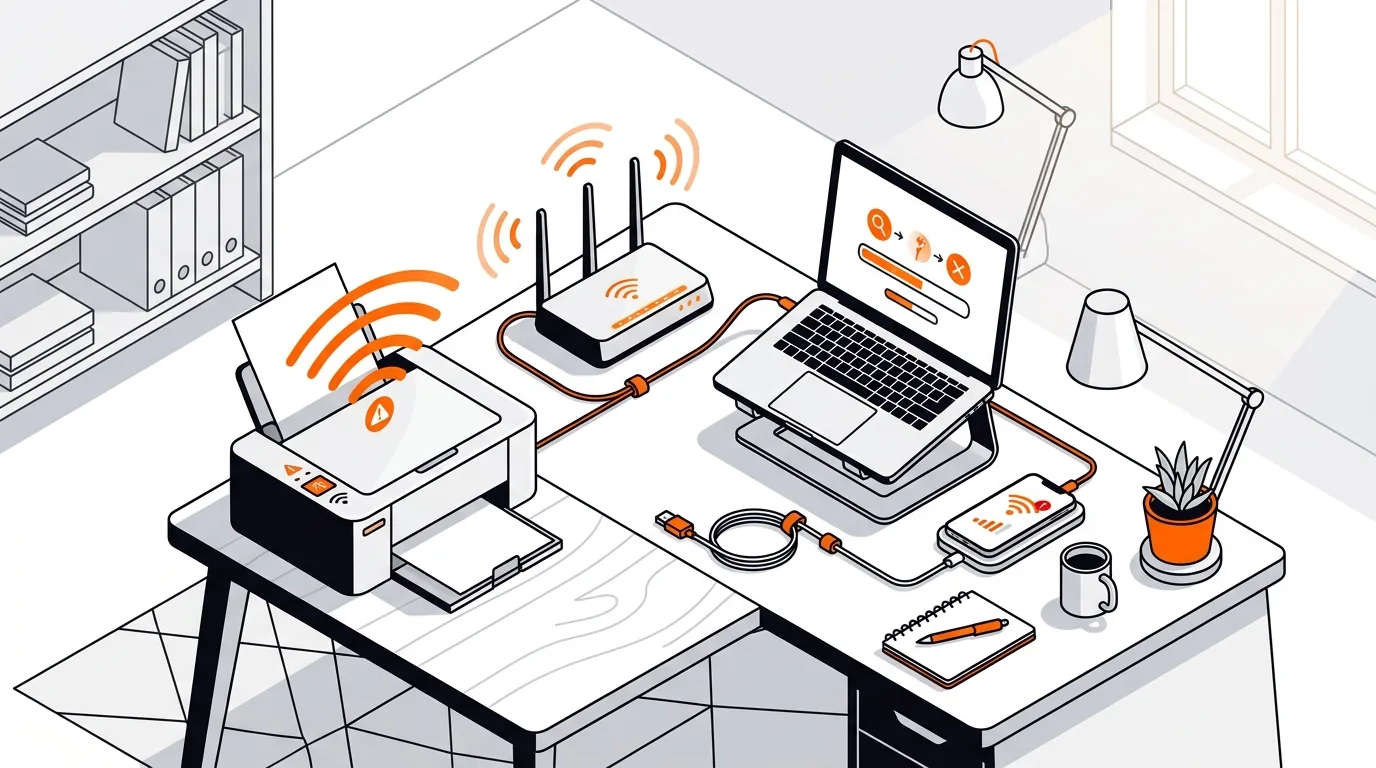
How to Fix a Wireless Printer That Keeps Going Offline
Stop repeated offline errors by fixing the most common Wi-Fi printer connection issues on Windows and Mac with clear steps you can follow at home.

Get your printer working again by fixing a print spooler service that keeps stopping, with clear Windows steps to restore reliable printing.
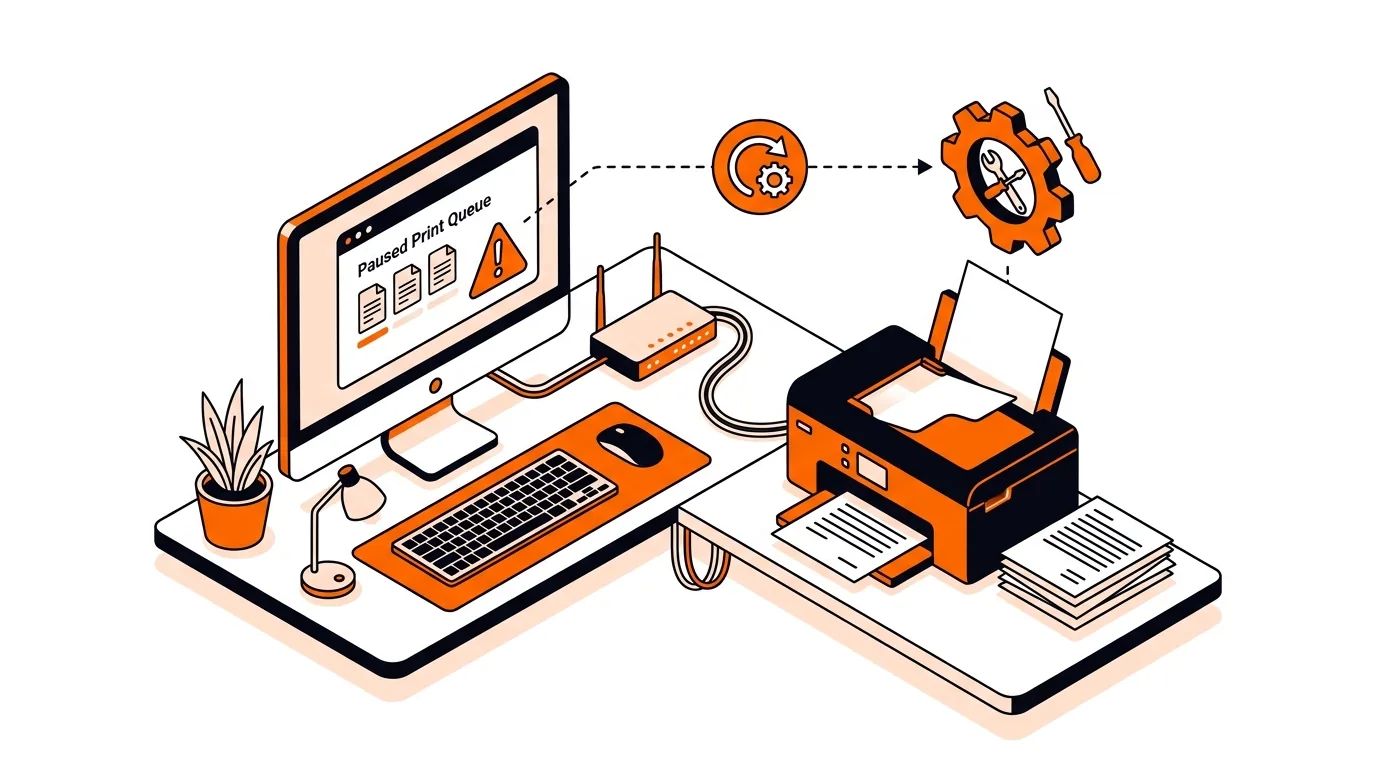
If your printer suddenly stops working and Windows shows spooler-related errors, the issue may be the service that manages print jobs in the background. When the printer spooler service keeps stopping, documents can get stuck, printers may disappear, or nothing prints at all. This guide walks you through practical steps to get printing back and reduce repeat failures.
The Print Spooler is a Windows service that stores and sends print jobs to your printer. If it crashes or shuts down repeatedly, it is often because of a corrupted print job, damaged driver files, a conflict from old printer software, or a Windows service dependency problem.
In many home and office setups, the most common cause is a bad item stuck in the print queue. But if the printer spooler service keeps stopping every time you try to print, the root cause can also be an outdated or broken printer driver that needs to be reinstalled cleanly.
If the printer spooler service keeps stopping after every reboot or every large print job, the issue is usually deeper than a simple queue problem. A damaged driver package, a third-party print utility, or a Windows profile issue may still be triggering the crash. In that case, it can help to test with another user account, install the printer with a manufacturer driver instead of a generic one, or get hands-on help before making bigger system changes.
Windows relies on the Print Spooler service to manage installed printers and active print jobs. If the service crashes, printers may appear unavailable, offline, or missing until the service is restarted.
Yes. A corrupted, outdated, or incompatible driver is one of the most common reasons for spooler failures. Reinstalling the latest driver from the printer manufacturer is often the most effective long-term fix.
Yes, but only when the Print Spooler service is stopped and only for files inside C:\Windows\System32\spool\PRINTERS. Those files are temporary print jobs. Do not delete other folders or system files in the Windows directory.
If you would like an expert to fix the issue for you, call 247TechTeam at 888-549-0702 or request a secure remote session.
Our technicians can help remotely.
Stop repeated offline errors by fixing the most common Wi-Fi printer connection issues on Windows and Mac with clear steps you can follow at home.
If your network printer suddenly prints blank pages, this guide walks you through the fastest fixes to restore normal printing without wasting paper or ink.
Learn how to restore a missing printer driver after a Windows update so your printer comes back online and starts printing again without guesswork.

Please sign in or create an account to interact with this article.