Virus vs Malware: What Home Users Need to Know
Confused by virus warnings and malware alerts? This guide explains the plain-English differences and the safest first steps for Windows and Mac users.

Reduce infection risk before files move onto your computer.
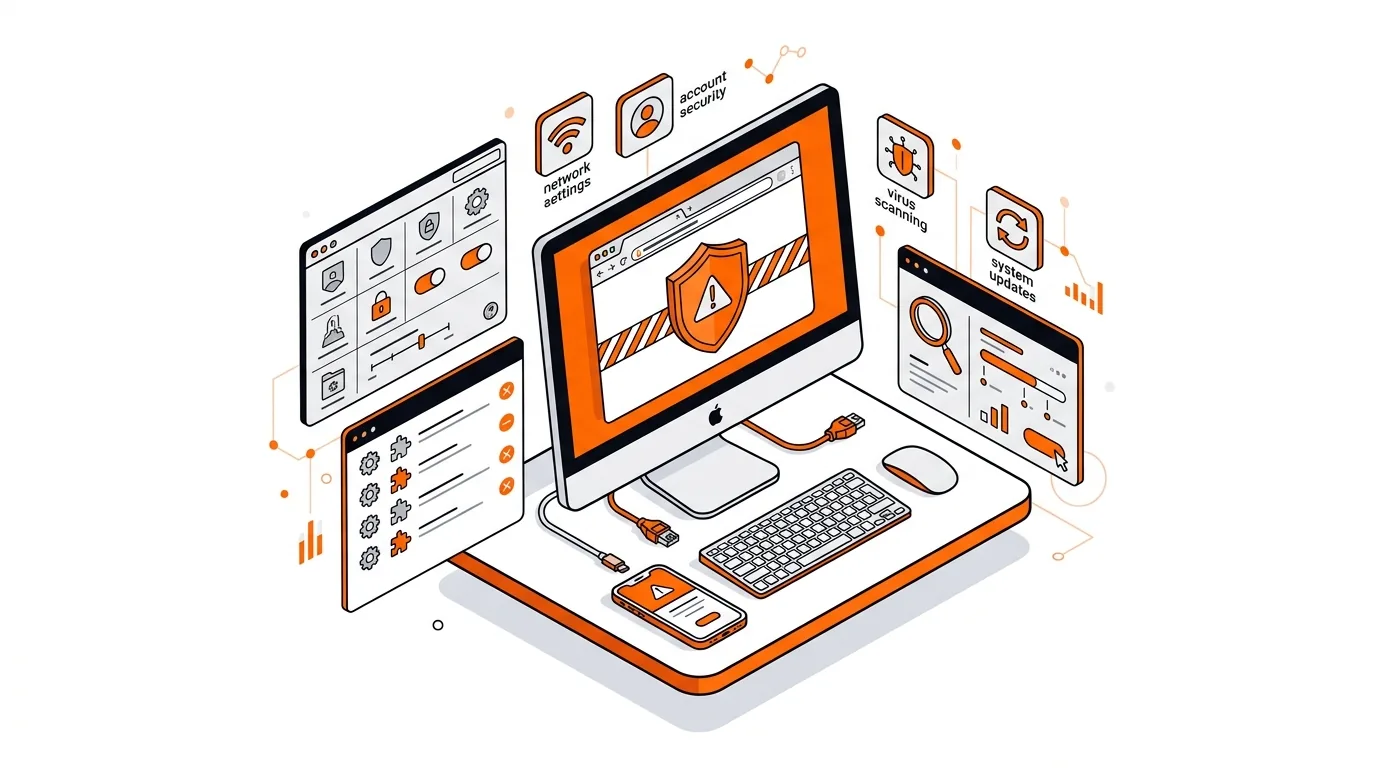
USB flash drives, external hard drives, and memory cards are still common ways to move files between computers. They are also an easy path for malware when a drive has been used on a shared, older, or already infected device.
If you regularly bring files home from work, school, clients, or a print shop, it helps to treat removable media with caution. A few simple habits can help you scan USB drives for malware before files are opened and reduce the chance of infecting your Windows PC or Mac.
Malware does not need email or a website to reach a computer. A USB drive can carry infected documents, fake installers, harmful shortcuts, or files that look normal at first glance. The risk is higher when the drive has passed through several people or has been connected to an untrusted computer.
Home users often run into this after borrowing a flash drive or plugging in an old backup drive they have not checked in years. Small businesses see it when staff move files between front-desk systems, personal laptops, and office computers without a standard process.
Not every suspicious drive contains malware, but scanning first is a safer habit than opening files right away.
The safest time to check a removable drive is immediately after connecting it and before opening folders, launching files, or copying anything to your computer. If the drive belongs to someone else, ask what is on it and whether it has been used on a computer that recently had pop-ups, browser redirects, or antivirus warnings.
On shared office devices, it is also smart to limit who can connect removable media. Even a simple written rule can help: no unknown USB drives, and every drive gets scanned before use.
Windows includes built-in protection through Microsoft Defender on most systems. If your PC has another reputable antivirus product installed, use its custom or right-click scan option for the removable drive.
To scan with Windows security tools, open File Explorer, locate the USB drive, right-click it, and look for a scan option from your security software. On many systems, you can also open Windows Security and run a custom scan that targets the removable drive.
If the antivirus flags something, do not ignore it just because the file came from a friend or coworker. Quarantine the item if your security software recommends it, then confirm the original source before restoring anything. If you need help checking an infected flash drive or cleaning up a suspicious PC afterward, 247TechTeam offers Virus & Malware Assistance and general Windows Computer Support.
Mac computers can also receive harmful files through removable media, especially fake installers, infected documents, or files meant to be forwarded to other devices. While some malware targets Windows only, a Mac user can still store, share, or accidentally open unsafe content.
Start by connecting the drive and reviewing its contents in Finder without launching anything unfamiliar. If you use security software on your Mac, run a manual scan of the drive before opening files. For software packages, disk images, or apps copied from the drive, be extra careful about where they came from.
If your Mac begins showing browser redirects, fake cleanup prompts, or unwanted search changes after using a USB drive, review other Virus Removal articles and consider hands-on help through Mac Computer Support.
Sometimes the drive itself gives clues before a scan finishes. Unexpected behavior does not prove infection, but it should make you slow down and check more carefully.
If any of these happen, avoid copying files back and forth until you know what is going on. On a business computer, tell the person responsible for IT support right away so the drive does not move to additional systems.
Good virus protection is not only about cleaning threats after they arrive. It also means reducing the number of chances malware gets to move from one device to another.
A few practical steps go a long way for homes and small offices:
For small businesses, it also helps to create a simple removable-media rule: scan first, open second, and report anything unusual. That routine is easy to teach and can prevent a lot of cleanup later.
In many cases, infection still requires a file to be opened or run, but you should not assume every drive is harmless. Security settings, outdated software, and malicious files can increase risk, so it is best to scan the drive before using it.
Formatting can remove files, but it should not be your first step if the drive contains important data. Scan it first, identify what is suspicious, and make sure you are not deleting needed files without a backup. If the drive is disposable or fully backed up, formatting may be part of cleanup, but confirm the situation carefully.
Macs are not immune to unsafe files on removable media. Some threats may target Windows, but a Mac can still store, pass along, or be affected by malicious installers, scripts, or browser-related files. The safest approach is to inspect and scan removable media before opening files on any computer.
If a USB drive seems suspicious or your computer started acting strangely after you plugged one in, call 247TechTeam at 888-549-0702 or start a secure remote session.
Our technicians can help remotely.
Confused by virus warnings and malware alerts? This guide explains the plain-English differences and the safest first steps for Windows and Mac users.
Learn how to remove Search Marquis from your Mac browser and stop unwanted redirects by checking profiles, login items, extensions, and settings.
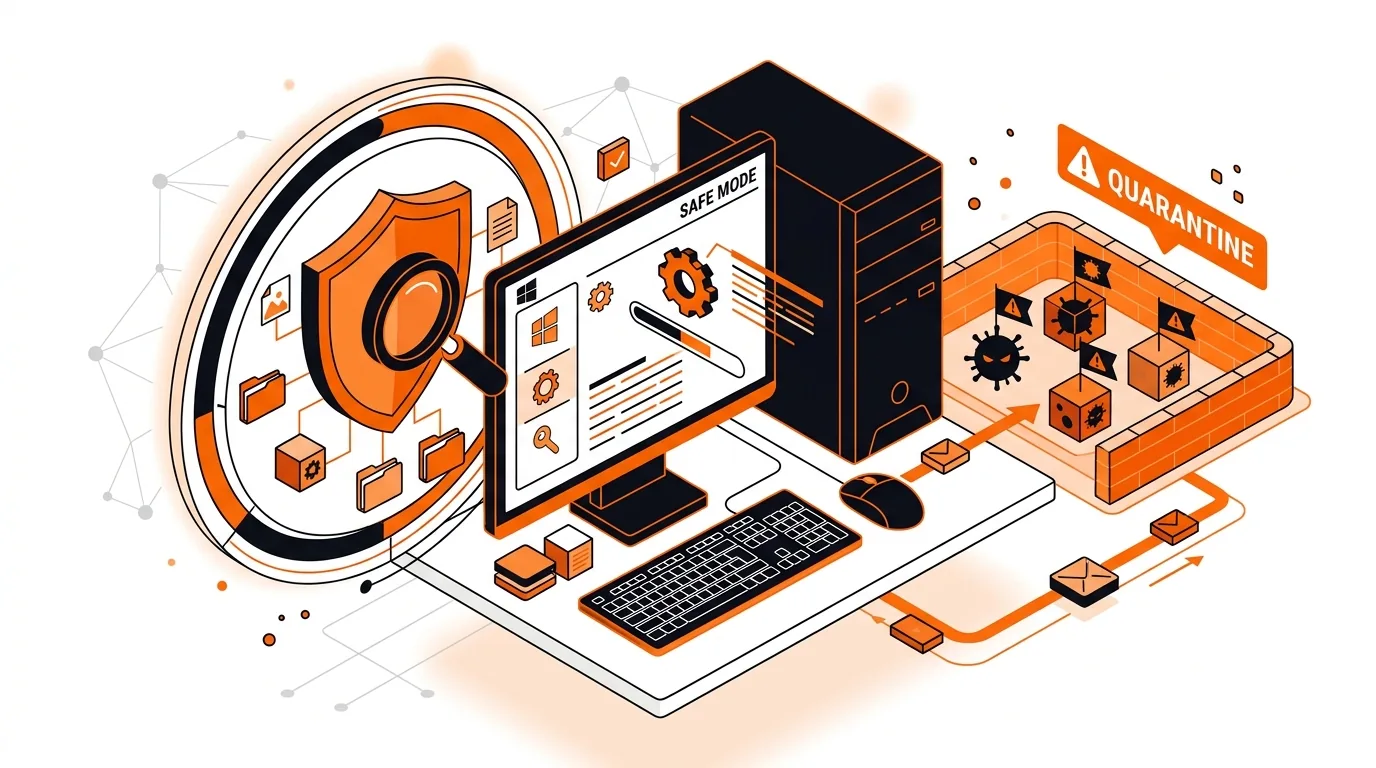
Learn how to remove a Trojan using Windows Safe Mode so you can stop suspicious processes, scan hidden files, and restore normal PC performance.

Please sign in or create an account to interact with this article.