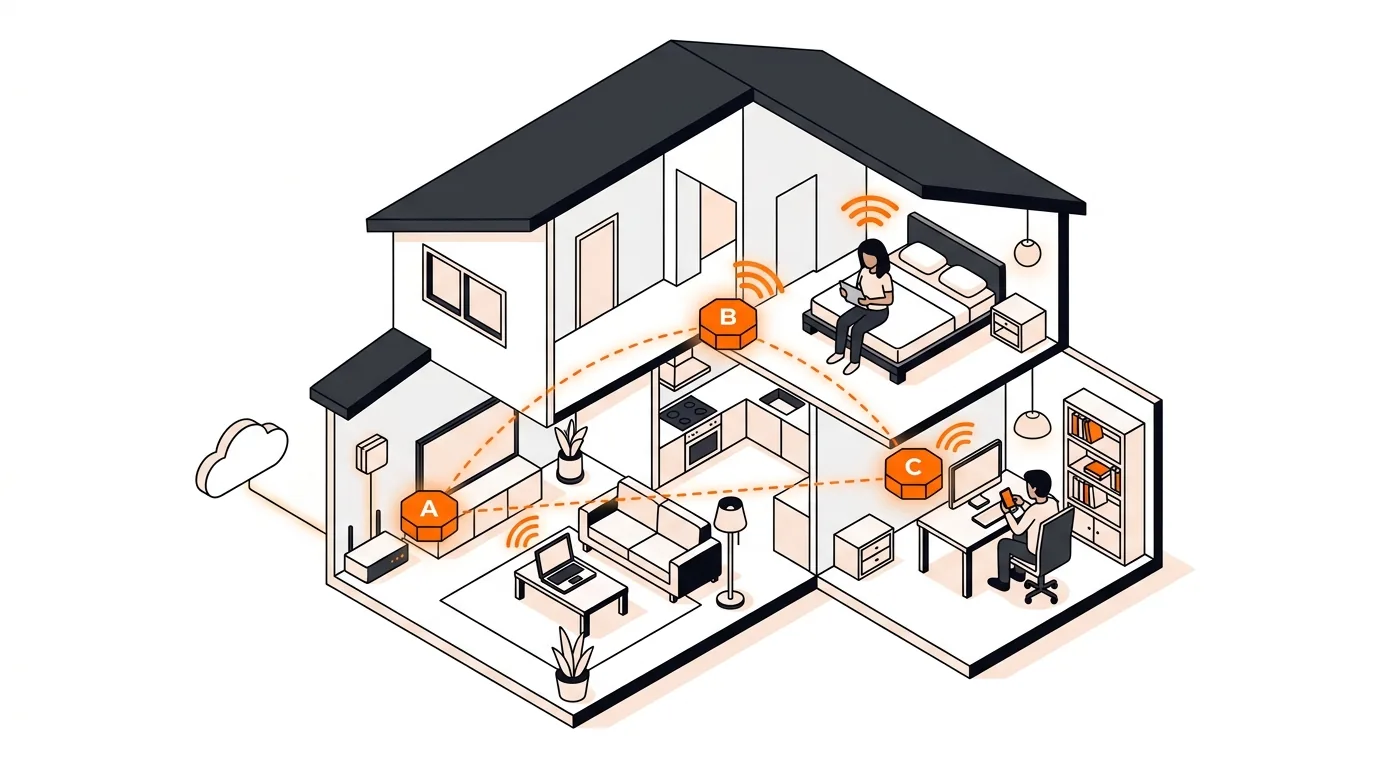
Mesh Wi-Fi Keeps Roaming Wrong? Fix Sticky Device Issues
If your phone or laptop clings to the wrong mesh node, these steps can improve roaming, boost speed, and stop dead-zone frustration.

If your Wi-Fi is slow on one device but fine on others, these targeted fixes can restore speed quickly without guessing or buying new hardware.

When your whole network feels fine except for one laptop or desktop, the problem usually is not your internet plan. If your Wi-Fi is slow on one device, the cause is often a band setting, outdated driver, power-saving feature, or local interference. This guide walks you through the most effective fixes for Windows and Mac so you can get that one problem device back up to speed.
A single device can develop a Wi-Fi bottleneck even when every other phone, tablet, or TV works normally. That usually means the router is doing its job, but the affected device is connecting on the wrong band, using an old wireless standard, or struggling with software settings that limit performance.
Another common issue is device-specific interference. Bluetooth accessories, USB 3.0 hubs, VPN apps, background cloud sync, and even the spot where you use the computer can cut speed on one machine while the rest of the network stays fast. The goal is to isolate whether the slowdown comes from the device, the Wi-Fi connection, or software running on that computer.
If your Wi-Fi is slow on one device again and again, there may be a deeper hardware or compatibility issue with that computer's wireless adapter. It can also point to a router setting that one device handles poorly, such as crowded channels, older security modes, or steering between 2.4 GHz and 5 GHz. At that point, it helps to document when the slowdown happens, whether it affects only one room, and whether it started after an update, new accessory, or software install. That information makes advanced troubleshooting much faster.
Usually the affected device is using the wrong band, has an outdated wireless driver, is stuck with a bad network profile, or is running software that eats bandwidth in the background. Because other devices are fast, the issue is often local to that one computer rather than your internet plan.
Use 5 GHz when you are fairly close to the router and want better speed. Use 2.4 GHz when you are farther away or have walls in the way. If speed drops in one room, testing both bands is one of the fastest ways to see whether range or congestion is the real problem.
Probably not. If the rest of your devices work well, replacing the router is usually not the first answer. Start with driver updates, band changes, network reset steps, and checks for VPN or sync activity on the slow device. Only consider hardware replacement after you rule out device-specific causes.
Need help tracking down a stubborn one-device Wi-Fi problem? Call 247TechTeam at 888-549-0702 or request a secure remote session.
Our technicians can help remotely.
If your phone or laptop clings to the wrong mesh node, these steps can improve roaming, boost speed, and stop dead-zone frustration.
If your device shows Wi-Fi connected but pages will not load, these step-by-step fixes can restore internet access without replacing your router.
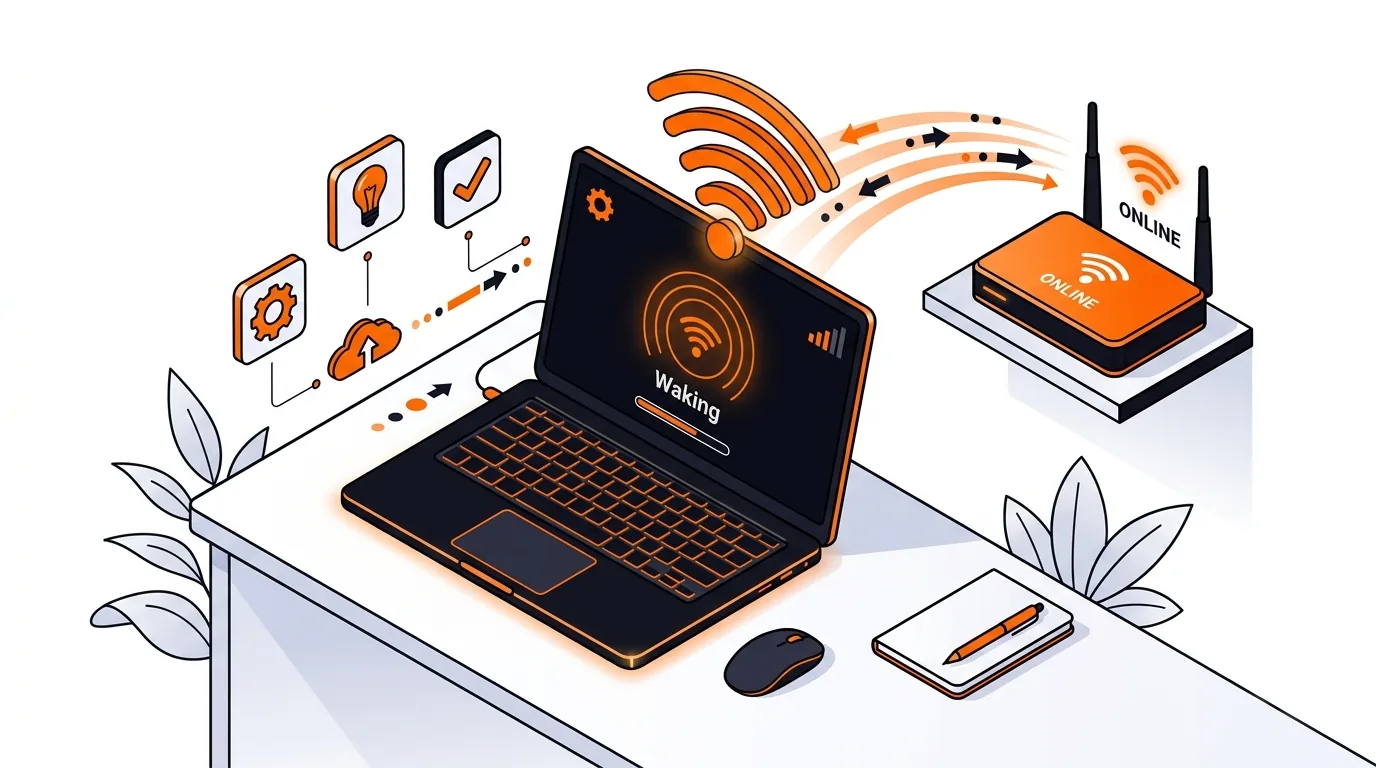
Stop Wi-Fi disconnects after sleep on your laptop with a few targeted fixes that improve reconnect speed and prevent repeat dropouts.


Please sign in or create an account to interact with this article.