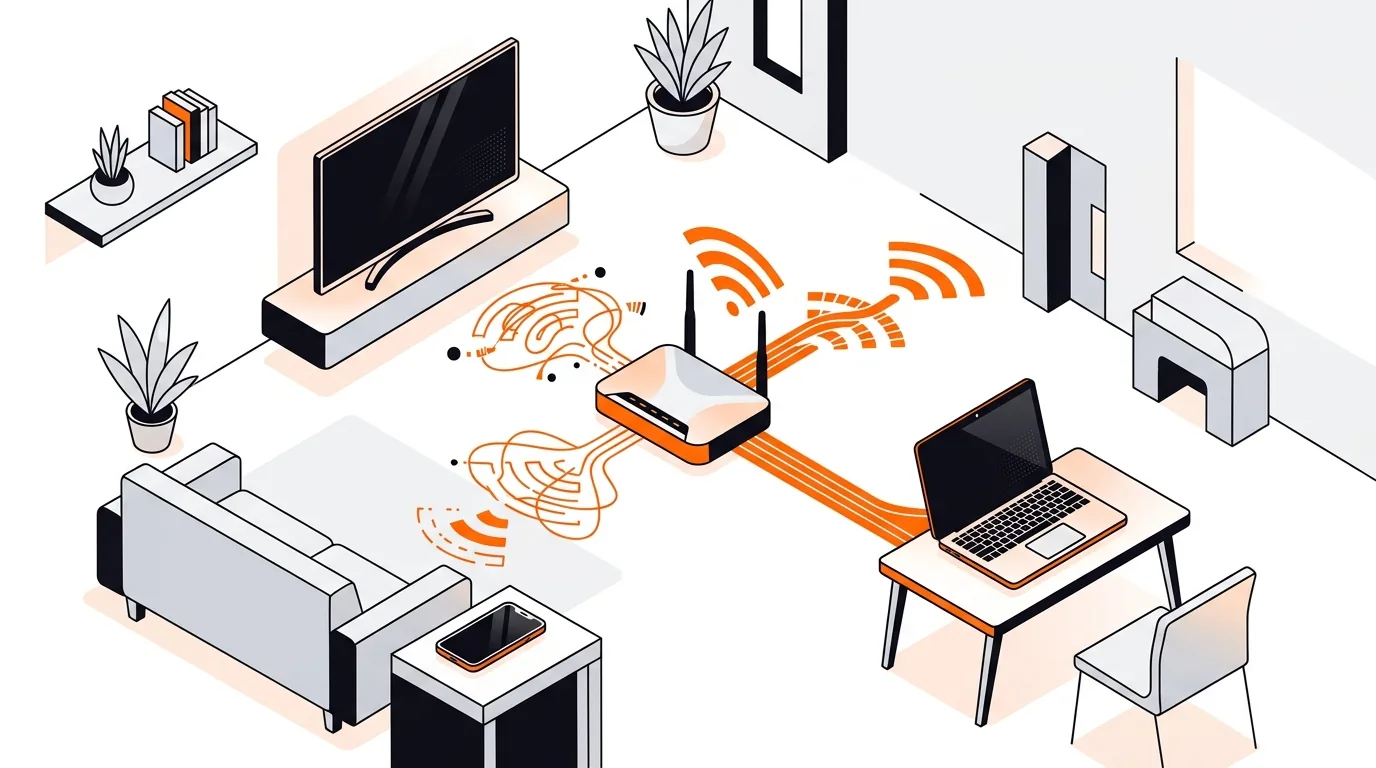
How to Stop Smart TVs From Slowing Down Your Wi-Fi
If your internet crawls when the TV starts streaming, these practical fixes can reduce buffering, speed up other devices, and stabilize your home Wi-Fi.

If your phone or laptop clings to the wrong mesh node, these steps can improve roaming, boost speed, and stop dead-zone frustration.
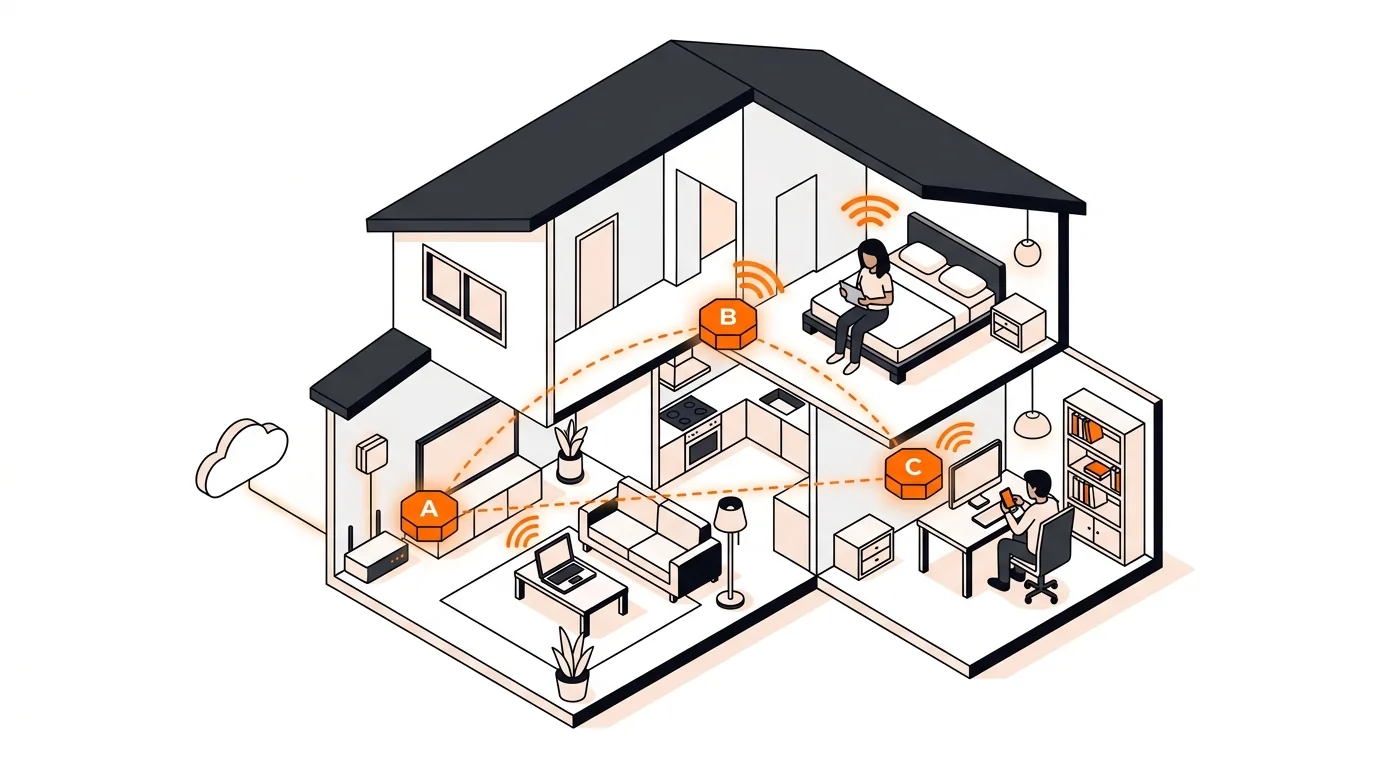
Your mesh network is supposed to move your devices smoothly from room to room. But sometimes a phone, laptop, or tablet stays connected to a faraway node instead of switching to the closest one, causing weak signal, buffering, and slower speeds. In this guide, you’ll learn how to fix sticky mesh Wi-Fi and improve roaming without replacing your whole setup.
Sticky mesh Wi-Fi happens when a device hangs on to a weaker connection longer than it should. Instead of handing off to the closest mesh node, the device may keep using the original node it joined earlier. This is often caused by node placement, outdated firmware, crowded wireless channels, or a client device that is slow to roam on its own.
It’s important to know that roaming decisions are often made by the device, not just the mesh system. That means your router may be working fine, but a particular laptop or phone may resist switching until the signal becomes very poor. In some homes, band steering and roaming assistant settings can help, but placement and software updates usually make the biggest difference.
If sticky mesh Wi-Fi returns often, the issue may be device-specific, related to interference from neighboring networks, or caused by a weak backhaul link between nodes. Try testing at different times of day, especially in apartments or condos where channel congestion is common. If several devices show the same behavior, your mesh layout or hardware may need a more careful review. If you’d like hands-on help diagnosing mesh Wi-Fi roaming problems, 247TechTeam can help you troubleshoot your network remotely.
It can be either, but many roaming decisions are made by the device itself. If only one phone or laptop has the issue, start there. If many devices stick to the wrong node, check placement, firmware, and mesh settings.
Not always. Too many nodes in a small space can make roaming less predictable. It is usually better to optimize node placement first, then add hardware only if you still have real coverage gaps.
Signal bars do not always reflect the quality of the path back through the mesh. A device may have a strong link to a nearby node, but that node could have a weaker connection to the main router. That can make speeds feel inconsistent even when Wi-Fi appears strong.
Need help getting your mesh system to roam properly? Call 247TechTeam at 888-549-0702 or request a secure remote session.
Our technicians can help remotely.
If your internet crawls when the TV starts streaming, these practical fixes can reduce buffering, speed up other devices, and stabilize your home Wi-Fi.
If your Wi-Fi is slow on one device but fine on others, these targeted fixes can restore speed quickly without guessing or buying new hardware.
If your device shows Wi-Fi connected but pages will not load, these step-by-step fixes can restore internet access without replacing your router.


Please sign in or create an account to interact with this article.