
Windows 11 Taskbar Icons Missing? Restore Them Quickly
If your Windows 11 taskbar icons disappeared, this guide walks you through practical fixes to restore them and prevent the issue from coming back.

If your Windows 11 search bar opens but won’t accept typing, these step-by-step fixes can restore keyboard input and get Start search working again.
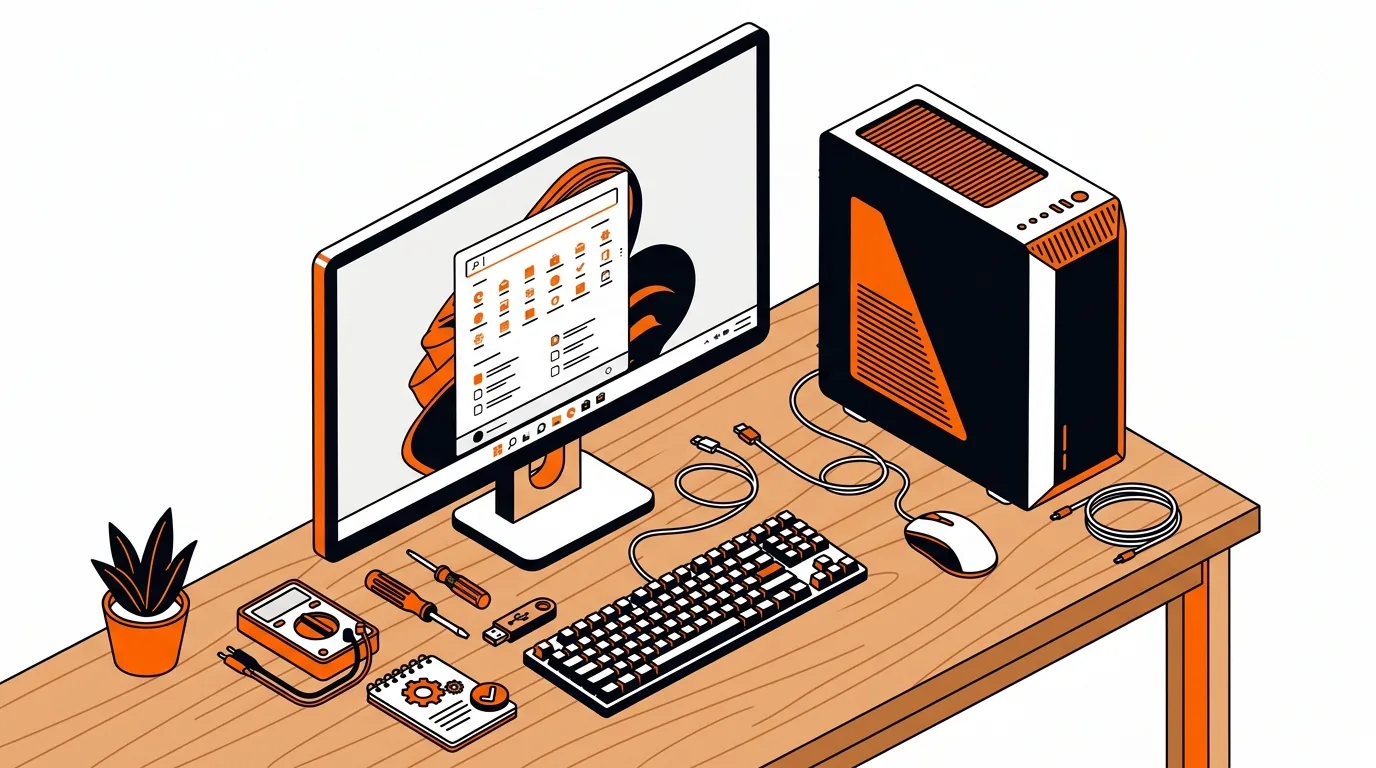
You click the search box in Windows 11, it opens normally, and then nothing happens when you type. It is a frustrating problem because Search is tied to the Start menu, installed apps, settings, and everyday files. This guide explains why the issue happens and walks you through practical fixes for when Windows 11 search won't type.
When the Windows 11 search bar opens but does not accept keyboard input, the cause is usually not the keyboard itself. In many cases, the problem is tied to the Windows Search process, a stuck Text Input service, a temporary glitch in File Explorer, or a damaged system file after an update.
It can also happen if background services did not start correctly, your user profile has a sync issue, or a recent app or update interfered with Start and Search. The good news is that you can often fix the issue in a few minutes without resetting your PC.
Get-AppxPackage -AllUsers | Foreach {Add-AppxPackage -DisableDevelopmentMode -Register "$($_.InstallLocation)\AppXManifest.xml"}If Windows 11 search won't type again after updates or restarts, the issue may be tied to a damaged user profile, a buggy third-party utility that modifies the taskbar or Start menu, or deeper Windows component corruption. Try removing recent system-tweaking apps, keep Windows fully updated, and note whether the problem appears after sleep, sign-in, or a specific update. If you want hands-on help without trial and error, 247TechTeam can walk you through advanced repair steps remotely.
That usually points to a Search, Start menu, or text input service issue rather than a hardware keyboard problem. Restarting Windows Explorer, Search processes, and the Touch Keyboard service often fixes it.
Not always. Rebuilding the index mainly helps when search results are missing or outdated. If the search bar opens but won't accept typing, the problem is more often tied to input services or a stuck Search process.
No. A reset should be a last resort. Most users can solve the issue by restarting Explorer, repairing system files, updating Windows, or testing with a new user account first.
Still stuck? Call 247TechTeam at 888-549-0702 or request a secure remote session for one-on-one help fixing Windows 11 Search.
Our technicians can help remotely.
If your Windows 11 taskbar icons disappeared, this guide walks you through practical fixes to restore them and prevent the issue from coming back.
If the Windows 11 widgets board will not open, these step-by-step fixes can restore it quickly and help prevent the issue from returning.
If your phone or laptop clings to the wrong mesh node, these steps can improve roaming, boost speed, and stop dead-zone frustration.

Please sign in or create an account to interact with this article.