Household Cybersecurity Checklist for Shared Computers
Use this household cybersecurity checklist to improve passwords, updates, user accounts, browsing habits, and backups on shared Windows and Mac computers.

Cut unnecessary tracking with a few browser changes that actually help.
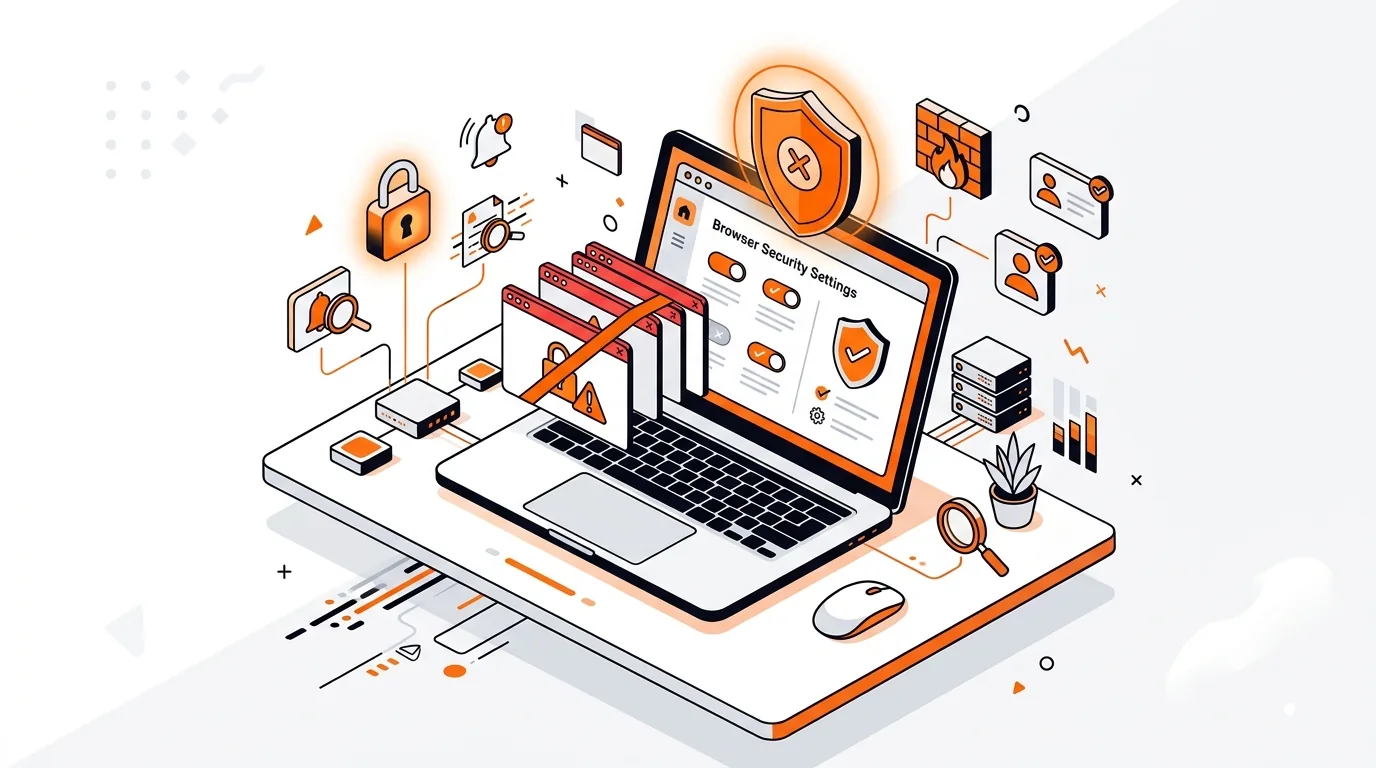
Your web browser is one of the biggest sources of personal data sharing on any computer. The good news is that you do not need special software to make meaningful privacy improvements. A few built-in browser privacy settings can reduce tracking, limit unwanted data collection, and make everyday browsing more predictable on Windows and Mac.
This guide focuses on settings that matter for home users and small businesses, not obscure options you will probably never touch. The goal is simple: keep your browser convenient to use while sharing less than necessary.
Most modern browsers include privacy tools, but the default setup usually balances privacy with advertising, convenience, and website compatibility. That means some protections may be weaker than you expect.
If you only change a few things, start with these:
These settings do not make you anonymous online, but they can help reduce passive tracking and cut down on data exposure.
A cookie is a small file a website stores in your browser. First-party cookies are often needed to keep you signed in or remember your cart. Third-party cookies are different. They are commonly used by outside ad and tracking networks that appear across many sites.
Blocking third-party cookies can make it harder for advertisers to follow your browsing activity from site to site. Some websites may behave differently afterward, especially sign-in tools or embedded content, but for many people this is one of the most useful privacy changes available.
The exact menu names differ between Chrome, Edge, Safari, and Firefox, but the same types of controls appear in each browser. Open your browser settings and look for sections named Privacy, Security, Cookies, Site Settings, or Tracking Prevention.
On a shared family computer or a small office computer, these settings deserve extra attention. Browsers tend to remember a lot, and stored data can reveal more than most people realize. If you share a PC with others, you may also want to review this Household Cybersecurity Checklist for Shared Computers.
Website notifications are often treated like a minor annoyance, but they can also create privacy and security issues. Some sites use them to push misleading warnings, fake prize messages, or aggressive ads long after you close the page.
Open your browser's site permissions and remove notification access for sites you do not recognize or no longer trust. If you keep getting alarming browser messages, this guide on how to stop fake virus pop-ups in your web browser may help.
Many websites ask for access to your location, camera, microphone, clipboard, or downloads. Sometimes that request is legitimate. Other times, it is more access than the site really needs.
Go through your browser's site permissions and ask a few simple questions:
For small-business users, this is especially important on work systems used for video meetings, webmail, file sharing, and cloud apps. A browser permission left behind on the wrong site can expose more information than intended.
When possible, choose Ask before allowing instead of broad permanent access. That gives you a chance to approve permissions only when you really need them.
Browser extensions can be helpful, but they can also collect browsing data, read page contents, or inject ads. Even well-known extensions sometimes request broad permissions that go beyond their core purpose.
Open your extensions or add-ons page and review what is installed. Remove anything you no longer use, do not recognize, or did not intentionally add. Pay close attention to extensions that can read and change data on all websites.
If something looks suspicious, do not keep using it just because the browser still works. This step can protect both privacy and general browser security. If you need help reviewing add-ons safely, see How to Remove a Suspicious Chrome Extension Safely.
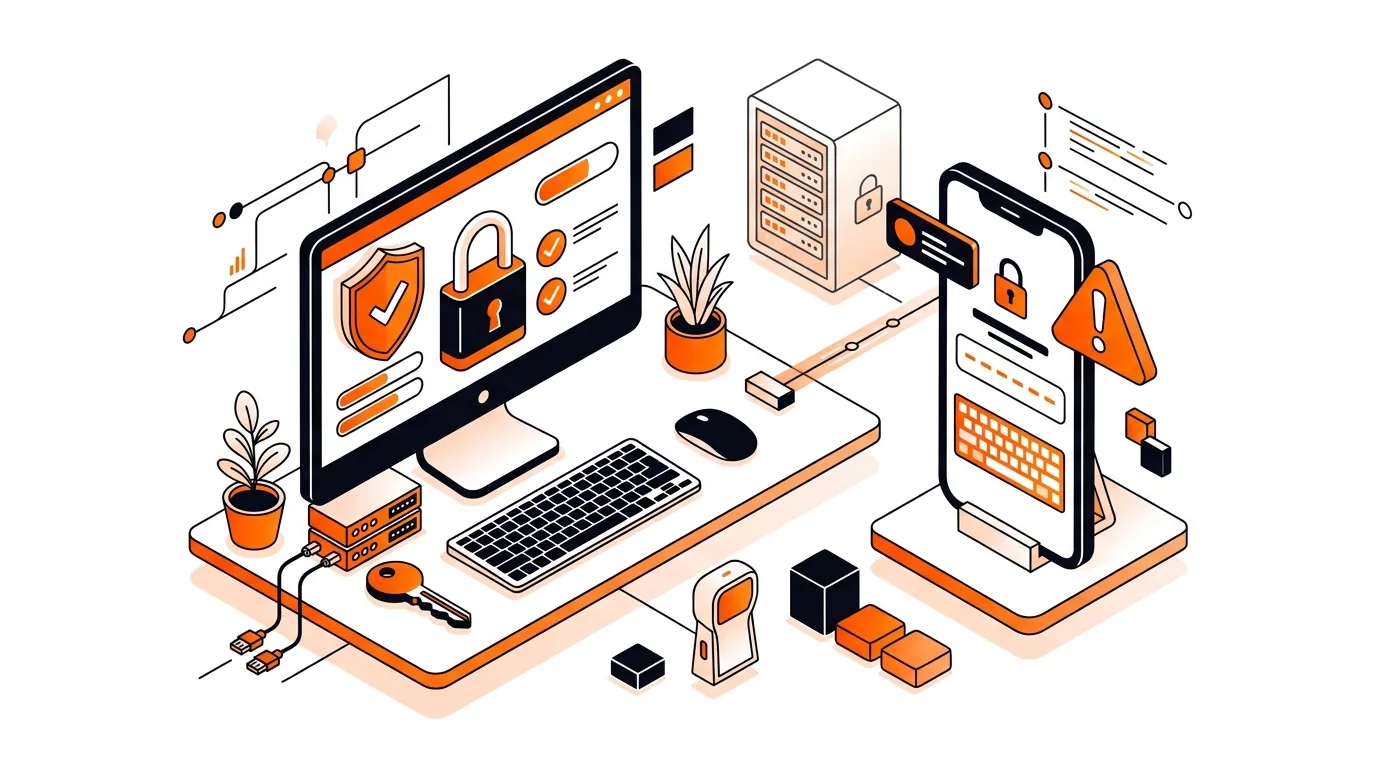
Browser privacy settings help, but they work best when paired with good account security. If an online account is weak or already exposed, privacy settings alone will not solve the problem.
Focus on these habits alongside your browser changes:
If you recently got an alert that one of your passwords may have been exposed, read How to Turn On 2FA After a Password Leak Alert. That step can make account takeover harder even if a password is known.
For users who want someone to review settings directly, a Browser Security Checkup or broader remote computer support services can be useful for checking privacy controls on Windows and Mac without guessing through menus alone.
Some websites may not work exactly the same, especially single sign-on tools, embedded chat widgets, or certain shopping features. In many cases, the site will still work, but you may need to allow an exception for that site if a feature fails.
Private browsing can help by not saving local history, cookies, or form entries after the session ends. However, it does not hide your activity from websites, your internet provider, your employer, or accounts you sign into. It is useful for specific situations, but it is not a complete privacy solution.
Yes, they address different issues. Privacy settings can reduce tracking and limit some browser-based risks, while antivirus helps detect malicious files and other threats. If you want added protection on a Windows or Mac computer, 247TechTeam also offers 247 Tech Team Antivirus for Windows and Mac.
If your browser keeps changing settings, showing suspicious pop-ups, or saving data you thought was removed, 247TechTeam can help. Call 888-549-0702 or start a secure remote session for hands-on assistance.
Our technicians can help remotely.
Use this household cybersecurity checklist to improve passwords, updates, user accounts, browsing habits, and backups on shared Windows and Mac computers.
If you got a password leak alert, turning on 2FA quickly can block unauthorized sign-ins and help you secure your email, banking, and shopping accounts.
Learn how to stop fake virus pop-ups in your browser, block repeat alerts, and secure your settings without risking your files or passwords.

Please sign in or create an account to interact with this article.