
How to Fix DNS Server Not Responding on Windows
Learn how to fix a DNS server not responding error on Windows with clear steps that restore browsing, rule out common causes, and prevent repeat outages.

Learn how to fix an Ethernet connection that shows connected but has no internet by checking IP settings, DNS, and adapter issues step by step.
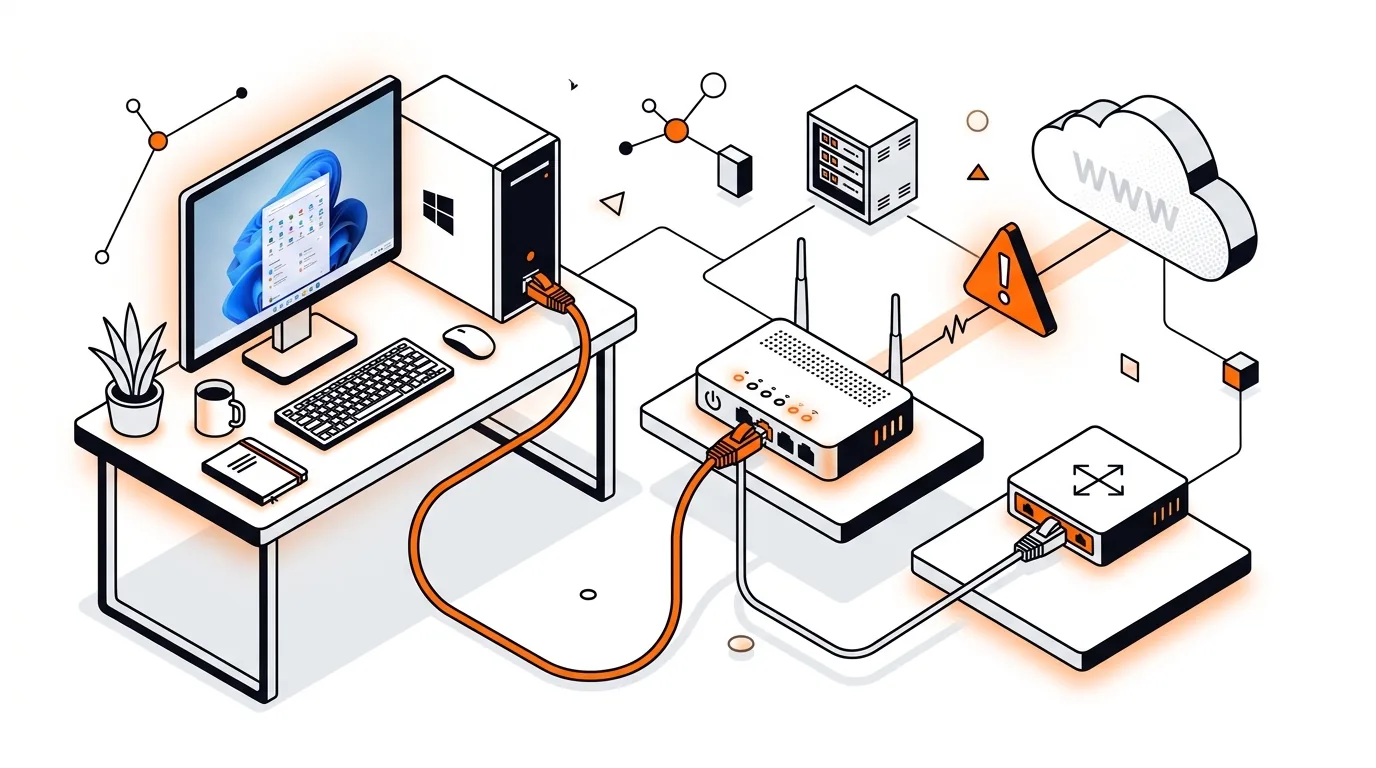
Your PC says the Ethernet cable is plugged in, the network icon looks normal, yet websites will not load. If you are dealing with an Ethernet connected but no internet problem on Windows, the issue is usually fixable without replacing your router or computer.
This guide walks you through the most effective checks in a simple order, from physical connection basics to IP and DNS repairs. By the end, you should know whether the problem is your PC, the cable, the router, or your internet service.
When Ethernet shows as connected, Windows can still fail to reach the internet for several reasons. Common causes include a bad cable or port, a router that assigned an invalid IP address, corrupted DNS cache, a stuck network adapter, or a mismatch between manual and automatic network settings.
Sometimes the connection works inside your local network but cannot get past the router to the internet. In other cases, Windows may report a connection even though the adapter is using an old IP address or the DNS server is not responding correctly.
ping 127.0.0.1, then ping 192.168.1.1 or your router's gateway address, and then ping 8.8.8.8. If the router ping works but the public IP ping fails, the issue is likely between the router and the internet. If public IP works but websites still do not load, DNS is a strong suspect.ipconfig /release, ipconfig /renew, ipconfig /flushdns, and netsh winsock reset. Restart the computer after running them. These commands renew your IP lease, clear cached DNS entries, and rebuild the Windows network stack.8.8.8.8 as the preferred DNS server and 1.1.1.1 as the alternate. Save the settings and test your browser again. If this fixes the issue, your router or internet provider's DNS may be the real problem.If the same issue returns often, check for a failing router, a loose wall jack, power-saving settings on the network adapter, or a recurring IP conflict on your network. You may also want to log in to the router and review firmware updates or DHCP settings, but if you are not comfortable changing router options, getting professional help can save time and prevent misconfiguration.
Usually, Windows can detect the cable and local network link, but it cannot reach the internet because of a bad IP address, DNS problem, router issue, or faulty cable. The connected status does not always mean full internet access is working.
No, network reset steps such as renewing the IP address, flushing DNS, or resetting Winsock do not remove personal files. However, they may forget saved network details or custom adapter settings, so you may need to re-enter manual DNS or static IP information afterward.
Not usually. Most home users should leave IP and DNS on automatic unless a router, printer, server, or business setup specifically requires a static address. An incorrect static IP is a common cause of Ethernet connected but no internet errors.
Need help getting your connection stable again? Call 247TechTeam at 888-549-0702 or request a secure remote session.
Our technicians can help remotely.
Learn how to fix a DNS server not responding error on Windows with clear steps that restore browsing, rule out common causes, and prevent repeat outages.
Stop random wired internet dropouts on Windows 11 with practical fixes for cables, power settings, drivers, and adapter errors.
If your phone or laptop clings to the wrong mesh node, these steps can improve roaming, boost speed, and stop dead-zone frustration.


Please sign in or create an account to interact with this article.