Fixing Wi-Fi That Keeps Disconnecting

247TechTeam Support Team · October 16, 2026 · Network Troubleshooting

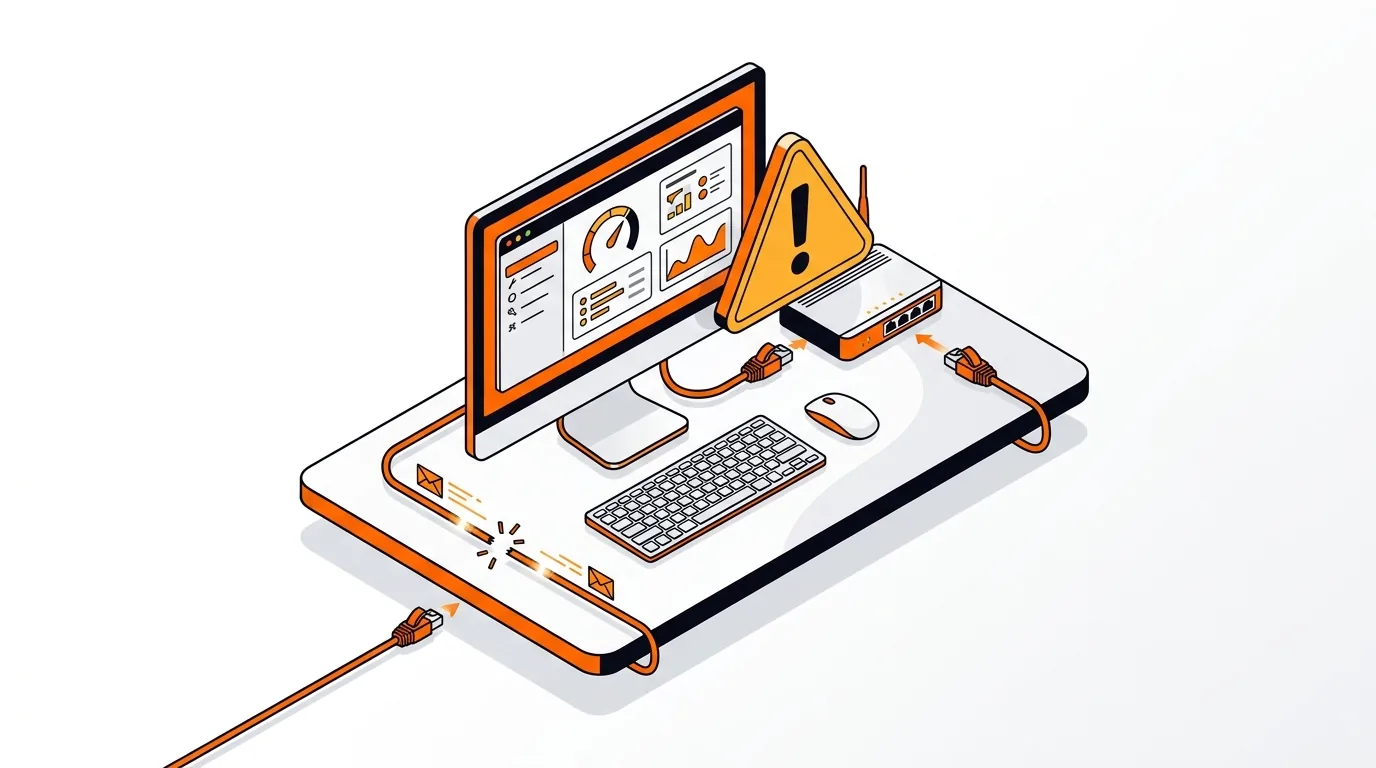
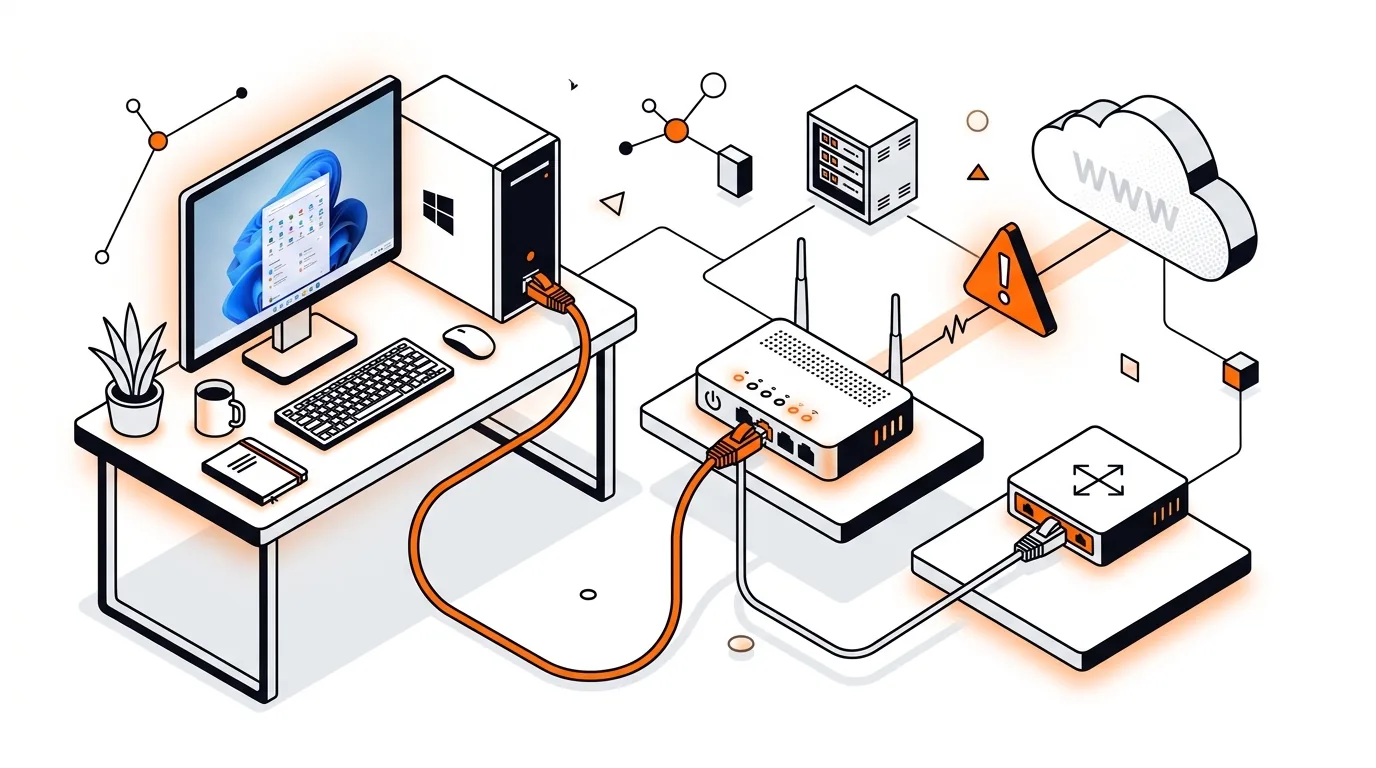
Desktop PC and router with Ethernet cable and intermittent connection indicator

If your wired internet cuts out for a few seconds and then comes back, it can interrupt calls, gaming, uploads, and remote work. When Ethernet keeps disconnecting on Windows 11, the cause is often a simple hardware issue, a power setting, or a network driver problem. This guide walks you through the most effective fixes in a safe, practical order.

Why this happens

A wired connection is usually more stable than Wi-Fi, so frequent Ethernet drops often point to a physical cable problem, a loose router or modem port, or a network adapter setting inside Windows. In some cases, Windows may temporarily power down the adapter to save energy, which can cause random disconnects.

Driver problems are also common after Windows updates, motherboard updates, or docking station changes. If the adapter driver is outdated, corrupted, or not fully compatible with Windows 11, your LAN connection may drop even though the cable looks fine.

Fix it step by step

  1. Check the cable and port first. Unplug the Ethernet cable from both the computer and the router or modem, then plug it back in firmly until it clicks. Look for bent clips, frayed cable ends, or damaged connectors. If possible, test with a different Ethernet cable and a different LAN port on the router. This quick check rules out the most common cause of a connection that keeps dropping.
  2. Restart your modem, router, and PC. Power off the modem and router, wait about 30 seconds, then turn them back on and let them fully reconnect. After that, restart your Windows 11 computer. This clears temporary network glitches and refreshes the adapter’s connection to your network hardware.
  3. Run the built-in network troubleshooter. Go to Settings > System > Troubleshoot > Other troubleshooters. Find Network and Internet and run it. Windows may detect adapter configuration errors, reset a stuck network component, or recommend a targeted fix.
  4. Turn off power saving for the network adapter. Right-click the Start button and open Device Manager. Expand Network adapters, double-click your Ethernet adapter, and open the Power Management tab. Uncheck Allow the computer to turn off this device to save power, then click OK. This often helps when the wired internet keeps dropping after the PC has been idle or waking from sleep.
  5. Update or reinstall the Ethernet driver. In Device Manager, right-click the Ethernet adapter and choose Update driver. If Windows does not find a better version, visit your PC or motherboard maker’s support site and download the latest LAN driver for your exact model and Windows 11 version. If disconnects started after an update, you can also uninstall the adapter from Device Manager and restart the PC so Windows reloads it. Use care to select only the network adapter you are troubleshooting.
  6. Disable Energy-Efficient Ethernet or similar advanced features. In Device Manager, open your Ethernet adapter properties and go to the Advanced tab. Look for settings such as Energy-Efficient Ethernet, Green Ethernet, or sometimes Power Saving Mode. Set them to Disabled, then test the connection. These features can occasionally cause brief link drops on certain routers, switches, or adapter chipsets.
  7. Reset the network stack. Open Windows Terminal or Command Prompt as administrator and run these commands one at a time: ipconfig /release, ipconfig /renew, ipconfig /flushdns, and netsh winsock reset. Restart the computer after running them. This refreshes IP settings and resets key network components that may be causing the Windows 11 Ethernet connection drops.
  8. Check whether the PC is using a bad speed or duplex setting. In the Ethernet adapter Advanced tab, find Speed & Duplex. In most cases, Auto Negotiation is best. If it is already set to auto and disconnects continue, you can test a fixed value like 1.0 Gbps Full Duplex only if your router, switch, and cable support it. If the connection gets worse, switch it back to Auto Negotiation right away.
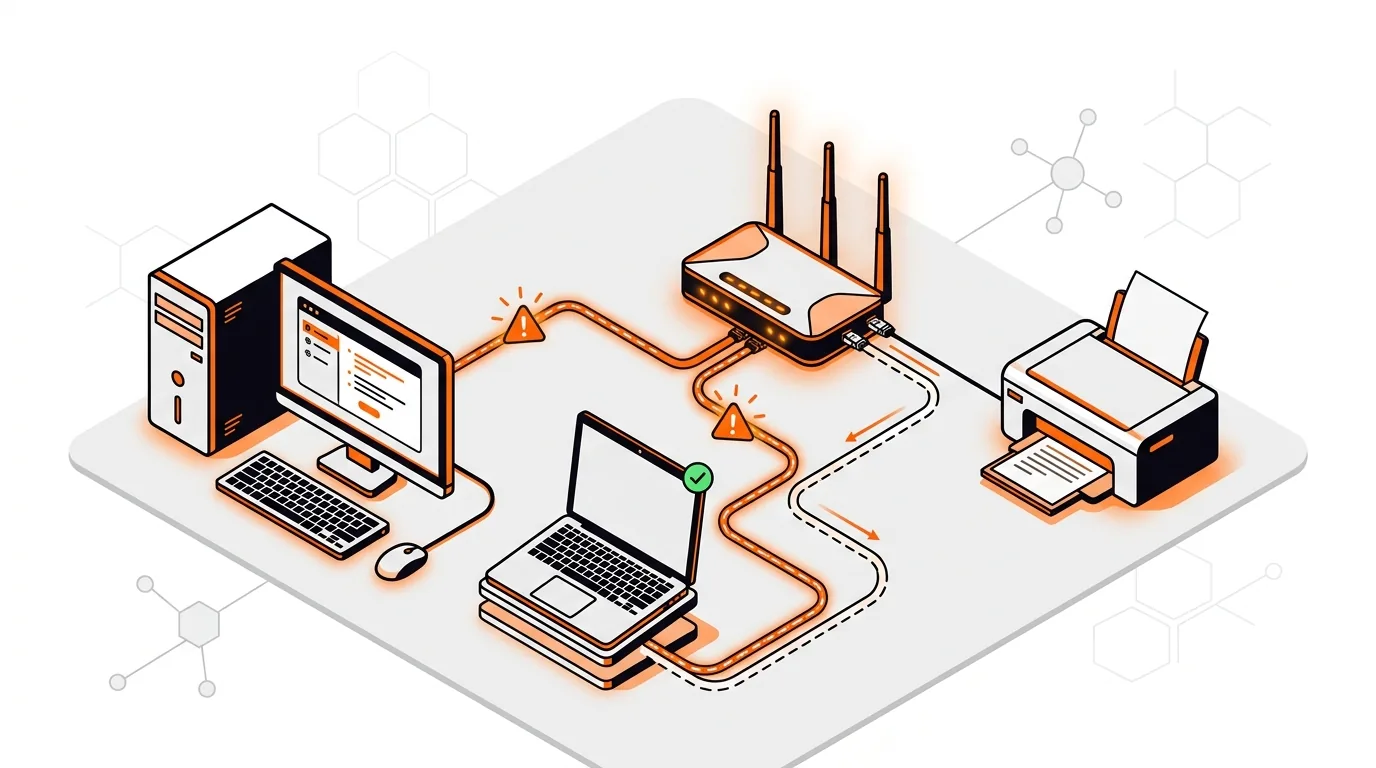
  9. Test with another device or adapter. Connect the same Ethernet cable to another computer, or try a USB-to-Ethernet adapter on your current PC. If the issue disappears, the original network adapter may be failing. If both devices drop on the same cable or port, the problem is more likely the cable, router, modem, or wall jack.

If the problem keeps coming back

If Ethernet keeps disconnecting on Windows 11 after these steps, the issue may involve faulty router hardware, an unstable modem, a damaged wall jack, or a failing network adapter on the PC. It is also possible that a recent Windows update or vendor driver update introduced instability. At that point, documenting when the drops happen, whether the link lights go out, and whether other devices are affected can make diagnosis much faster. If you want hands-on help, 247TechTeam can walk you through deeper testing remotely.

Frequently asked questions

Why does my Ethernet disconnect but Wi-Fi still works?

This usually means the internet service itself is still active, but the wired link between your PC and the router is unstable. Common causes include a bad cable, loose port, power management settings, or a faulty Ethernet driver.

Can a bad Ethernet cable cause random disconnects?

Yes. A worn, bent, or poorly crimped cable can cause brief dropouts that look like software problems. Swapping in a known-good cable is one of the fastest ways to narrow down the cause.

Should I reset all network settings in Windows 11?

A full network reset can help if normal troubleshooting does not work, but it removes saved network adapters and may require you to reconfigure VPN or adapter settings afterward. Try the simpler steps first, especially cable checks, power settings, and driver updates.

Need expert help with a dropping Ethernet connection or other network issues? Call 247TechTeam at 888-549-0702 or request a secure remote session.

Need a hand with this?

Our technicians can help remotely.

Book a service

Related articles

Software Support

How to Fix Outlook Error 0x800CCC0E on Windows

Fix Outlook error 0x800CCC0E with clear steps to restore sending and receiving, verify server settings, and rule out firewall or profile issues.

Oct 16, 2026 · 247TechTeam Support Team

Fraud & scam prevention: 247TechTeam will never make unsolicited calls demanding payment, send fake invoices, or request refund fees. Always verify the sender and official domain before trusting a message. Read the full security notice