
How to Fix Ethernet Connected but No Internet on Windows
Learn how to fix an Ethernet connection that shows connected but has no internet by checking IP settings, DNS, and adapter issues step by step.

Learn how to resolve a static IP address conflict quickly so your PC or printer can reconnect reliably without random dropouts or network errors.
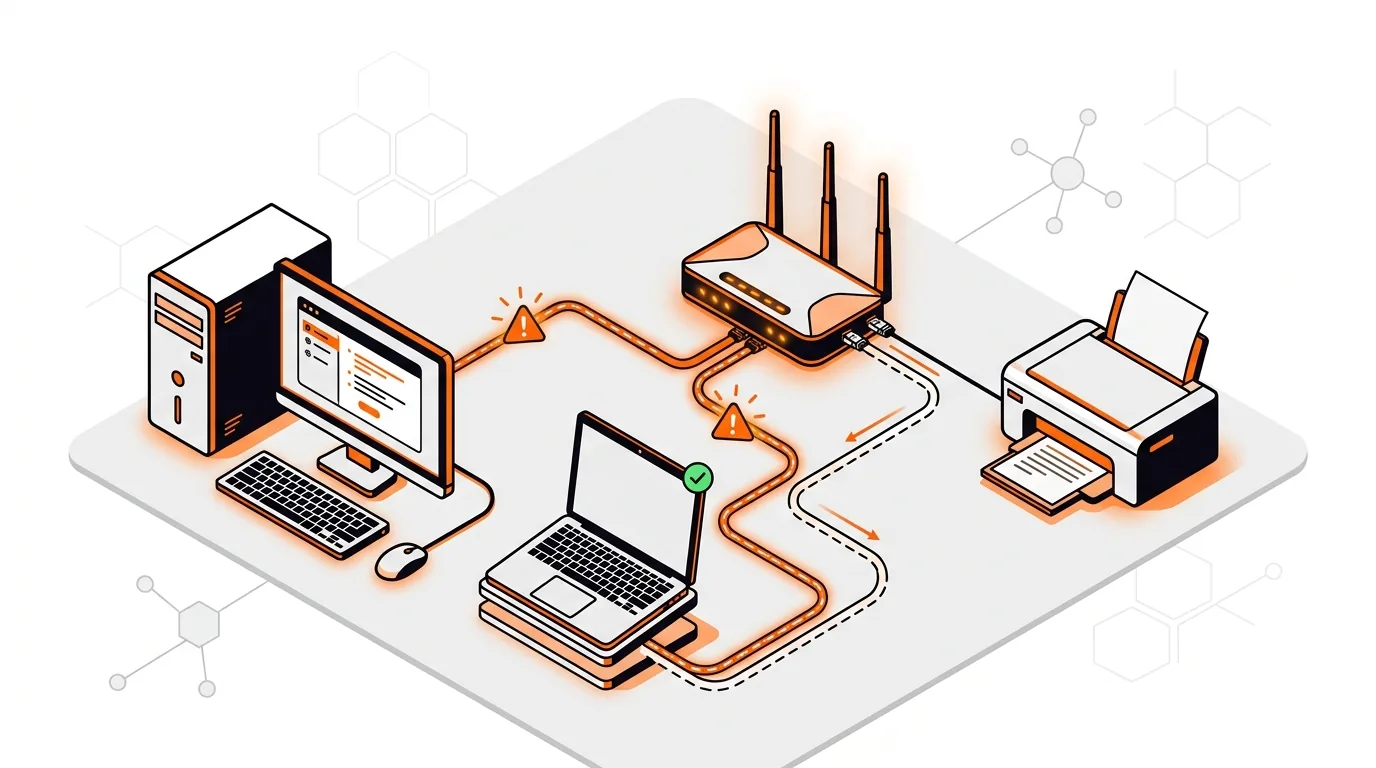
If one device on your network suddenly loses access while others still work, a static IP address conflict may be the real cause. This problem often shows up after adding a printer, setting up a camera, or manually assigning an address that overlaps with your router’s DHCP range. In this guide, you’ll learn how to identify the conflict and fix it so your connection stays stable.
A static IP address conflict happens when two devices try to use the same IP address on the same network. Your router may automatically assign addresses through DHCP, while you may also have manually set a static IP on a PC, printer, NAS, or smart device. If those two choices collide, one or both devices can lose network access.
This is especially common on home networks where the router uses a wide DHCP pool such as 192.168.1.2 through 192.168.1.254, and a device is manually set to an address inside that same range. The network may work for a while, then fail when the router gives that address to another device.
Confirm the symptom on the affected device. On Windows, you may see a message like “Windows has detected an IP address conflict.” On printers and other devices, the connection may simply drop off the network. Check whether other devices can still reach the internet. If only one or two devices are affected, a duplicate IP address on the network is likely.
Find the current IP address in use. On a Windows PC, open Command Prompt and run ipconfig. Look for the IPv4 Address and Default Gateway. On a Mac, go to System Settings or System Preferences, then Network, and view the connection details. Write down the device’s IP address and the router’s gateway address.
Test whether another device is using the same address. From a Windows PC, you can open Command Prompt and run ping followed by the suspected IP address, such as ping 192.168.1.50. If the device disconnects and reconnects randomly, or if the router’s device list shows two devices competing for the same address, that confirms the static IP address conflict.
Log in to your router and review the DHCP range. In a web browser, enter the router’s gateway address, often something like 192.168.1.1 or 192.168.0.1. Sign in and locate the LAN or DHCP settings page. Note the starting and ending addresses used for automatic assignment. Also check the connected devices list if your router shows it.
Move the manually assigned device to a safe static IP. Choose an address outside the router’s DHCP pool but still within the same subnet. For example, if DHCP uses 192.168.1.100 to 192.168.1.200, you might assign 192.168.1.20 to a printer or desktop. Make sure the subnet mask matches your network, usually 255.255.255.0, and use the router’s IP as the default gateway. Save the changes, then reconnect the device.
Or use a DHCP reservation instead of a manual static IP. Many routers let you reserve an IP address for a device based on its MAC address. This is often the easiest long-term fix because the router manages the assignment while keeping the address consistent. In the router, look for Address Reservation, DHCP Reservation, or Reserved IP, then bind the device’s MAC address to a chosen IP.
Renew the network address on the affected computer. On Windows, open Command Prompt and run ipconfig /release followed by ipconfig /renew. Then run ipconfig again to confirm the device has the correct address. On other devices, turning Wi-Fi off and back on or restarting the network connection can force a refresh.
Restart the affected device and test local access. Try opening your router’s login page, pinging the gateway, and then visiting a website. If this was an IP address conflict Windows issue, the error should be gone. If the device is a printer or NAS, test by printing a page or opening its web interface from another computer.
If the same conflict returns, another device may still be using a hard-coded address you forgot about, such as an old printer, camera, mesh node, or extender. Review every device with a manual IP and either move it outside the DHCP pool or convert it to a router-based reservation. If your network has many smart devices, a smaller, clearly separated DHCP range can make future conflicts easier to prevent.
A static IP is manually entered on the device itself. A DHCP reservation is set on the router, which always gives the same address to that device automatically. Reservations are usually easier to manage because you can see them all in one place.
Yes. Wi-Fi signal strength and IP addressing are different issues. A device can show a strong wireless connection but still have no internet or no local network access because another device is using the same IP address.
Usually it is not required, but it can help clear stale leases and refresh the connected devices list. If you have changed DHCP settings or added reservations, a router restart can make the network settle faster.
Need help tracking down a stubborn static IP address conflict or setting up your network correctly? Call 247TechTeam at 888-549-0702 or request a secure remote session.
Our technicians can help remotely.
Learn how to fix an Ethernet connection that shows connected but has no internet by checking IP settings, DNS, and adapter issues step by step.
Learn how to fix a DNS server not responding error on Windows with clear steps that restore browsing, rule out common causes, and prevent repeat outages.
Stop random wired internet dropouts on Windows 11 with practical fixes for cables, power settings, drivers, and adapter errors.



Please sign in or create an account to interact with this article.