
Windows Quick Assist Not Working? Fix Remote Help Fast
Learn how to fix Windows Quick Assist when it won’t open, connect, or share your screen so you can get remote tech help without wasting time.

Learn how to close a fake virus warning safely, avoid scam numbers, and secure your Windows or Mac without giving a stranger remote access.
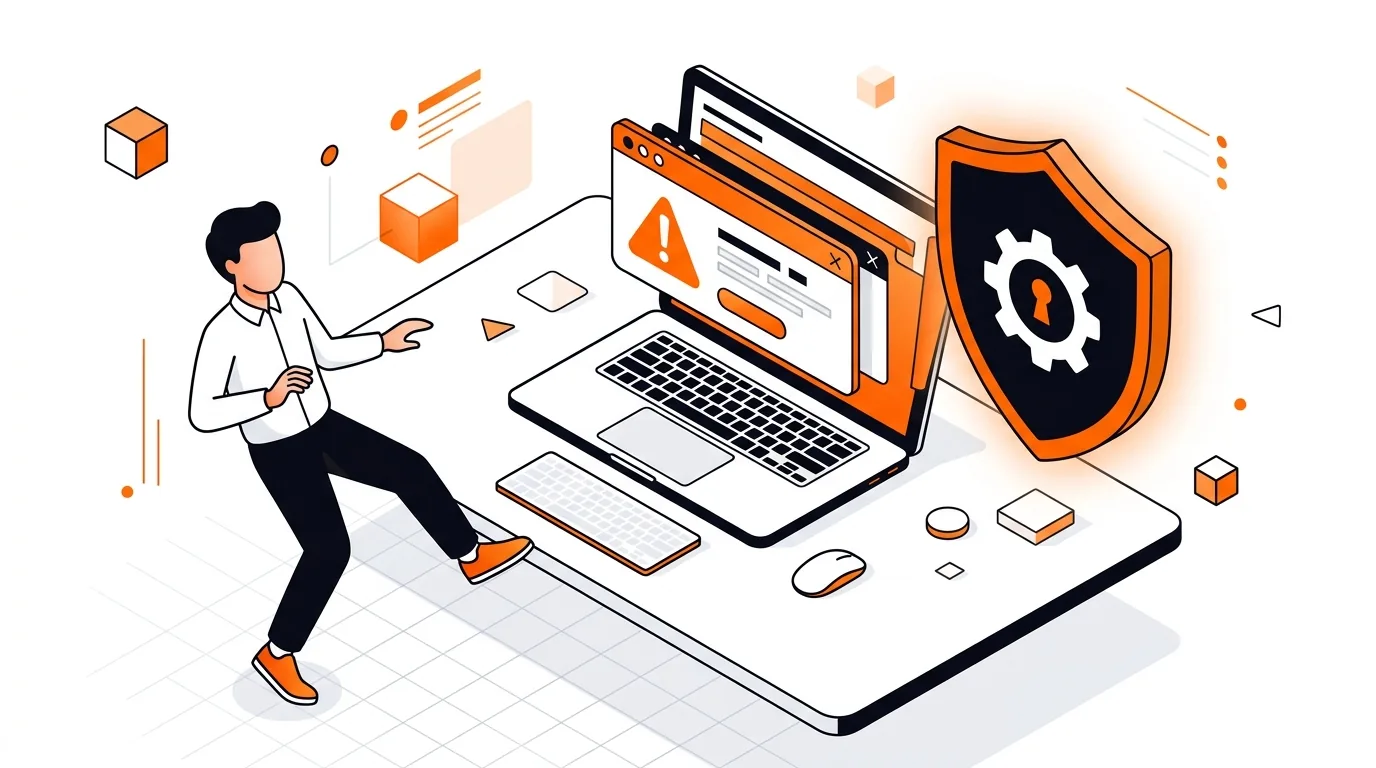
A sudden full-screen warning that says your computer is infected can be alarming, especially when it includes a phone number and a loud alert. In most cases, this is a fake virus pop-up designed to scare you into calling scammers or granting remote access. Here is how to close it safely, protect your device, and know when it is time to call real tech support.
A fake virus pop-up usually comes from a malicious ad, a compromised website, a bad browser notification, or a deceptive page that traps your browser in a loop. It may use logos, urgent language, or claims that your files, banking details, or passwords are at risk.
These pop-ups often look convincing, but the real goal is to make you panic. Once you call the number or click the wrong button, the scammer may ask for payment, personal information, or permission to connect to your computer remotely.
If the same fake virus pop-up returns after you clear your browser and check extensions, there may be a deeper browser setting, adware issue, or notification permission causing the loop. At that point, it is smart to get hands-on help so a technician can check your browser settings, startup items, security tools, and suspicious apps without guesswork.
Not always. A fake virus pop-up is often just a scam webpage or malicious ad trying to frighten you. However, it can sometimes appear alongside unwanted browser extensions or adware, so it is still worth running a security scan and checking recently installed items.
Stop contact with the caller immediately. If you gave them payment information, contact your bank or card company right away. If you allowed remote access, disconnect from the internet, uninstall any remote-access program they asked you to install, run security scans, and change important passwords from a trusted device.
Call real tech support if the pop-up keeps returning, your browser will not open normally, you suspect someone connected to your computer, or you are unsure whether any information was exposed. Those are good times to get guided help instead of experimenting and making the problem worse.
If you want help removing a fake virus pop-up or checking whether your computer is safe, call 247TechTeam at 888-549-0702 or request a secure remote session.
Our technicians can help remotely.
Learn how to fix Windows Quick Assist when it won’t open, connect, or share your screen so you can get remote tech help without wasting time.
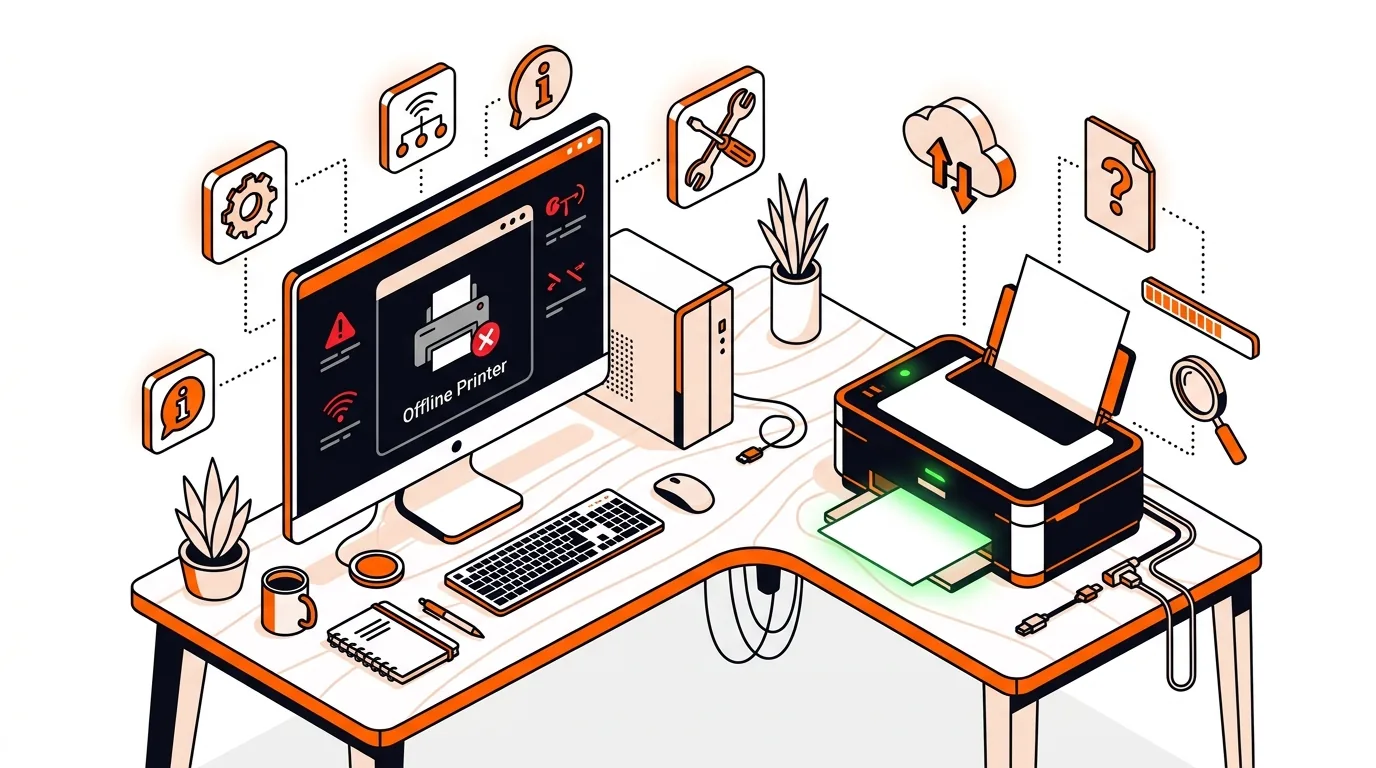
If your printer says offline even though it’s powered on, these step-by-step fixes can restore printing fast and help you know when to call tech support.
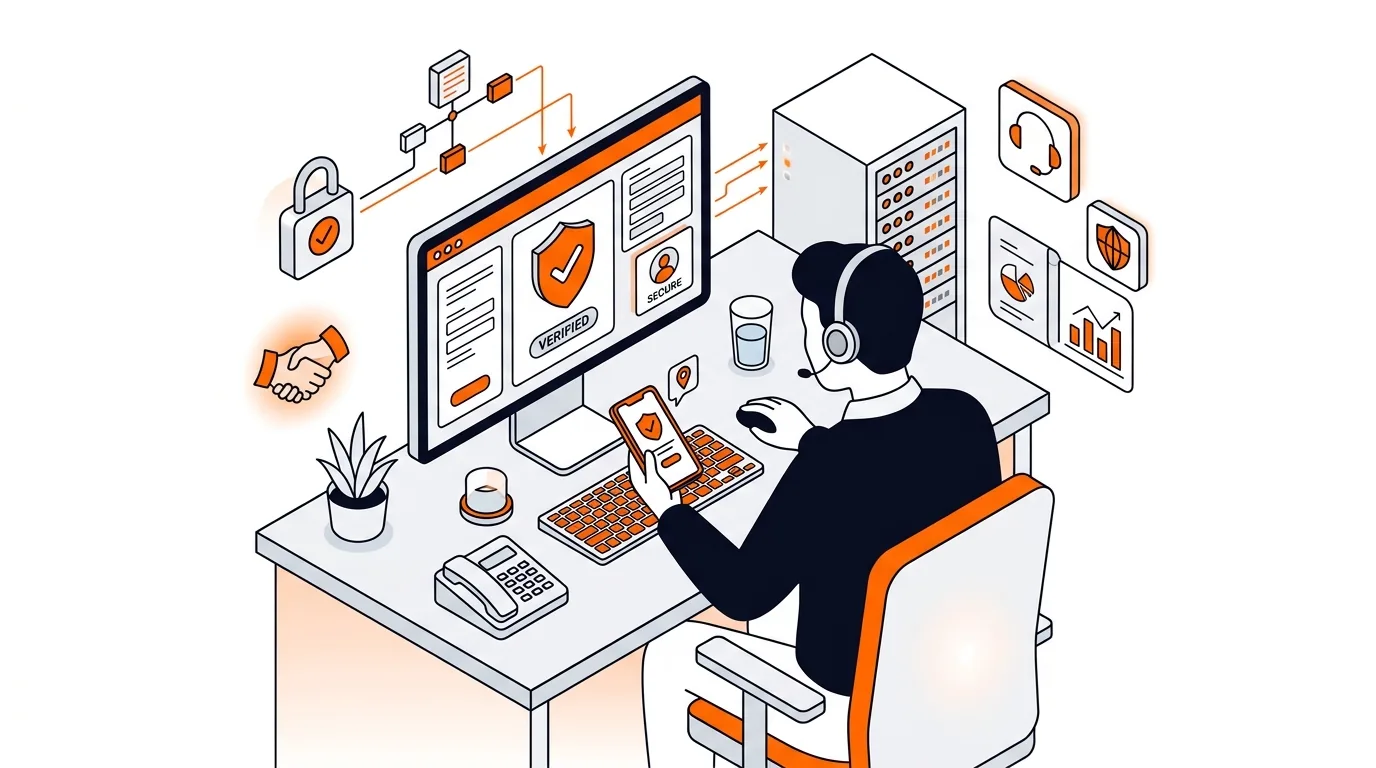
Learn how to confirm whether a tech support caller is legitimate before you share access, payment details, or personal information.

Please sign in or create an account to interact with this article.