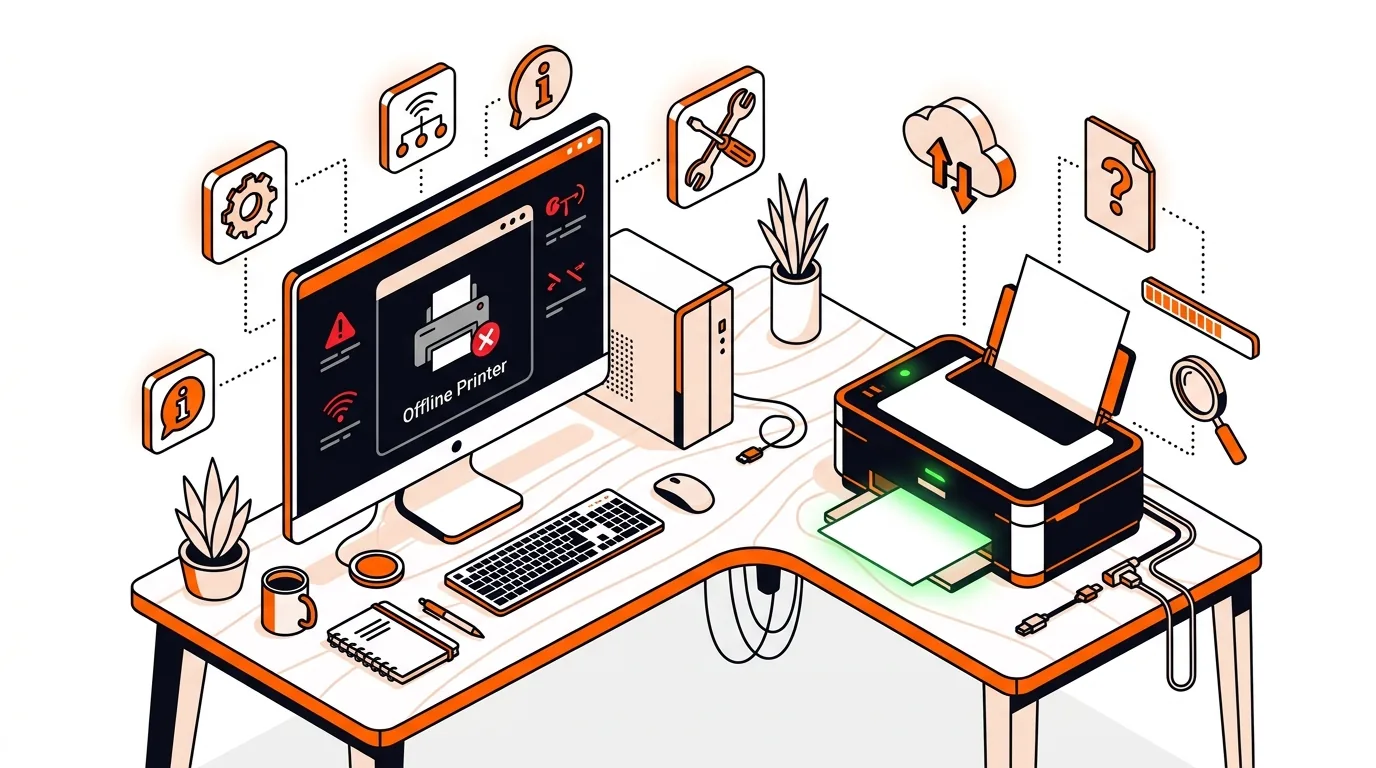
Printer Shows Offline but It’s On? Fix It Before Support
If your printer says offline even though it’s powered on, these step-by-step fixes can restore printing fast and help you know when to call tech support.

Learn how to confirm whether a tech support caller is legitimate before you share access, payment details, or personal information.
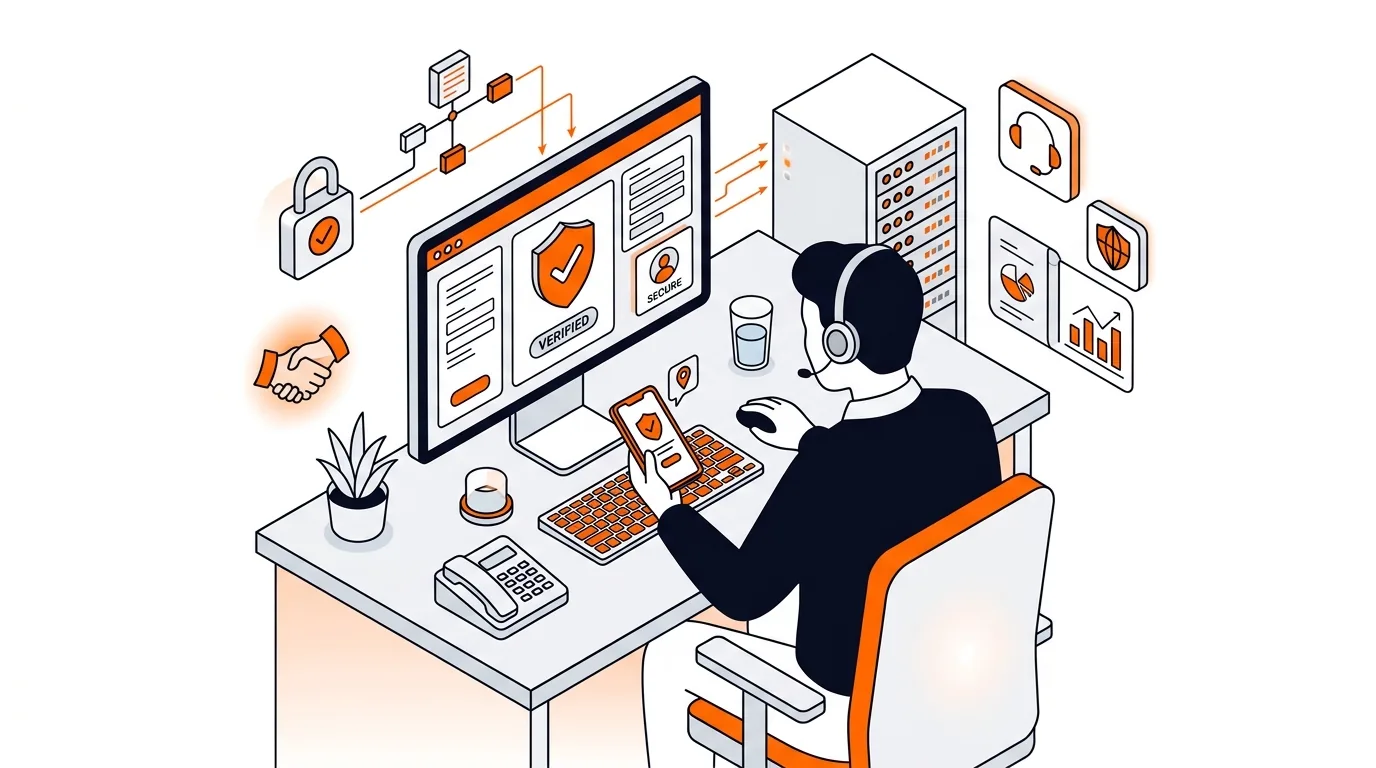
An unexpected support call can be stressful, especially if the caller says your computer is infected, hacked, or about to stop working. Before you give anyone control of your device or read out payment details, take a few minutes to verify a tech support caller the right way. This guide shows you what to check, what not to do, and when to hang up and seek trusted help instead.
Tech support scam calls work because they create urgency. A caller may claim to be from "Windows support," "Apple security," your internet provider, or a well-known retailer, then pressure you to act immediately. Their goal is usually to get remote access to your computer, collect payment, or steal passwords and personal data.
There is also a less dramatic possibility: you may be dealing with a real follow-up call from a company you contacted earlier. That is why it is important to verify a tech support caller using independent contact details, not the phone number or instructions provided during the call itself.
If you keep getting the same kind of calls, emails, or pop-ups, your phone number or email may be circulating on scam lists, or your browser may have notification spam enabled. Block the number, report the incident to your phone carrier or call-blocking app, and review your browser notification permissions and installed extensions. If your computer behaves strangely after an interaction, a professional remote support session can help you check for unwanted software, clean up startup items, and confirm your security settings are in good shape.
In general, treat unsolicited claims like that as suspicious. Major companies do not typically cold-call individual users to announce malware on a personal computer. If someone says they are from a well-known brand, hang up and contact that company's official support line yourself.
A safe remote support session starts with a support request you initiated or independently confirmed. You should know the company name, the reason for the session, what software is being used, and how to end the session at any time. Never allow unattended access unless you fully trust the provider and understand what is being installed.
Contact your bank or card issuer immediately, explain that you may have been targeted by a scam, and ask about disputing the charge or protecting your account. Then change important passwords, scan the computer for threats, and watch for follow-up scams. Scammers often call back pretending to offer refunds.
If you are not sure whether a support call is legitimate or you want help securing your computer after a suspicious interaction, call 247TechTeam at 888-549-0702 or request a secure remote session.
Our technicians can help remotely.
If your printer says offline even though it’s powered on, these step-by-step fixes can restore printing fast and help you know when to call tech support.
Learn how to close a fake virus warning safely, avoid scam numbers, and secure your Windows or Mac without giving a stranger remote access.
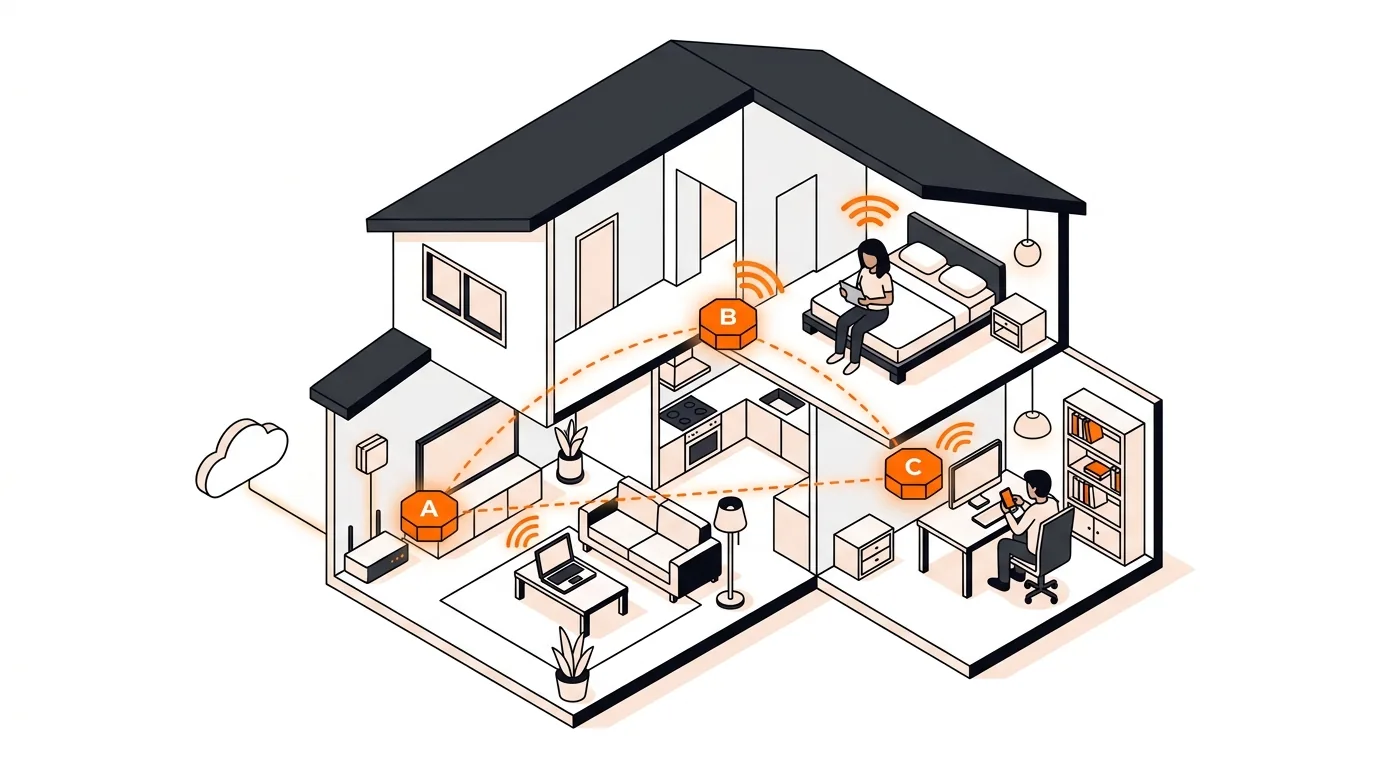
If your phone or laptop clings to the wrong mesh node, these steps can improve roaming, boost speed, and stop dead-zone frustration.


Please sign in or create an account to interact with this article.