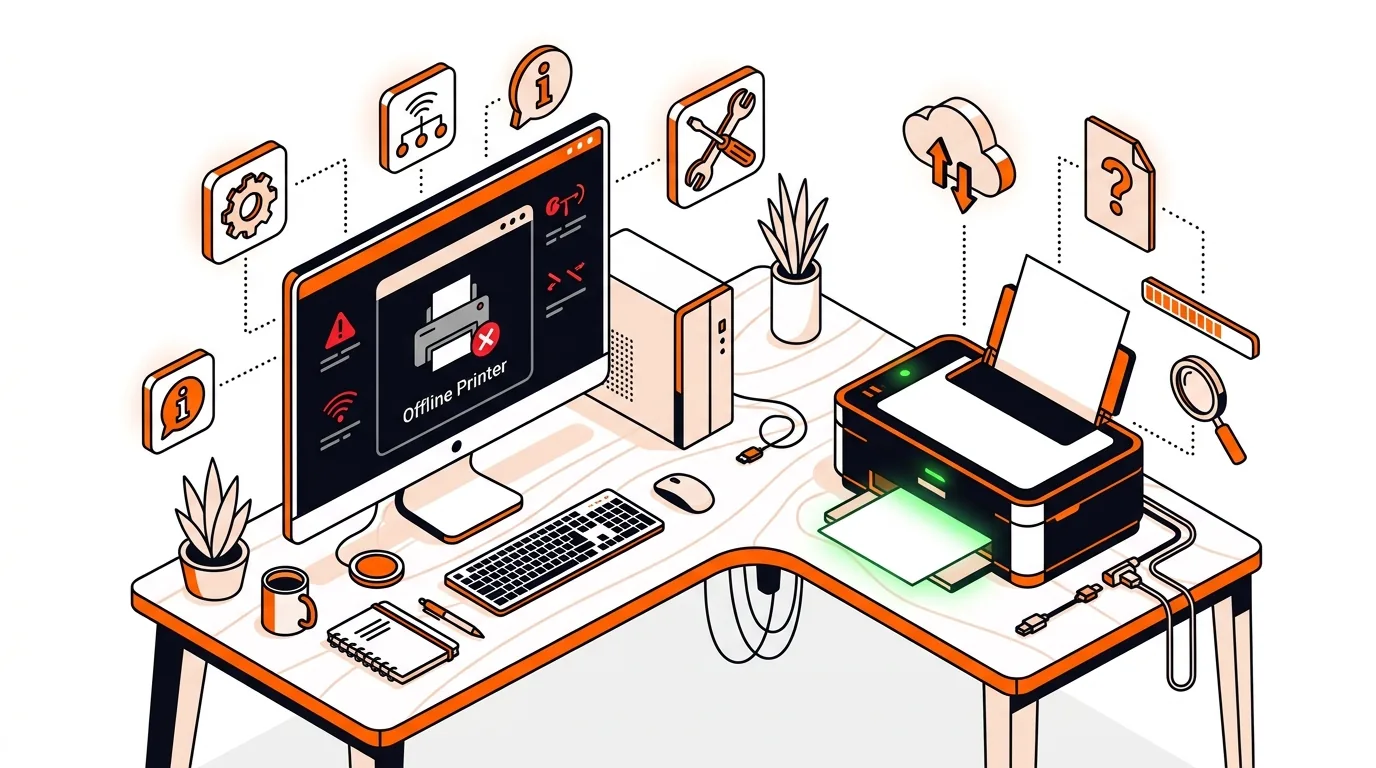
Printer Shows Offline but It’s On? Fix It Before Support
If your printer says offline even though it’s powered on, these step-by-step fixes can restore printing fast and help you know when to call tech support.

Learn how to fix Windows Quick Assist when it won’t open, connect, or share your screen so you can get remote tech help without wasting time.
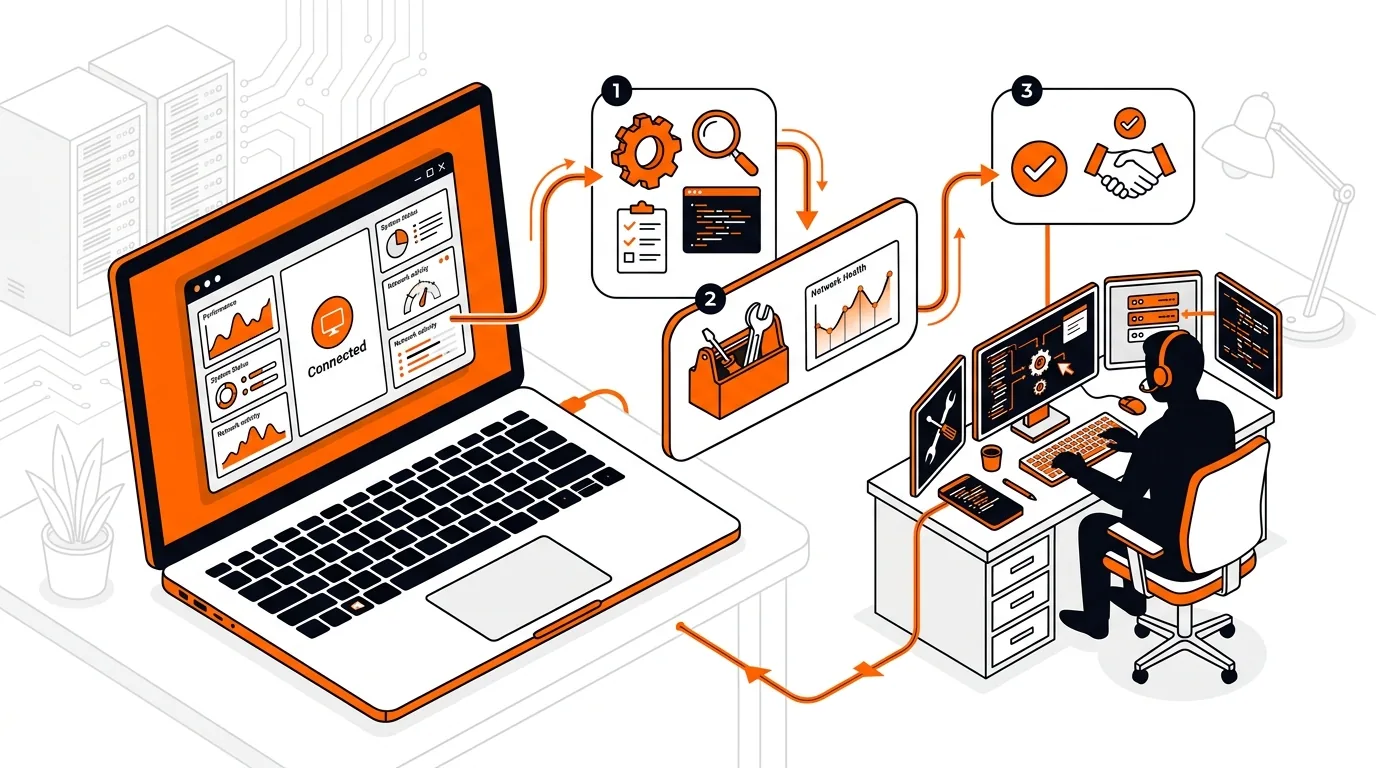
If Windows Quick Assist is not working, getting help remotely can stall right when you need it most. The good news is that many Quick Assist problems are caused by a few common issues, and you can often fix them in minutes before your support session starts.
This guide walks you through what causes Quick Assist to fail, how to restore it step by step, and what to do if the issue keeps returning. If you are preparing for a remote support appointment, these checks can save time and help the session start smoothly.
Quick Assist depends on several pieces working together: the app itself, your Microsoft sign-in, an active internet connection, Windows updates, and permission to share your screen. If any one of those is interrupted, Quick Assist may refuse to open, show a blank window, fail to sign in, or get stuck while connecting.
Another common cause is an outdated Windows build or a damaged app installation. In some cases, a VPN, strict firewall settings, or another screen-sharing tool can interfere with the connection. That is why it helps to go through the basics in order instead of jumping straight to advanced fixes.
If Quick Assist works one day and fails the next, the issue may be tied to network restrictions, a security suite, repeated app corruption, or a Windows profile problem. Take note of exactly where it fails, such as opening, signing in, generating a code, or connecting to the helper. That detail can help a technician pinpoint the cause much faster. Before your next support call, keep your device plugged in, connected to the internet, and ready with any error messages you see on screen.
This usually points to a damaged app installation, a pending Windows update, or a software conflict. Start by repairing or resetting the app, then check for Windows updates and restart the computer. If it still closes immediately, reinstalling Quick Assist is the next best step.
Yes, some security tools or firewall settings can interfere with remote support connections. Avoid disabling security software unless you fully understand the risk and have guidance from a trusted technician. It is safer to check whether the software is showing a prompt, notification, or blocked-app alert that allows Quick Assist.
Have your computer turned on, connected to the internet, and plugged into power. Close private documents you do not want visible during screen sharing, and keep any error messages or screenshots ready. If Windows Quick Assist is not working, tell the technician whether the app fails to open, sign in, or connect, since that narrows down the fix quickly.
Need hands-on help? Call 247TechTeam at 888-549-0702 or request a secure remote session.
Our technicians can help remotely.
If your printer says offline even though it’s powered on, these step-by-step fixes can restore printing fast and help you know when to call tech support.
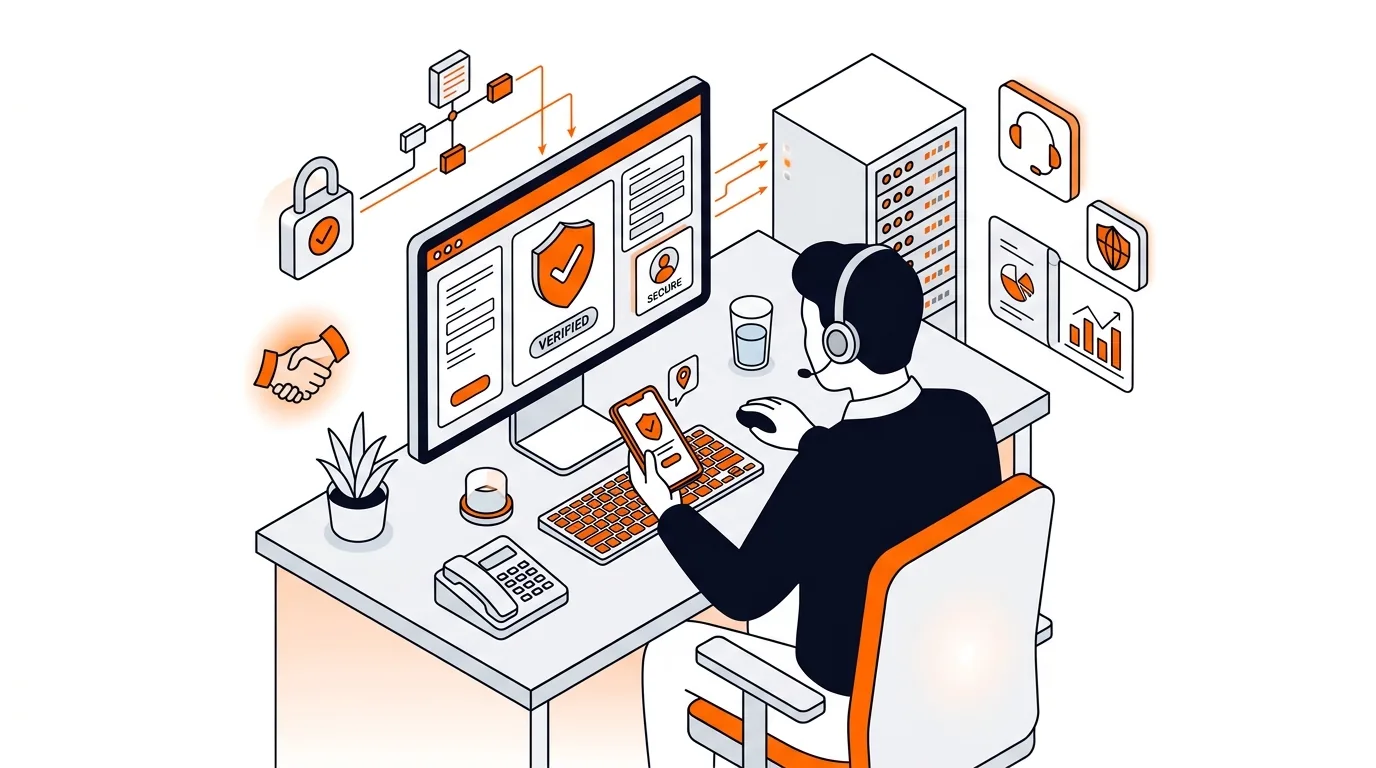
Learn how to confirm whether a tech support caller is legitimate before you share access, payment details, or personal information.
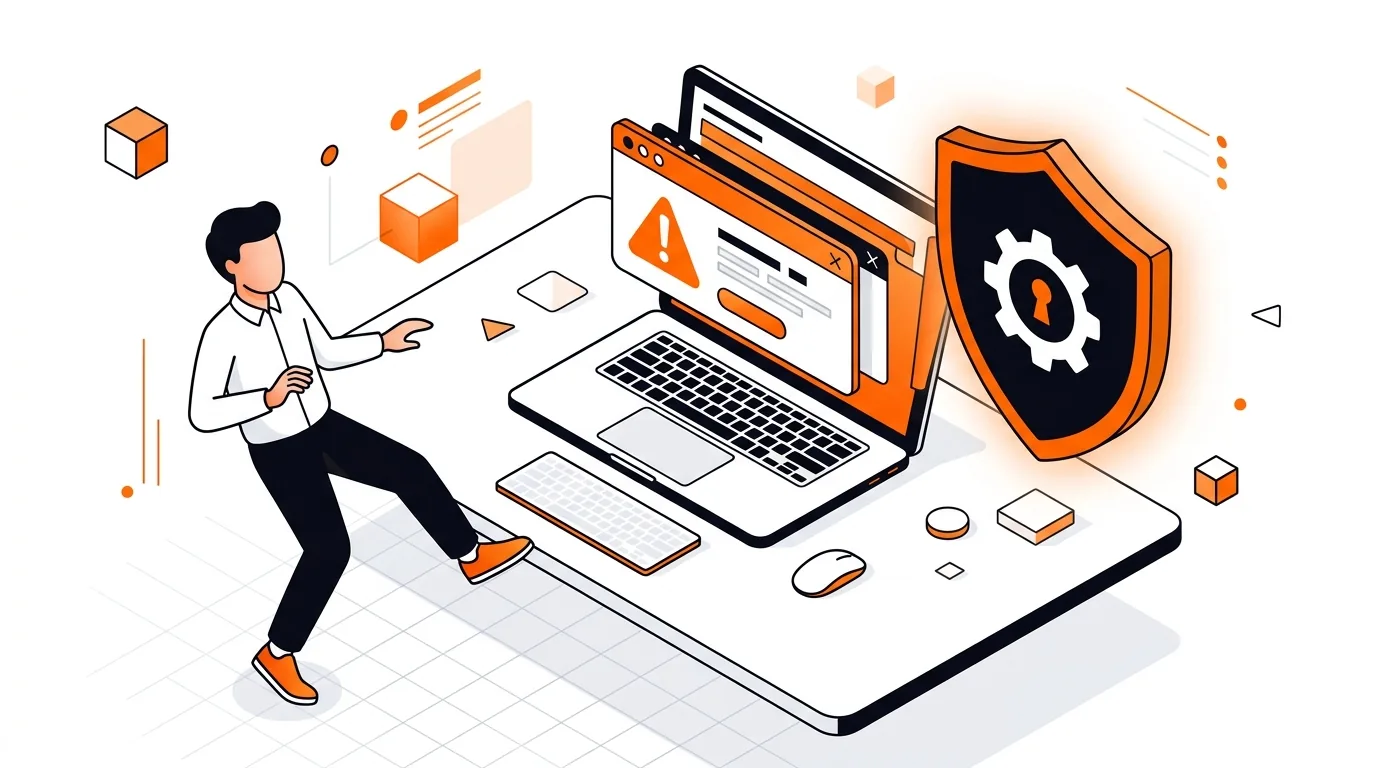
Learn how to close a fake virus warning safely, avoid scam numbers, and secure your Windows or Mac without giving a stranger remote access.

Please sign in or create an account to interact with this article.