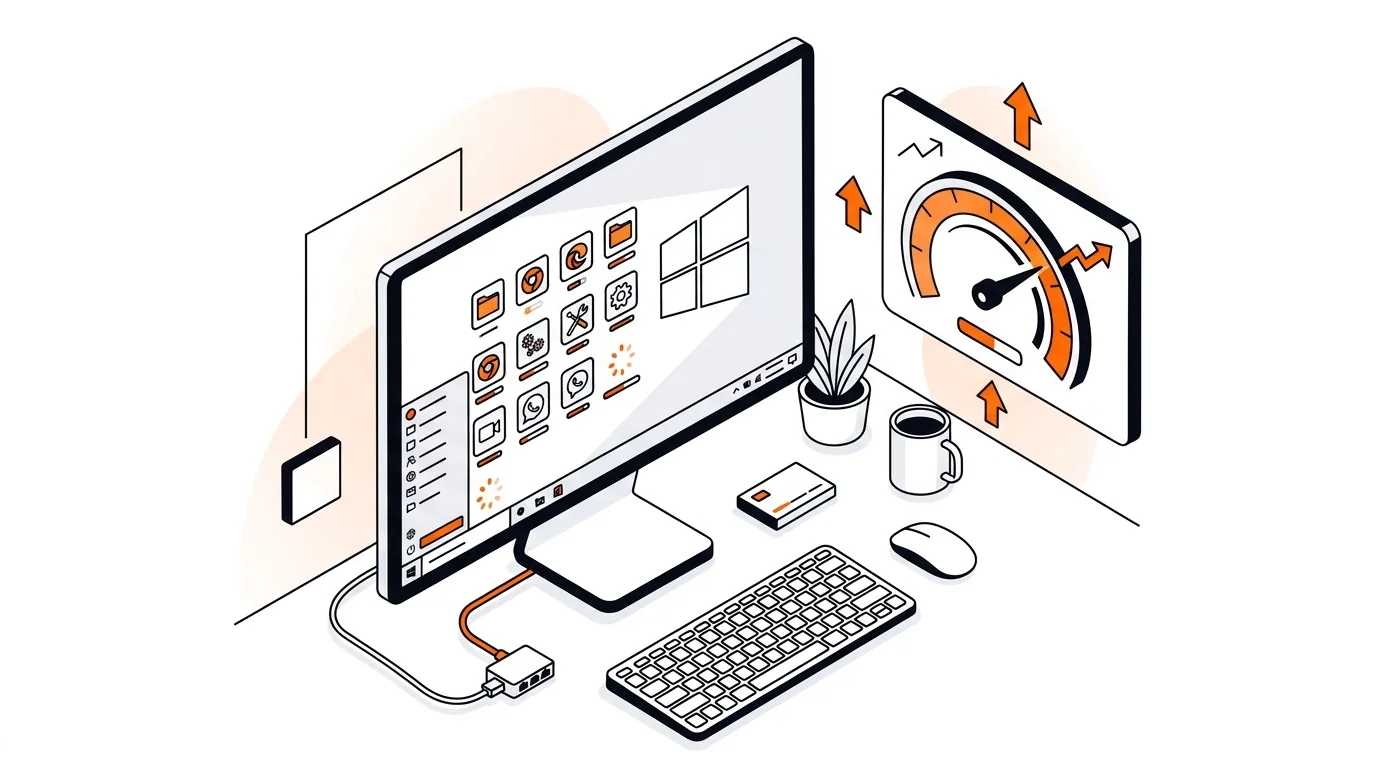
How to Fix Slow Startup Caused by Too Many Startup Apps
Speed up boot time by finding and disabling unnecessary startup apps so your Windows PC reaches the desktop faster and feels responsive again.

Stop Windows from repeatedly reinstalling the same printer driver by clearing old packages, pausing automatic updates, and reconnecting the printer cleanly.
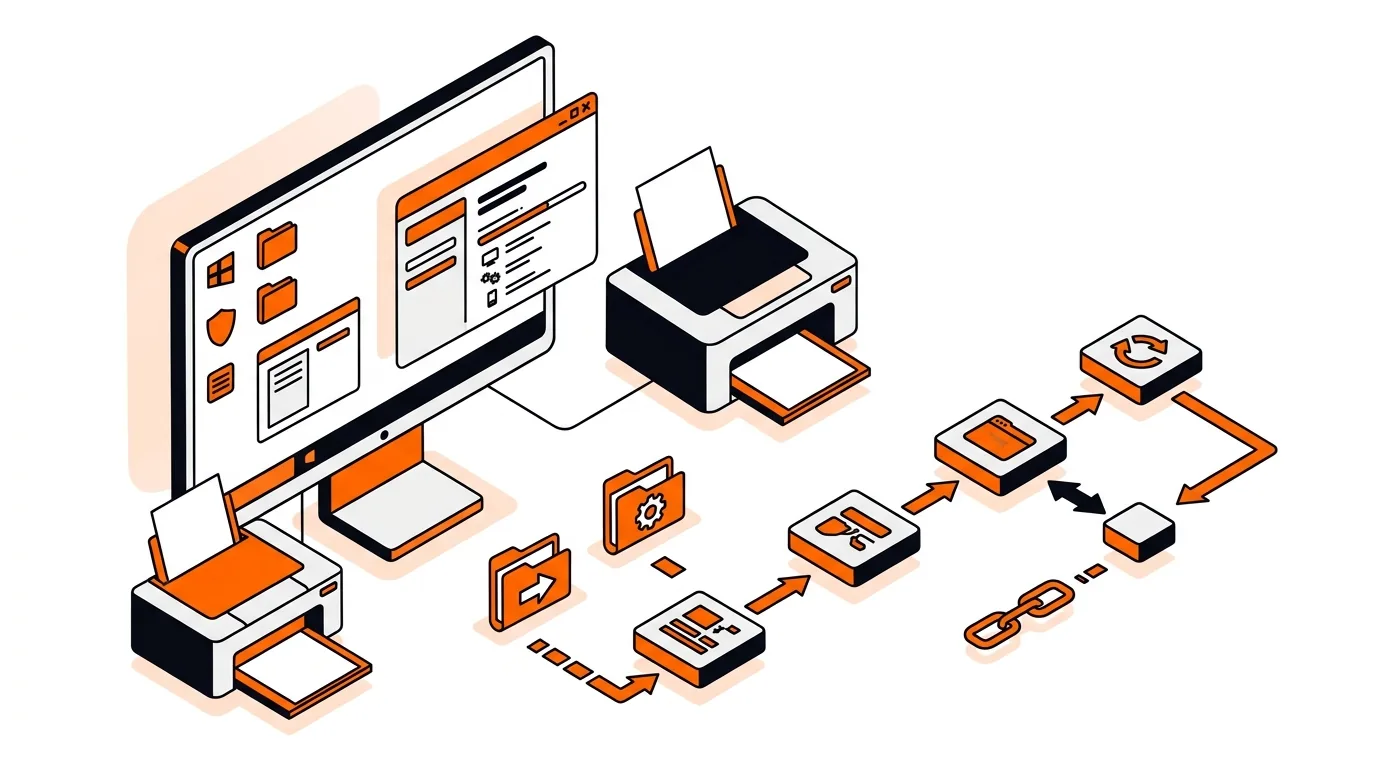
If your printer works one day and then Windows installs it again like it is brand new, you are not imagining things. This problem usually comes from leftover driver packages, stuck print queue data, or Windows automatically pulling in a driver version that does not match your current setup. In this guide, you will learn how to fix repeated printer driver reinstalls on Windows and keep the printer stable.
Windows tries to make printers easy to use by detecting devices automatically and installing drivers in the background. That helps in many cases, but it can also create a loop when an older driver package is still stored on the PC, the printer was installed multiple times, or a recent update changed how the device is identified.
This issue is especially common with USB printers that have been plugged into different ports, network printers that changed IP addresses, and all-in-one models that use both basic Windows drivers and manufacturer software. When Windows sees the printer as a slightly different device, it may reinstall the driver instead of using the one already in place.
If Windows keeps reinstalling the printer after these steps, the issue may be tied to a damaged Windows driver store, a printer firmware problem, or a network discovery conflict. Try updating the printer firmware from the manufacturer's support site and check whether the printer is appearing with a changing name or port. On office or home networks with multiple PCs, removing stale printer entries from every computer that has used the device can also help stop repeated detection. If you want hands-on help, 247TechTeam can walk you through the cleanup remotely.
This usually happens when the printer was installed through different connection methods, such as USB first and Wi-Fi later, or when Windows detected the same device on a new port. Old entries are often harmless, but they can confuse driver selection and cause repeated reinstalls.
For basic printing, the Windows driver may work fine. But if you need full features like scanning, ink tools, or stable device management, the manufacturer's current driver package is usually the better choice. It is also less likely to create a reinstall loop when matched to the exact model.
It can if two printers use the same driver family. Before removing anything in Print Server Properties, check the driver name carefully and confirm it belongs only to the problem printer. If you are unsure, stop and get help rather than removing multiple shared drivers.
Still stuck with a printer that keeps reinstalling itself? Call 247TechTeam at 888-549-0702 or request a secure remote session.
Our technicians can help remotely.
Speed up boot time by finding and disabling unnecessary startup apps so your Windows PC reaches the desktop faster and feels responsive again.
If your PC feels slow after Patch Tuesday, this step-by-step fix can lower RAM usage, stop freezes, and help Windows run smoothly again.
If OneDrive syncing is making your Windows PC feel sluggish, a few targeted settings changes can restore speed without removing your files.


Please sign in or create an account to interact with this article.