
How to Remove Old Drivers That Waste Disk Space on Windows
Learn how to safely remove old Windows driver packages, recover disk space, and avoid deleting the drivers your PC still needs.

Close known software gaps before attackers and bugs turn into trouble.
Many people delay updates because their computer seems to be working fine. That is understandable, but security updates are usually not about fixing a problem you can already see. They are often meant to close weaknesses in Windows, macOS, browsers, and everyday apps before those weaknesses are misused.
For home users and small businesses, this matters because a single missed patch can affect email, saved passwords, financial accounts, shared files, and remote work tools. Understanding why security updates matter can help you treat them as routine maintenance instead of an annoying interruption.
A security update is a software patch that corrects a known weakness. That weakness might allow harmful code to run, let a fake website steal information, or make it easier for an attacker to take advantage of a bug in the background.
Some updates also improve how software checks files, handles memory, verifies websites, or protects saved data. Even when the change feels small, it can reduce the chances that a routine task, such as opening an attachment or visiting a website, becomes risky.
Most security flaws do not act like a cracked screen or a dead battery. They can sit quietly in the system without obvious symptoms. Your PC or Mac may start normally, browse the web, and open documents just fine while still having a known weak point that should be patched.
That is why waiting for a visible problem is not a good update strategy. By the time a flaw causes trouble, it may already have exposed data or allowed unwanted software to get in.
People often think only Windows Update or macOS Software Update matters. In reality, browsers, PDF readers, office apps, password managers, video meeting tools, printer software, and antivirus tools all need regular updates too. If one of those programs is out of date, it can create a weak link even if the operating system is current.
When a software maker releases a patch, it usually means the issue is already understood well enough to fix. Once that patch is public, the weakness becomes easier for bad actors to study. That does not mean every unpatched computer will be attacked, but it does mean older versions tend to become a more attractive target over time.
For small businesses, delayed updates can also create practical problems. One outdated computer can affect shared email, cloud logins, browser sessions, or office files. On a home network, an older machine may also put other devices at greater risk if it is used for web browsing, downloads, or remote access.
Not every update feels urgent, but several categories deserve attention. If you want a simple priority list, start with the items below.
Windows and macOS security updates should come first because they protect core parts of the computer. These patches can affect sign-in security, networking, built-in protections, and how other apps run. If you need help with a stubborn patch, Windows Update Assistance or macOS Update Assistance may help get things moving safely.
Your web browser is one of the most exposed apps on any computer. It handles websites, downloads, saved passwords, and extensions. Keeping Chrome, Edge, Firefox, or Safari updated is one of the simplest ways to reduce everyday risk. If you want help reviewing extensions and browser settings too, a Browser Security Checkup can be useful.
Focus next on email programs, office software, cloud storage apps, meeting tools, printer utilities, and PDF readers. These programs open files from other people and connect to online services often, so keeping them patched matters.
The goal is not to click every prompt the second it appears. The goal is to build a routine that keeps your system current without causing avoidable downtime.
For small businesses, schedule updates outside your busiest hours and make sure at least one recent backup exists before major operating system upgrades. Security patches are still important, but a little planning makes them less disruptive.
If an update repeatedly fails, causes startup problems, or seems stuck for a long time, do not keep force-restarting the computer unless the device maker specifically instructs you to. Repeated interruptions can make recovery more difficult. In those cases, it may be smarter to get professional help through Software Installation & Troubleshooting or a secure remote support session.
Security updates help most when they are handled carefully. A few common habits can cancel out the benefit or create new problems.
If you suspect an update message is fake or your system started behaving strangely after installing software from an untrusted source, it is wise to seek help quickly. In some cases, malware cleanup may be needed before normal updating can resume.
Yes. Antivirus helps detect and block many threats, but it does not replace software patches. Security updates fix the weaknesses that harmful files or websites may try to exploit in the first place. Using both helps reduce risk more than relying on only one layer.
For routine security patches, installing them promptly is usually the better choice, especially for browsers and operating systems. If you depend on one computer for business, you may prefer to save work, confirm your backup is current, and update at a convenient time later the same day or evening.
Minor slowdowns during indexing or background setup can happen for a short time after some updates. If problems continue, such as repeated failures, high memory use, crashes, or missing devices, get help before making major system changes. Troubleshooting the cause is safer than guessing.
Need help installing updates or fixing update-related problems on a Windows or Mac computer? Call 247TechTeam at 888-549-0702 or start a secure remote session.
Our technicians can help remotely.
Learn how to safely remove old Windows driver packages, recover disk space, and avoid deleting the drivers your PC still needs.
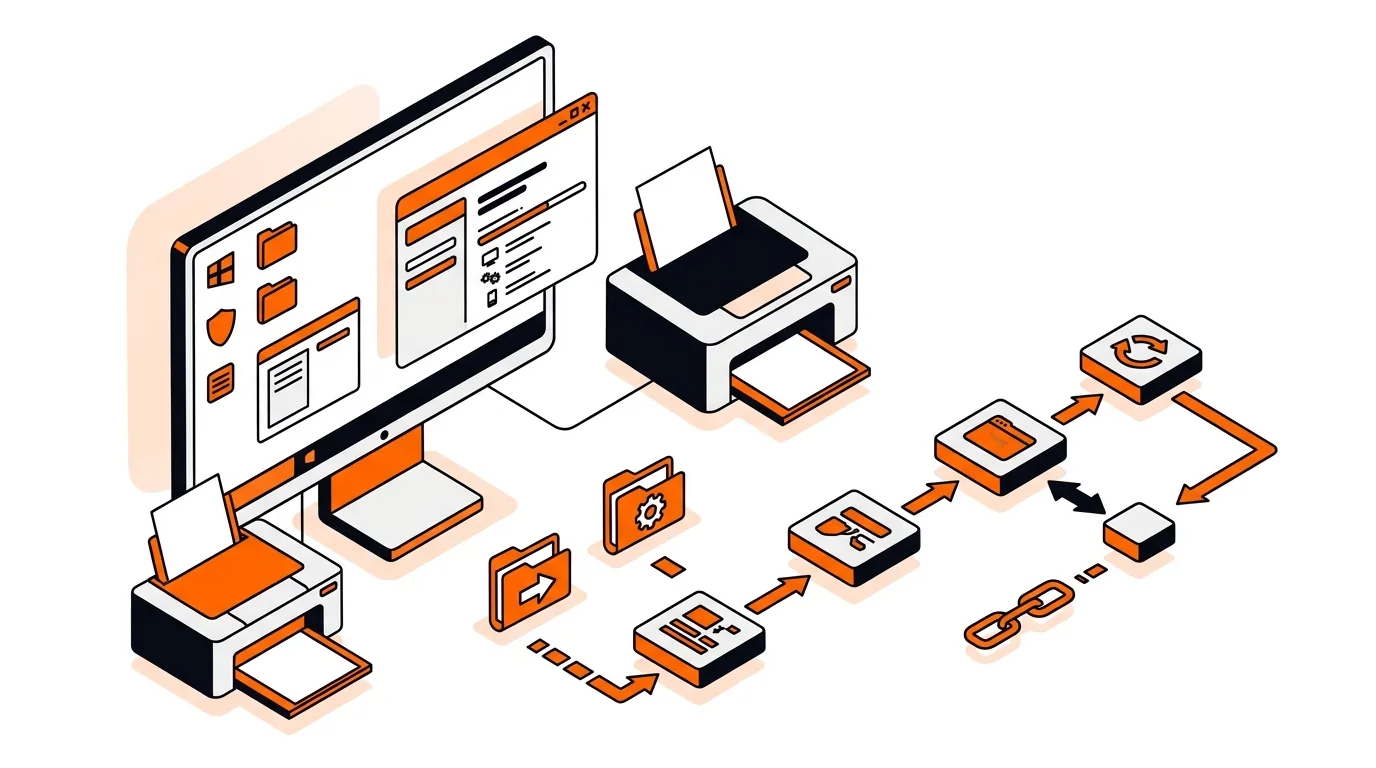
Stop Windows from repeatedly reinstalling the same printer driver by clearing old packages, pausing automatic updates, and reconnecting the printer cleanly.
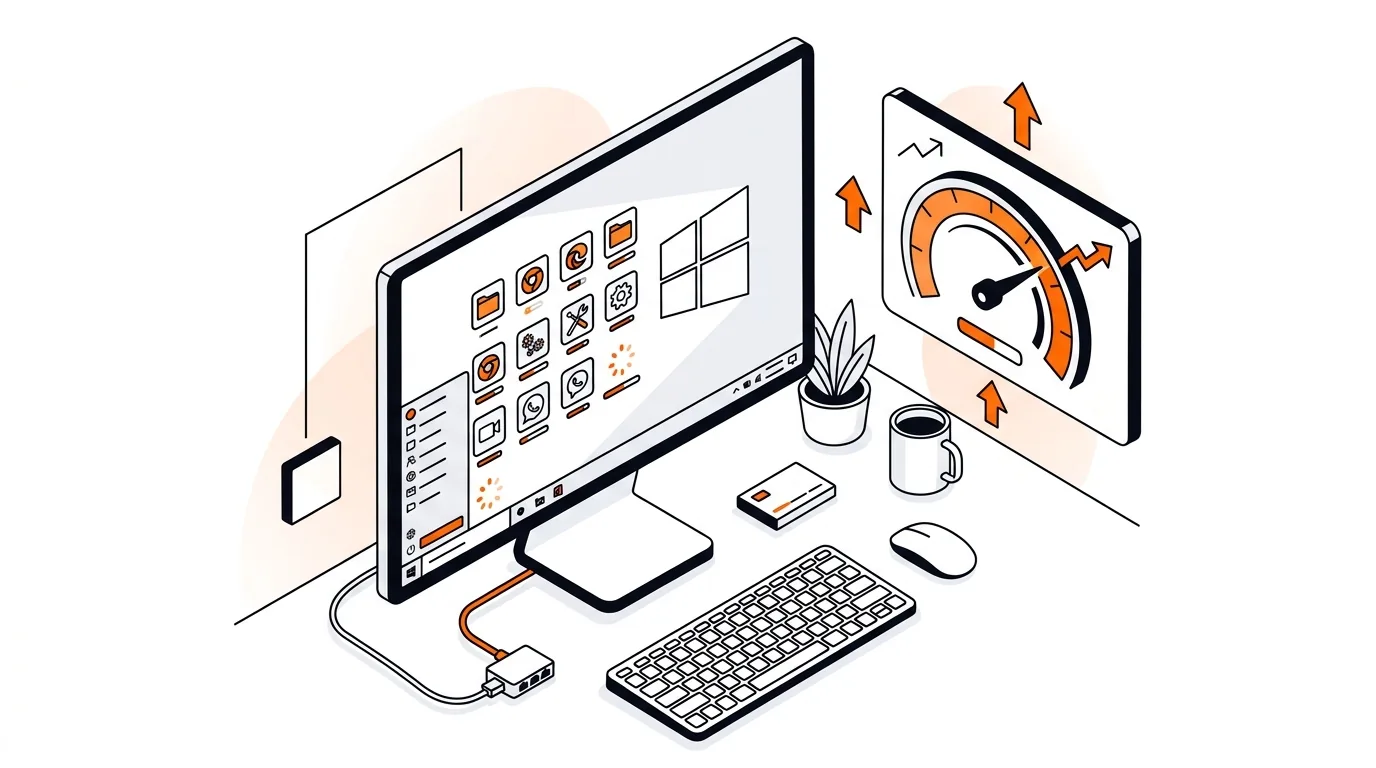
Speed up boot time by finding and disabling unnecessary startup apps so your Windows PC reaches the desktop faster and feels responsive again.

Please sign in or create an account to interact with this article.