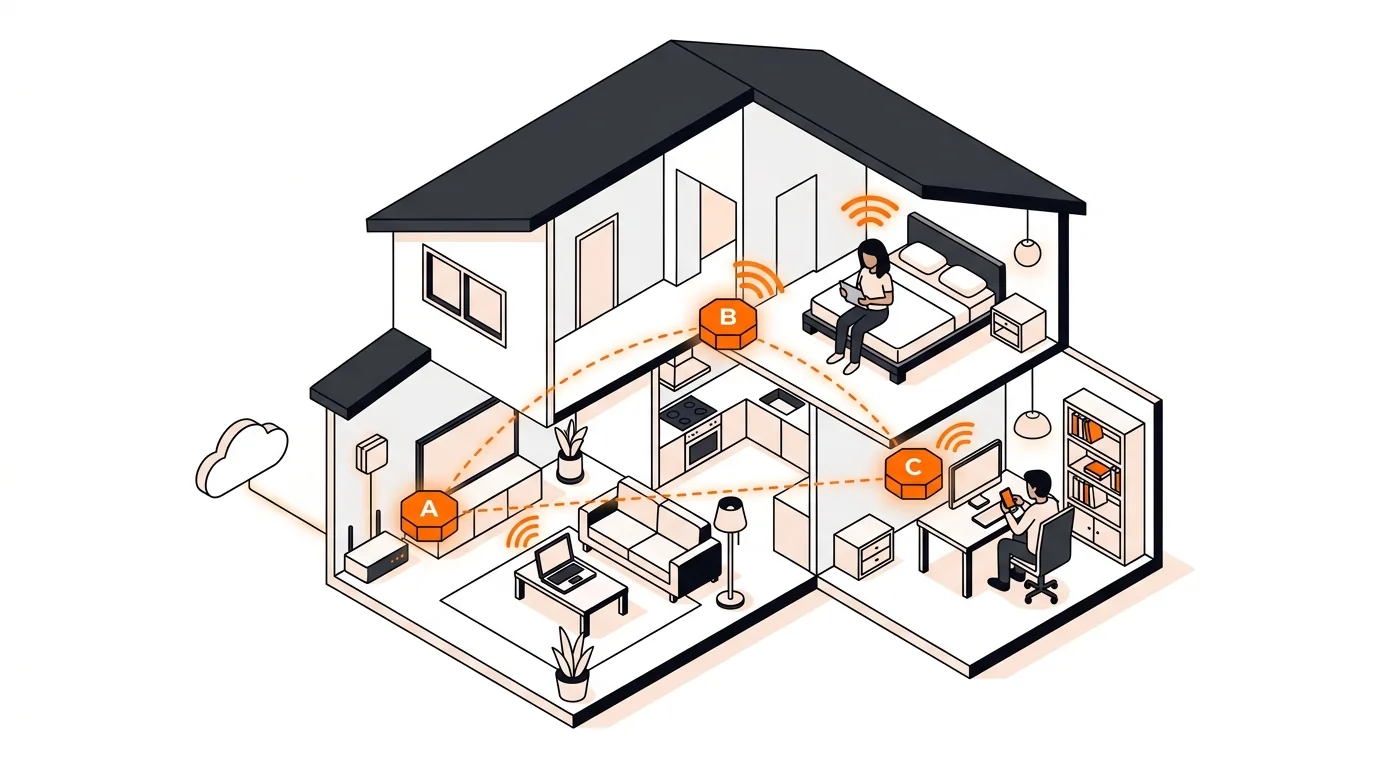
Mesh Wi-Fi Keeps Roaming Wrong? Fix Sticky Device Issues
If your phone or laptop clings to the wrong mesh node, these steps can improve roaming, boost speed, and stop dead-zone frustration.

If your internet crawls when the TV starts streaming, these practical fixes can reduce buffering, speed up other devices, and stabilize your home Wi-Fi.
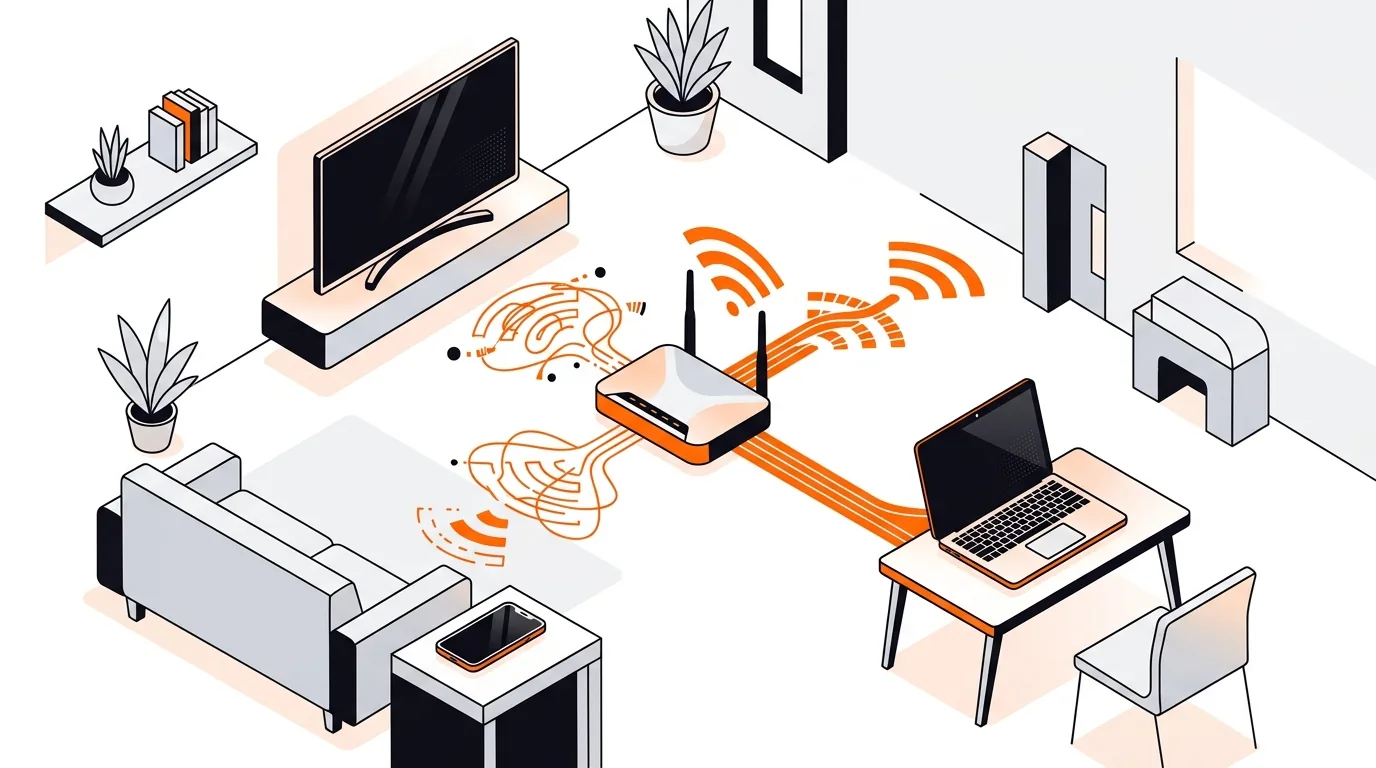
If your internet speed seems fine until someone turns on the smart TV, you are not imagining it. A single streaming device can use a large share of your wireless bandwidth, especially on older routers or crowded networks. In this guide, you will learn why a smart TV slowing Wi-Fi is so common and how to fix it without replacing every device in your home.
Smart TVs often stream in HD or 4K, which can consume a lot of bandwidth for long periods of time. If the TV is connected to the same Wi-Fi band as laptops, phones, and tablets, it may crowd the network and make everything else feel sluggish. This is even more noticeable on 2.4 GHz, where speeds are lower and interference from neighbors, Bluetooth devices, and smart home gear is more common.
The problem is not always your internet plan. Sometimes the issue is local: the TV may be too far from the router, connected to the wrong band, auto-playing ultra-high-quality video, or competing with background downloads from game consoles, cloud backups, or software updates. When that happens, the TV buffering slows internet for the rest of the house.
If your Wi-Fi still slows down every time the TV starts streaming, your router may be underpowered for the number of devices in your home, or your current layout may need a mesh system or access point. You may also be hitting the practical limits of your internet plan during busy hours. If you want hands-on help checking router settings, device placement, or band selection, 247TechTeam can help you troubleshoot remotely and recommend safe next steps.
In most homes, 5 GHz is better for a smart TV because it offers higher speeds and less interference. However, if the TV is far from the router, 2.4 GHz may reach better. The best option depends on distance, walls, and how crowded each band is.
Streaming video uses steady bandwidth for a long time, especially in HD or 4K. If your router is already busy, that extra load can crowd the wireless network and make other devices feel slow even if your internet service itself is working normally.
Sometimes, yes. If your current router is old, lacks good 5 GHz coverage, or struggles with many connected devices, a newer router or mesh system can help. But before buying hardware, it is smart to test band selection, placement, wired connections, and streaming quality settings first.
Need help fixing stubborn internet issues? Call 247TechTeam at 888-549-0702 or request a secure remote session.
Our technicians can help remotely.
If your phone or laptop clings to the wrong mesh node, these steps can improve roaming, boost speed, and stop dead-zone frustration.
If your Wi-Fi is slow on one device but fine on others, these targeted fixes can restore speed quickly without guessing or buying new hardware.
If your device shows Wi-Fi connected but pages will not load, these step-by-step fixes can restore internet access without replacing your router.

Please sign in or create an account to interact with this article.