Windows Security Settings to Check After Setup
Learn which Windows Security app settings are worth reviewing after setup so your PC keeps stronger built-in protection with fewer surprises.

Learn how to fix Wi-Fi connected but no internet on Windows with clear steps that restore browsing, apps, and updates without advanced tools.
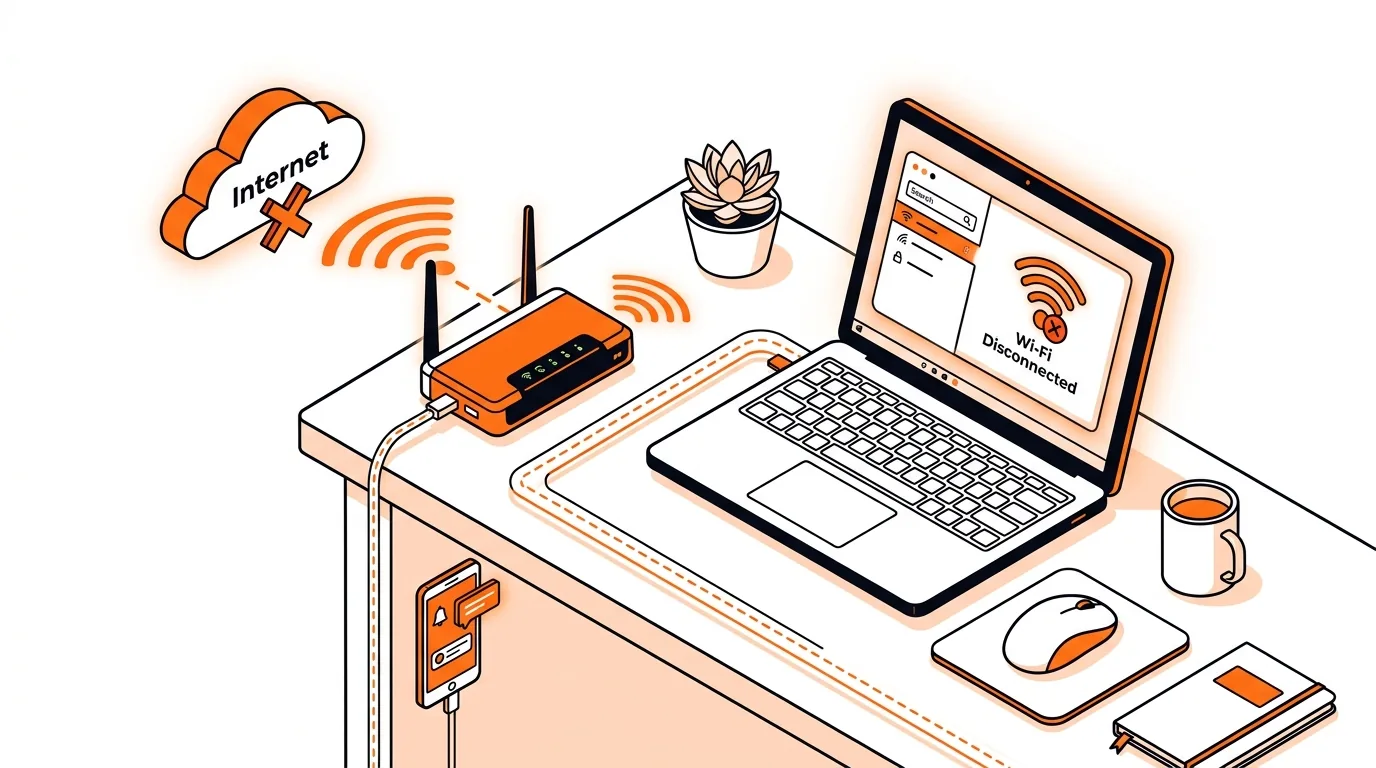
Your PC shows a Wi-Fi connection, but websites will not load, apps stay offline, and Windows may say “Connected, no internet.” That can be frustrating because the wireless signal looks normal even though the connection is not usable. In this guide, you will learn how to fix Wi-Fi connected but no internet on Windows using safe, practical steps that work on Windows 10 and Windows 11.
This problem usually means your computer can talk to the router, but something is blocking access beyond it. Common causes include a temporary router issue, corrupted network settings, a bad DNS cache, an outdated wireless driver, or a VPN or security app interfering with traffic.
It can also happen after a Windows update, after waking from sleep, or when your PC switches between saved networks. The good news is that in many cases, you can restore internet access without replacing hardware.
ipconfig /releaseipconfig /renewipconfig /flushdnsnetsh winsock resetnetsh int ip reset⚠️ Do not leave security software disabled after testing. Re-enable protection immediately if internet access does not return.
If Wi-Fi connected but no internet on Windows keeps returning, the issue may be tied to router firmware, an unstable wireless adapter, power-saving settings, or a recurring driver conflict. Try connecting on another Wi-Fi network to compare behavior. If the problem follows the computer everywhere, professional troubleshooting can help identify whether the cause is Windows, the adapter, or a background app.
That usually means your computer is connected to the router but is not getting valid internet access beyond it. DNS errors, a damaged network stack, proxy settings, or router issues are the most common reasons.
No. A network reset does not remove personal files. It resets network adapters and related settings, so you may need to reconnect to Wi-Fi networks, re-enter passwords, or set up VPN software again.
Usually not. Most cases can be solved by resetting TCP/IP, flushing DNS, checking drivers, and reviewing Wi-Fi or proxy settings. Reinstalling Windows should only be considered after other troubleshooting steps fail and you have backed up important data.
Still stuck? Call 247TechTeam at 888-549-0702 or request a secure remote session for hands-on help diagnosing your Windows network problem.
Our technicians can help remotely.
Learn which Windows Security app settings are worth reviewing after setup so your PC keeps stronger built-in protection with fewer surprises.
Learn how to fix the Windows 11 Driver Power State Failure blue screen with clear steps to update drivers, repair power settings, and stop repeat crashes.
Learn how to fix the Windows 11 INACCESSIBLE_BOOT_DEVICE error with clear steps to restore startup, check disk health, and get your PC booting again.

Please sign in or create an account to interact with this article.