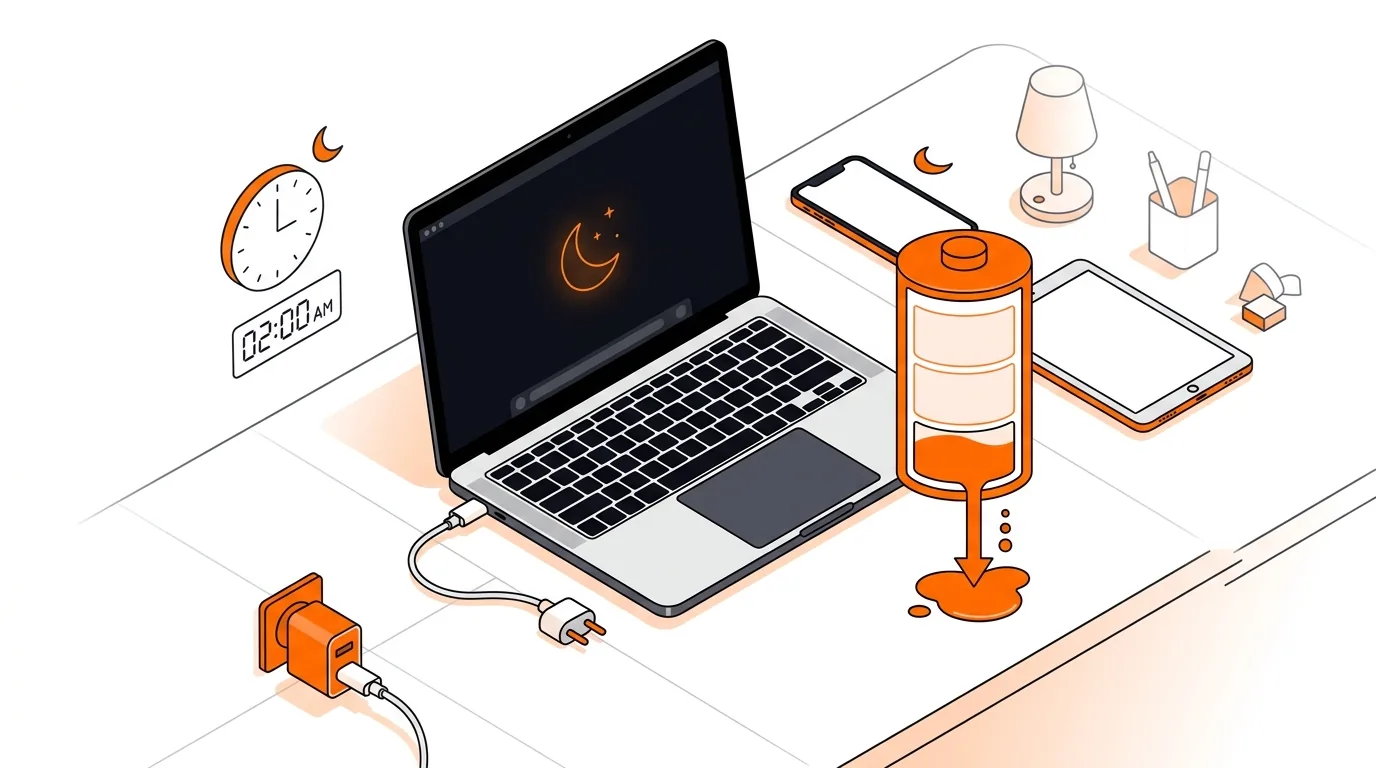
MacBook Battery Draining Overnight? Fix Sleep Power Loss
If your MacBook loses charge while sleeping, these steps can reduce overnight battery drain and help you find the app, setting, or accessory causing it.

If your MacBook hangs on the Apple logo during startup, these step-by-step fixes can help you boot normally without guesswork or unnecessary data loss.
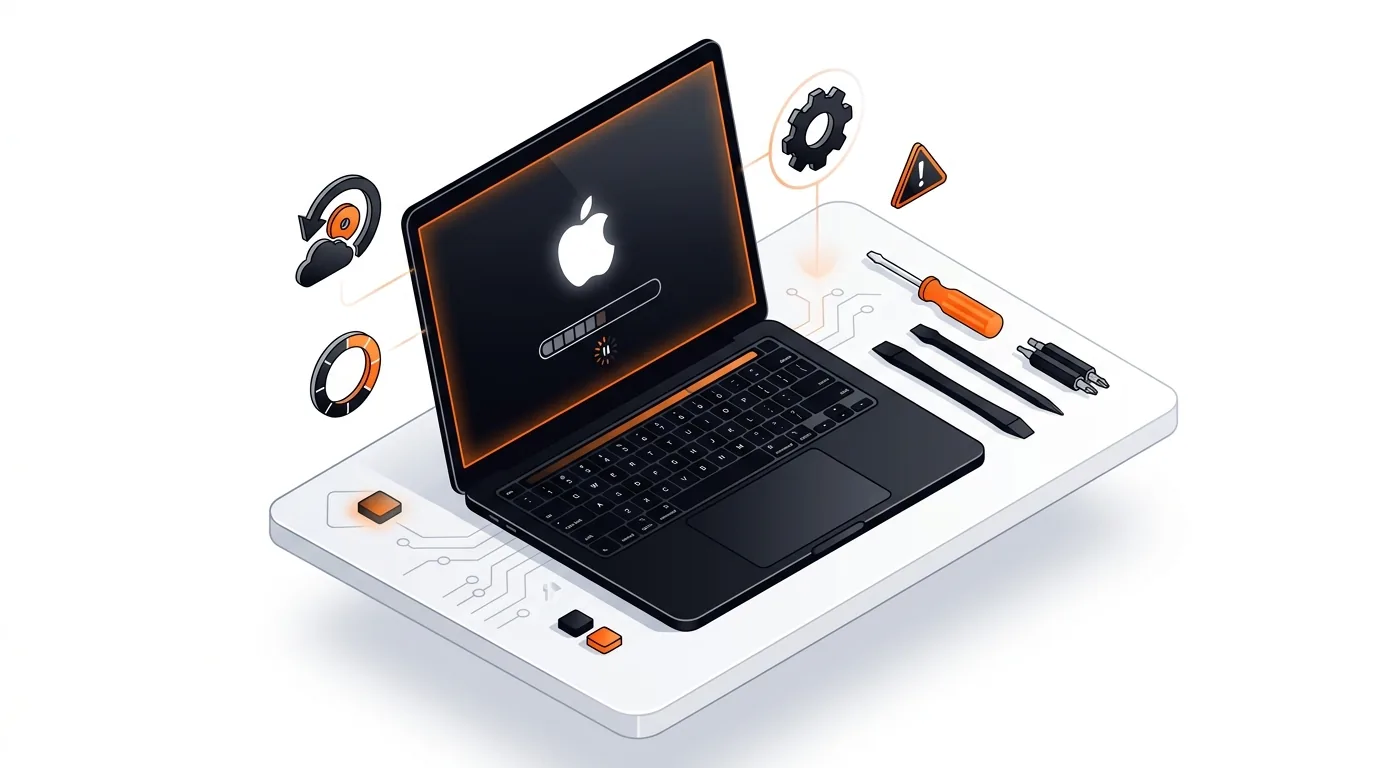
If your MacBook is stuck on Apple logo during startup, the problem usually looks worse than it is. In many cases, a failed update, a damaged startup disk, or a troublesome login item is enough to stop macOS from loading fully. This guide walks you through safe steps to get your Mac moving again and helps you avoid making the issue worse.
When a Mac starts, it checks hardware, loads the startup disk, and launches macOS. If any part of that chain fails, your MacBook may freeze on the Apple logo or stall with a loading bar that never finishes. Common triggers include interrupted macOS updates, low free storage, startup disk errors, incompatible software, or external devices that confuse the boot process.
Sometimes the issue is temporary and clears after a normal restart. Other times, the Mac needs help from Recovery Mode tools such as Disk Utility or Safe Mode to isolate software conflicts. The good news is that you can try several built-in fixes before assuming there is a hardware failure.
⚠️ Safe Mode is generally safe, but startup may be slower than normal and some features may not work until you restart normally.
If the Mac starts in Safe Mode, restart normally afterward. If it then boots correctly, the problem may be tied to cached files, login items, or third-party extensions.If your MacBook repeatedly gets stuck on the Apple logo, the issue may be deeper than a one-time startup glitch. Repeated freezes can point to failing storage, unstable third-party software, persistent file system corruption, or not enough free space for macOS to update safely. Back up your data as soon as you can using Time Machine or another trusted method. If you want guided help, 247TechTeam can walk you through startup troubleshooting remotely and help you decide whether software repair or in-person hardware service makes more sense.
If an update was recently installed, waiting 20 to 30 minutes once is reasonable, especially if the progress bar moves at all. If there is no change after that, move on to the troubleshooting steps instead of repeatedly forcing shutdowns.
A standard reinstall from macOS Recovery is designed to replace system files without wiping personal data. Even so, there is always some risk when a startup disk is already having problems, so back up your files first whenever possible.
If First Aid reports unrepairable errors, your startup disk may have serious file system damage or hardware failure. At that point, try to back up your data from Recovery or another Mac if possible, then plan for advanced repair or disk replacement.
Need help fixing a Mac that will not start? Call 247TechTeam at 888-549-0702 or request a secure remote session.
Our technicians can help remotely.
If your MacBook loses charge while sleeping, these steps can reduce overnight battery drain and help you find the app, setting, or accessory causing it.
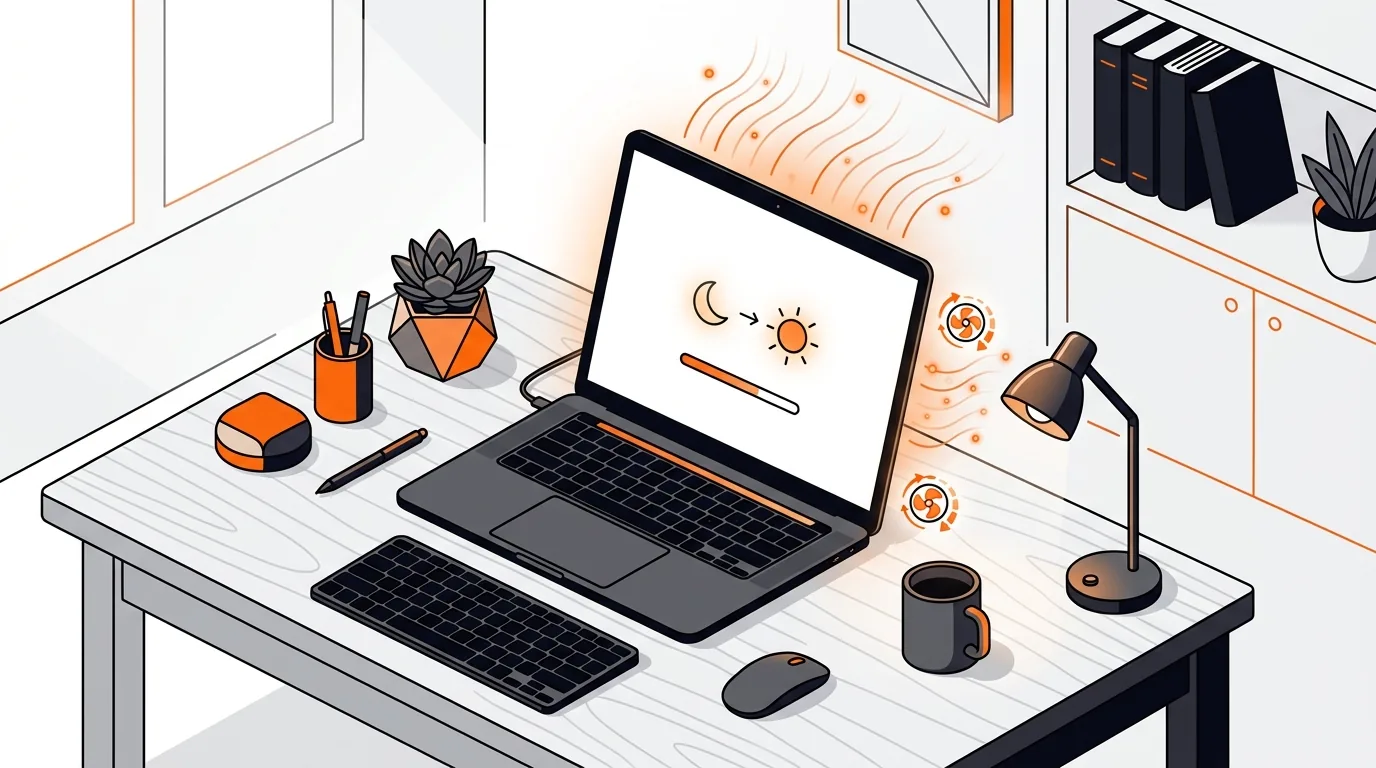
If your MacBook gets hot and the fans stay loud after waking from sleep, these step-by-step fixes can help restore normal temperatures quickly.
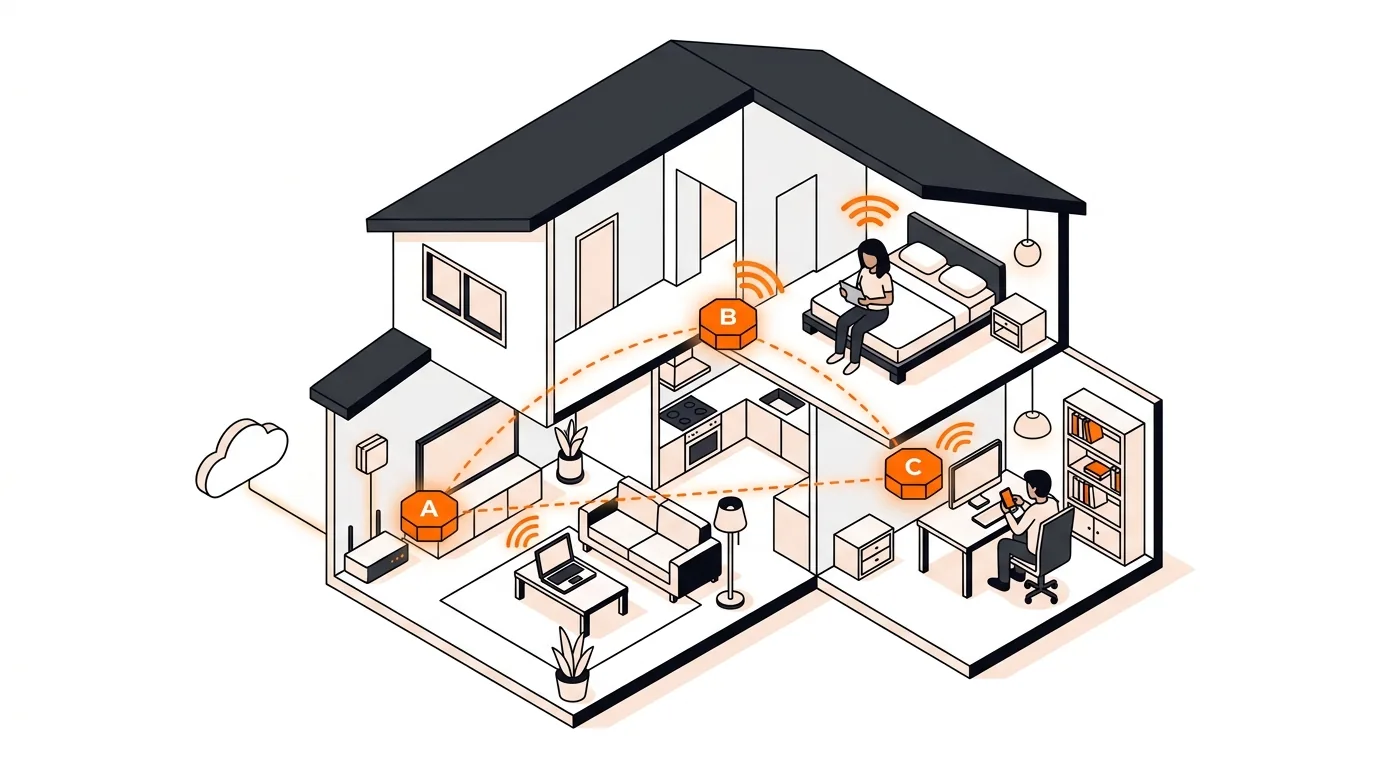
If your phone or laptop clings to the wrong mesh node, these steps can improve roaming, boost speed, and stop dead-zone frustration.

Please sign in or create an account to interact with this article.