
MacBook Stuck on Apple Logo? Fix Startup Freeze Fast
If your MacBook hangs on the Apple logo during startup, these step-by-step fixes can help you boot normally without guesswork or unnecessary data loss.

If your MacBook loses charge while sleeping, these steps can reduce overnight battery drain and help you find the app, setting, or accessory causing it.
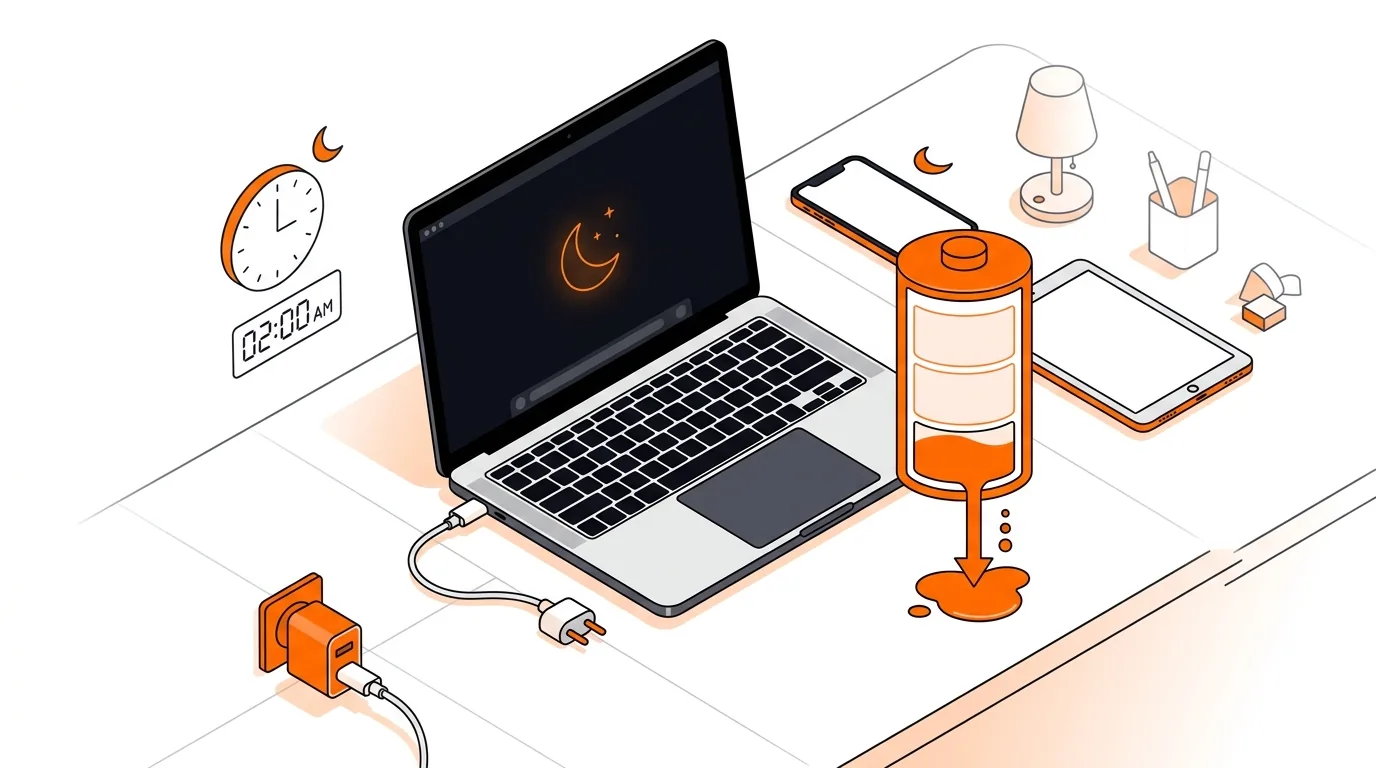
You close your MacBook at night expecting a full or nearly full battery in the morning, but instead you wake up to a big drop in charge. If your MacBook battery draining overnight problem keeps happening, the cause is often a sleep setting, a background app, or a connected accessory that keeps the Mac more active than it should be.
This guide walks you through practical fixes to reduce battery loss while your MacBook is sleeping. You will also learn how to spot patterns that point to software, battery health, or hardware issues.
Even in sleep mode, a MacBook does not always shut down every background activity. Features like network access during sleep, Bluetooth wake events, Power Nap on supported systems, and connected USB or Thunderbolt devices can all use power after you close the lid. Some apps also prevent normal sleep by running background tasks, syncing files, or checking for updates.
Battery age matters too. If your battery health has declined, your MacBook may appear to lose charge faster overnight even when sleep settings are correct. In other cases, macOS settings become misconfigured after an update, or a login item keeps the system active longer than expected.
⚠️ Safe Mode is generally safe, but startup behavior will look different and some apps or extensions will not load. If you are unsure how to start your Intel or Apple silicon Mac in Safe Mode, use Apple’s official instructions or get help before proceeding.
If your MacBook battery draining overnight issue returns after these steps, keep notes on when it happens: after certain app updates, when a dock is connected, or only on specific Wi-Fi networks. That pattern can help identify the root cause. If battery health is poor, the fix may involve battery service. If the Mac also runs hot, wakes in a bag, or loses a large percentage every night, professional troubleshooting can save time and help rule out hardware faults.
A small drop is normal, often just a few percent over many hours. If your MacBook regularly loses 10% to 30% or more while sleeping, that usually points to background activity, accessories, poor battery health, or a sleep-related software issue.
Warmth often means the Mac did not stay in a low-power sleep state. An app may have been syncing, indexing, or checking the network, or a connected accessory may have kept parts of the system active overnight.
Not necessarily. Sleep is designed for normal daily use and should not cause heavy battery drain. If shutting down works better than sleep on your MacBook, use it as a temporary workaround while you troubleshoot the real cause.
Need help tracking down stubborn overnight battery loss on your MacBook? Call 247TechTeam at 888-549-0702 or request a secure remote session.
Our technicians can help remotely.
If your MacBook hangs on the Apple logo during startup, these step-by-step fixes can help you boot normally without guesswork or unnecessary data loss.
If your MacBook gets hot and the fans stay loud after waking from sleep, these step-by-step fixes can help restore normal temperatures quickly.
If your phone or laptop clings to the wrong mesh node, these steps can improve roaming, boost speed, and stop dead-zone frustration.


Please sign in or create an account to interact with this article.