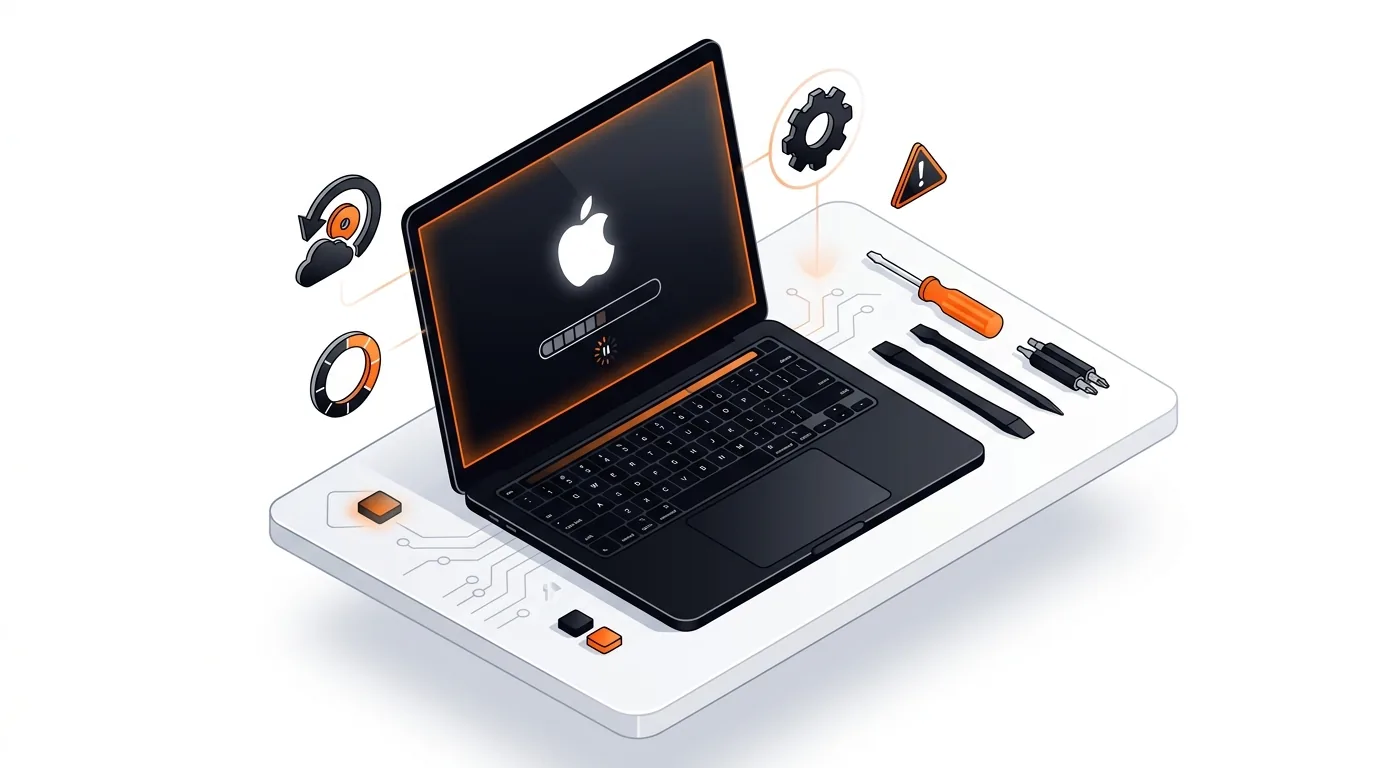
MacBook Stuck on Apple Logo? Fix Startup Freeze Fast
If your MacBook hangs on the Apple logo during startup, these step-by-step fixes can help you boot normally without guesswork or unnecessary data loss.

If your MacBook battery stops at 80%, this guide helps you tell the difference between a normal battery feature and a charging problem you can fix.
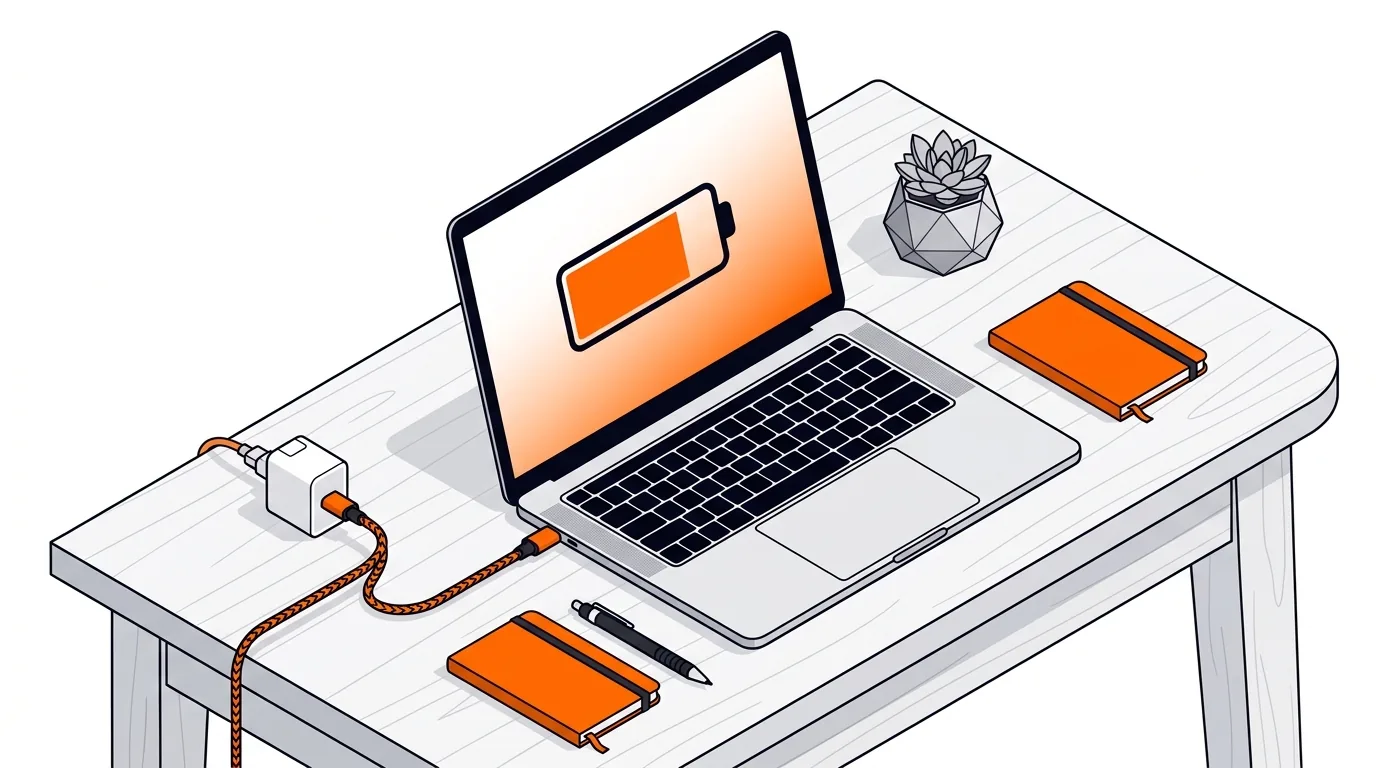
It can be frustrating to plug in your MacBook, leave it charging, and come back to see the battery stuck at 80%. In many cases, this is not a hardware failure at all. This guide explains why your MacBook battery is not charging past 80%, how to tell whether it is normal, and what to do if it is not.
On newer versions of macOS, Apple includes battery protection features such as Optimized Battery Charging and battery health management. These features may intentionally pause charging around 80% to reduce battery wear, especially if your Mac learns that you usually stay plugged in for long periods.
That said, a MacBook that stops charging at 80% can also point to heat, a power adapter issue, battery condition problems, or settings that need attention. The key is figuring out whether macOS is protecting the battery as designed or whether something is preventing a full charge.
⚠️ Safe Mode is generally safe, but startup will be slower and some apps or login items will not load. If you are unsure which Mac model you have or do not want to change startup behavior yourself, get help before proceeding.
If the battery charges past 80% in Safe Mode, a login item, utility app, or third-party system software may be involved. You can then review recently installed apps, battery managers, USB-C dock software, or security tools that may be affecting power management.
If your MacBook battery is not charging past 80% repeatedly even with a good charger, normal temperature, and updated macOS, the battery itself or the charging hardware may need closer inspection. Persistent issues are more likely when the battery condition shows wear, the charger disconnects intermittently, or the Mac only charges correctly in certain ports. If you want hands-on help diagnosing the cause, 247TechTeam can help you check settings, review battery health, and troubleshoot charging behavior remotely.
Not always. If Optimized Battery Charging is enabled, stopping at 80% can be a normal feature designed to reduce battery aging. It becomes a concern when the Mac never goes past 80% regardless of settings, temperature, or charger changes.
Check System Settings > Battery > Battery Health and review whether the feature is on. You may also see a message from macOS saying charging is being held to protect battery lifespan. Turning the feature off briefly can help confirm whether it is the cause.
Not right away. First rule out battery protection features, overheating, software issues, and charger problems. If battery health shows Service Recommended or runtime has dropped significantly, then replacement may be the next step.
Need help figuring out why your MacBook will not fully charge? Call 247TechTeam at 888-549-0702 or request a secure remote session.
Our technicians can help remotely.
If your MacBook hangs on the Apple logo during startup, these step-by-step fixes can help you boot normally without guesswork or unnecessary data loss.
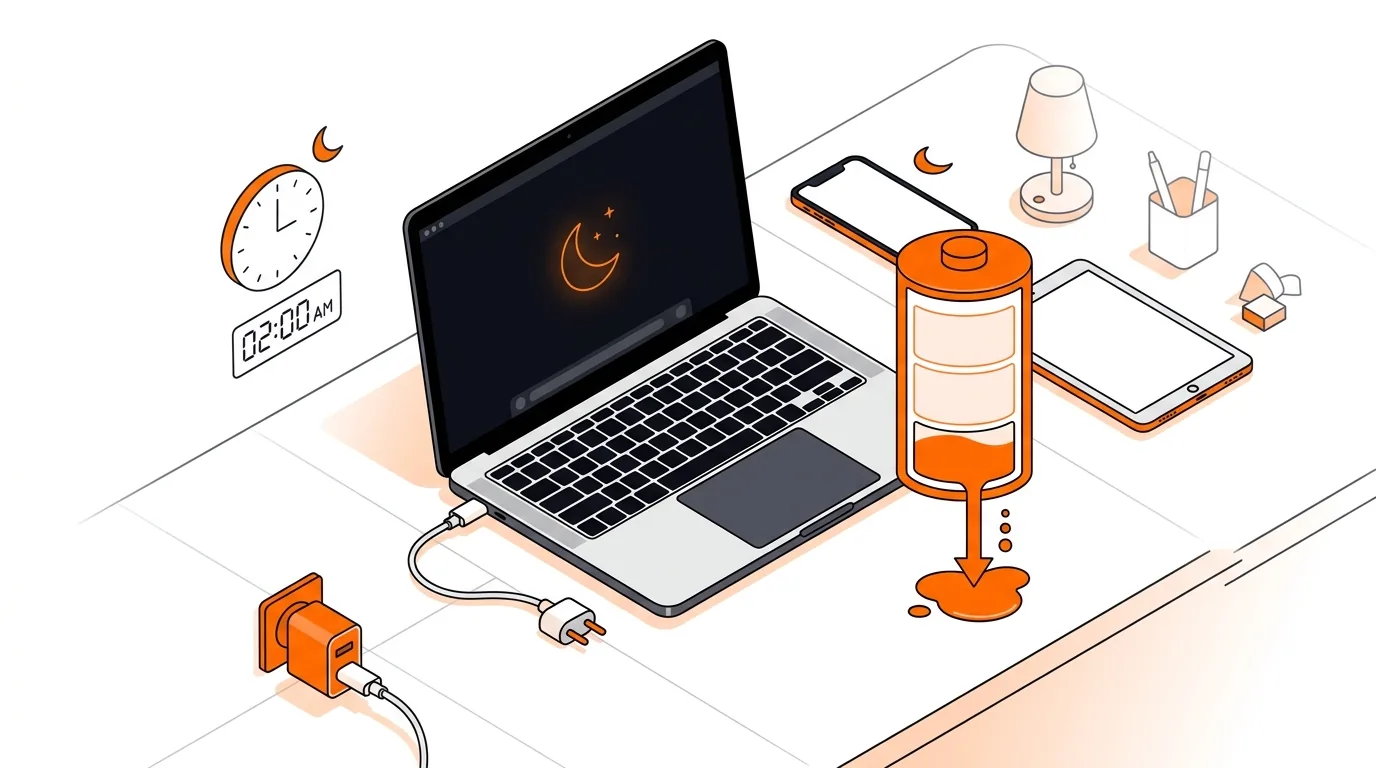
If your MacBook loses charge while sleeping, these steps can reduce overnight battery drain and help you find the app, setting, or accessory causing it.
If your MacBook gets hot and the fans stay loud after waking from sleep, these step-by-step fixes can help restore normal temperatures quickly.


Please sign in or create an account to interact with this article.