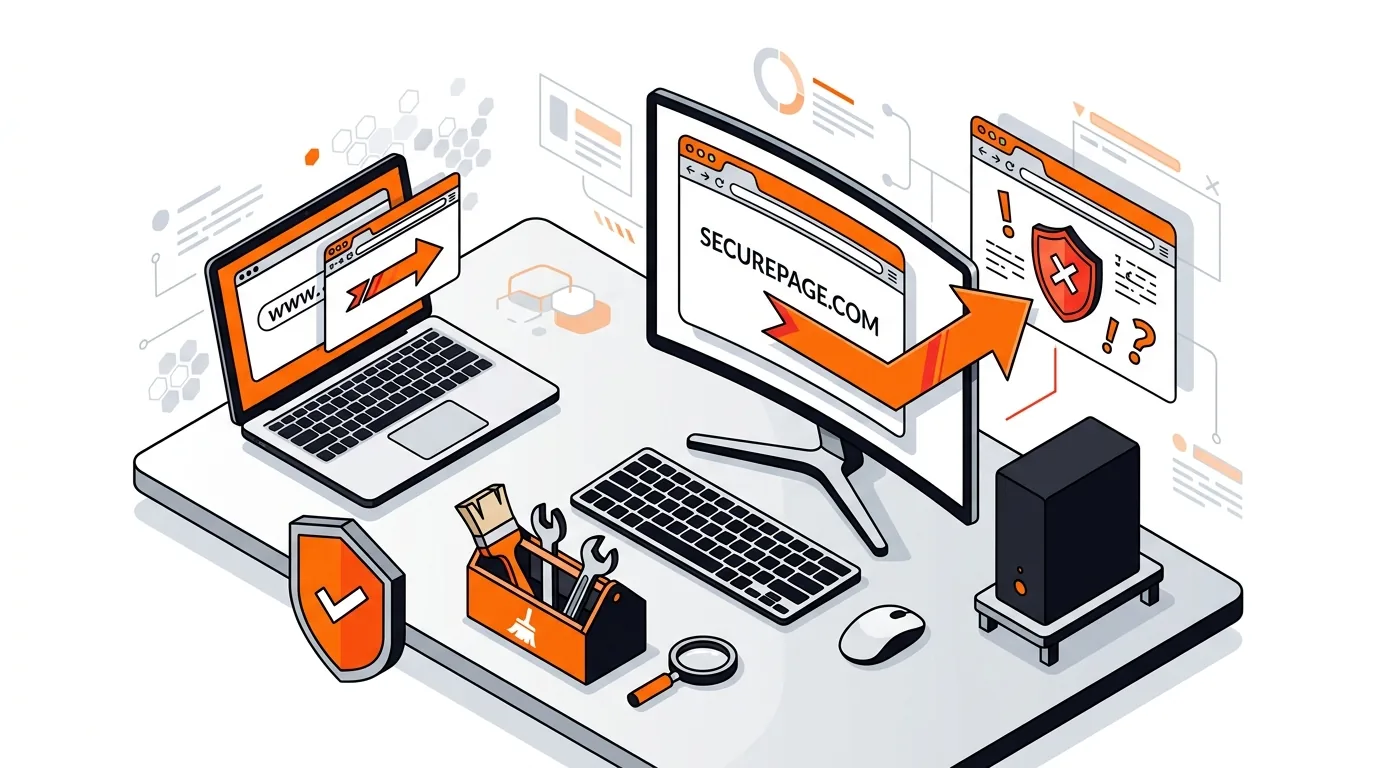
How to Remove Browser Hijacker Search Redirects Fast
If your searches keep opening the wrong site, use these step-by-step fixes to remove a browser hijacker and restore normal browsing on Windows or Mac.

If your browser keeps reopening random tabs at startup, this guide shows how to remove the adware behind it and stop the annoyance for good.
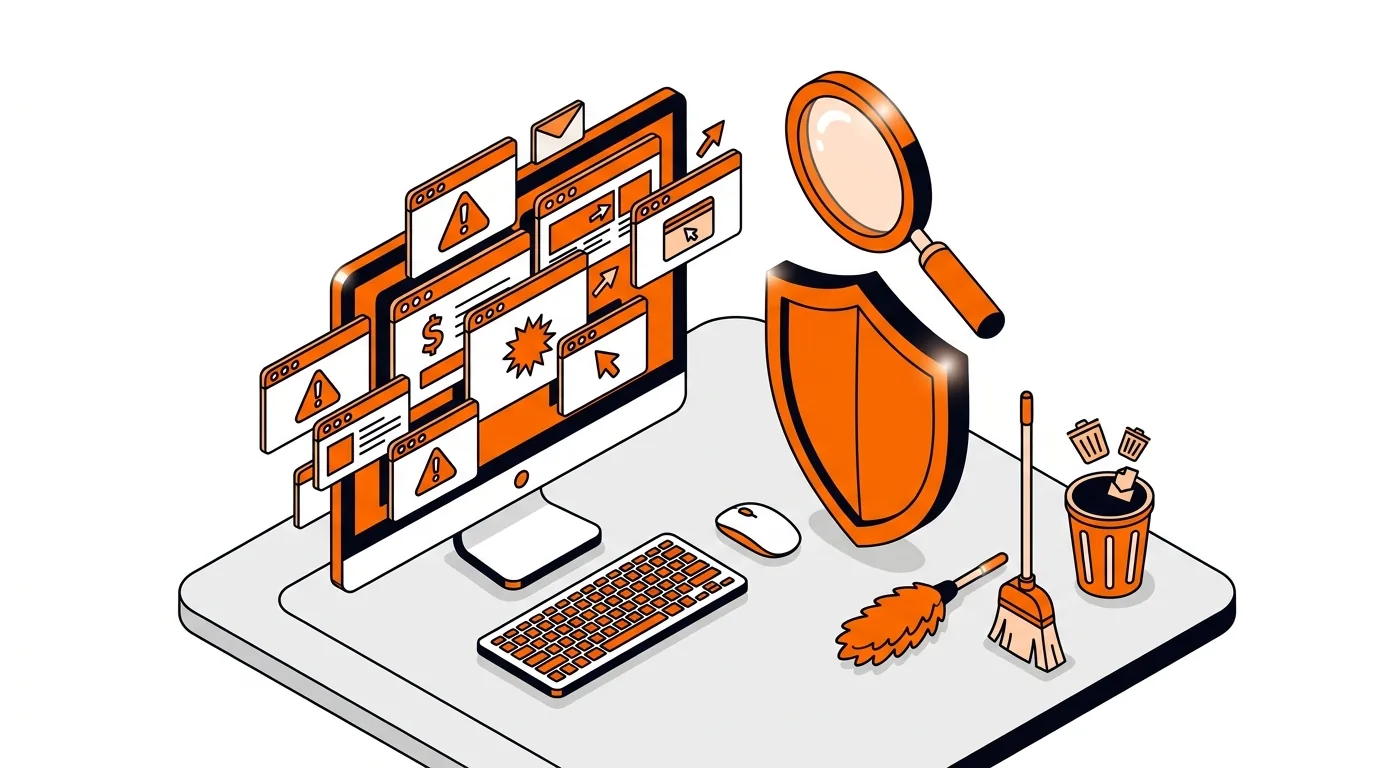
If your browser keeps opening random pages every time you start your computer or launch Chrome, Edge, or Firefox, adware is a common cause. The good news is that this problem is usually fixable without wiping your PC, and this guide will show you how to remove adware that reopens tabs on startup and stop it from coming back.
This issue often starts after installing a free app, browser extension, PDF tool, video converter, or fake update prompt that bundled extra software. The unwanted program may change your browser startup settings, add a scheduled task, install an extension, or place itself in Windows startup so it can reopen ad pages, fake search sites, or scam notifications every time you sign in.
In some cases, the problem is not a full virus but a potentially unwanted program (PUP). Even so, it can still track browsing habits, flood the browser with ads, and slow down your system. That is why it is important to clean both the browser and Windows settings instead of only closing the tabs.
If you remove the tabs but they return after every reboot, there may still be a hidden startup item, a scheduled task, a policy entry, or synced browser settings reapplying the bad change. Sign out of browser sync temporarily, scan again, and review startup entries more closely. If the system shows other signs such as fake alerts, slow performance, or new toolbars, it is smart to get hands-on help before the infection spreads or your accounts are exposed.
Not always. Many cases involve adware or a potentially unwanted program rather than a severe virus, but the behavior is still unsafe and intrusive. Because some adware tracks activity and downloads more unwanted software, you should still remove it promptly.
That usually means something is launching with Windows, such as a startup app, scheduled task, browser shortcut change, or startup page setting. If tabs open only after you sign in, focus on Windows startup items as well as your browser settings.
In most browsers, bookmarks are usually kept, but settings, extensions, startup pages, and search preferences may be reset. It is still wise to export bookmarks or confirm sync is working before you reset, especially if the browser contains important saved data.
Need help cleaning up persistent browser adware or suspicious startup behavior? Call 247TechTeam at 888-549-0702 or request a secure remote session.
Our technicians can help remotely.
If your searches keep opening the wrong site, use these step-by-step fixes to remove a browser hijacker and restore normal browsing on Windows or Mac.
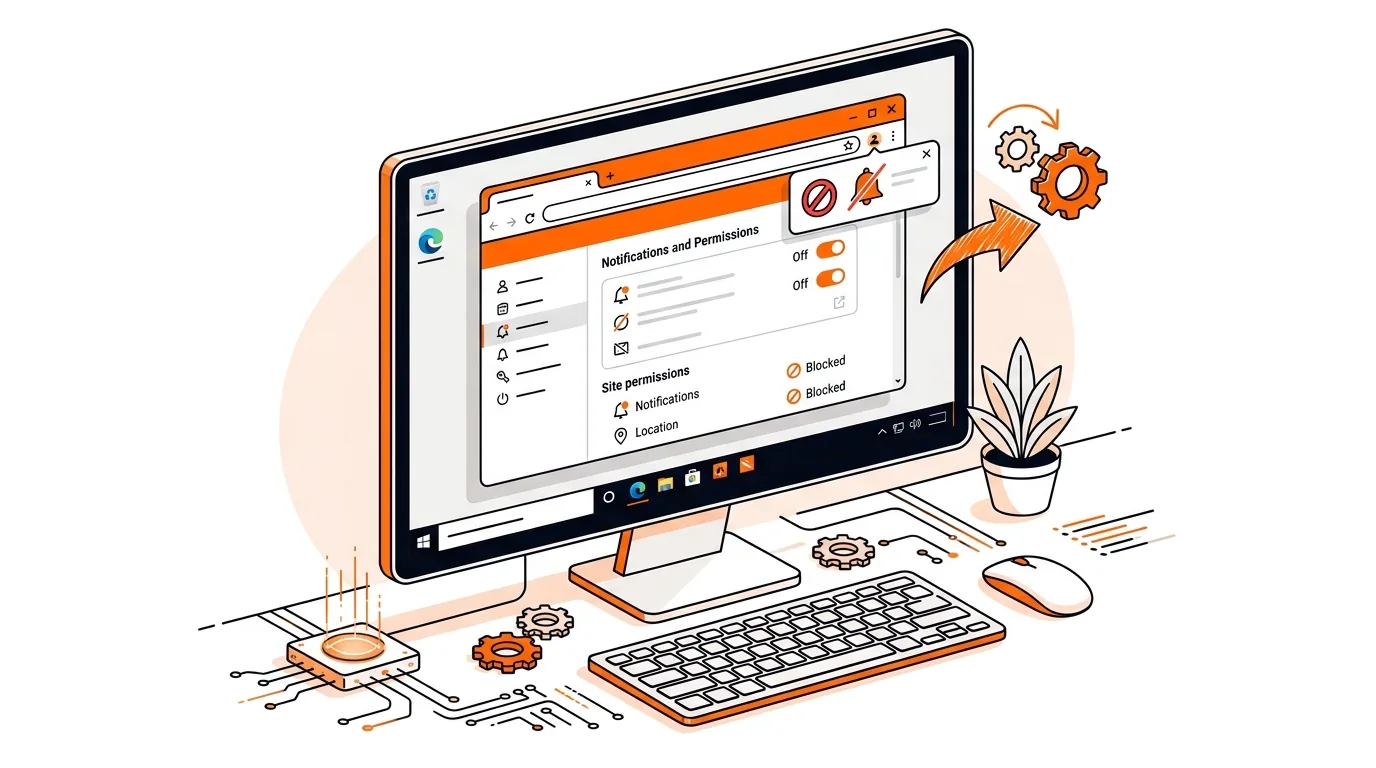
Learn how to stop fake Chrome notification spam on Windows, revoke bad site permissions, and clean up the browser so alerts stop coming back.
Learn how to remove fake McAfee pop-ups from Chrome, Edge, or Firefox and stop repeated scam alerts, redirects, and unwanted notifications.

Please sign in or create an account to interact with this article.