How Ransomware Spreads Through Email and Downloads
Learn how ransomware reaches Windows and Mac computers through email, downloads, and fake prompts, plus practical steps that help reduce risk.

Learn how to remove fake McAfee pop-ups from Chrome, Edge, or Firefox and stop repeated scam alerts, redirects, and unwanted notifications.
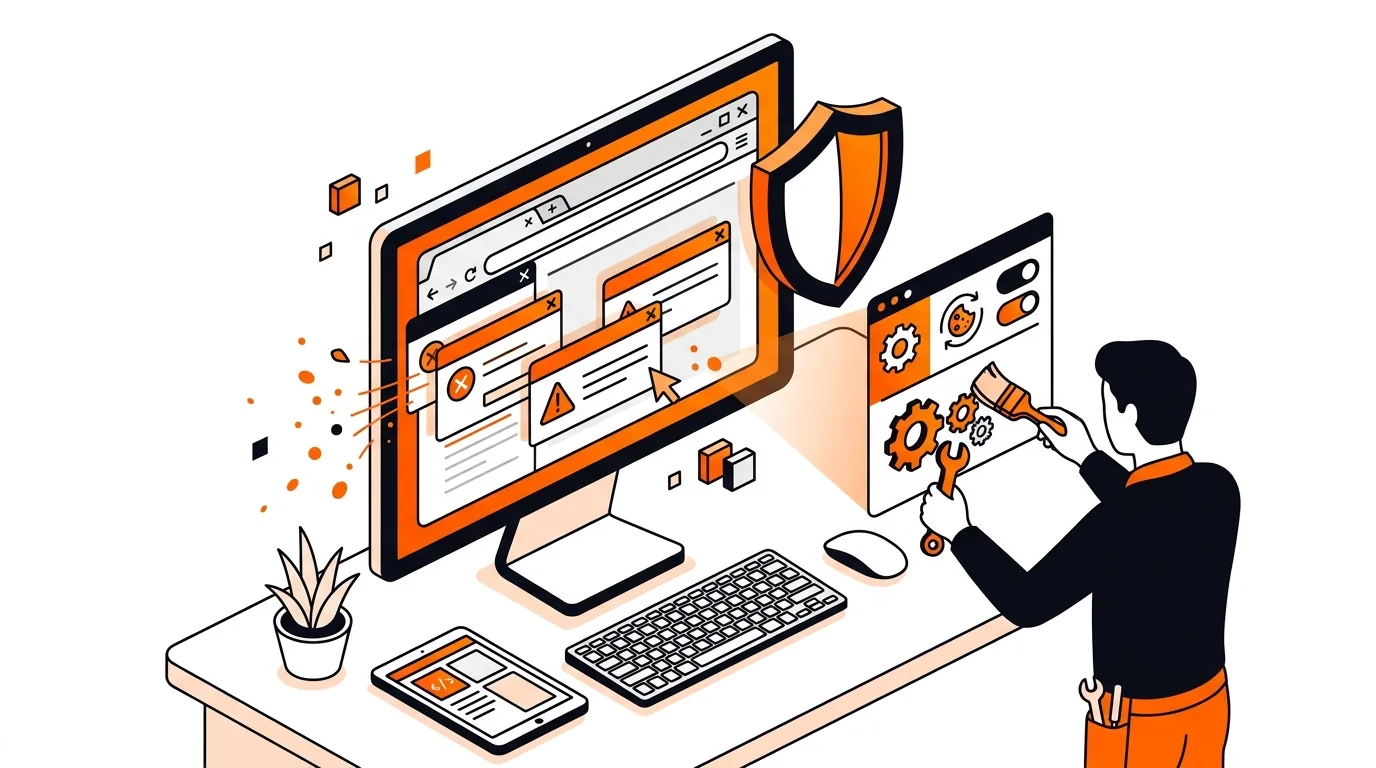
If your browser suddenly shows urgent McAfee alerts even though you were not on the official McAfee website, you are likely dealing with scam notifications or adware rather than a real antivirus warning. This guide explains how to remove fake McAfee pop-ups on Windows, stop them from coming back, and check whether unwanted software is involved.
Most fake McAfee pop-ups do not come from McAfee software at all. They usually appear because a website was allowed to send browser notifications, or because adware changed your browser behavior and keeps opening misleading pages that look like security alerts.
These messages often say your PC is infected, your subscription expired, or you must click immediately to renew protection. The goal is to scare you into clicking, downloading unwanted programs, or entering payment details. If the pop-ups appear in Chrome, Edge, or Firefox even when you are not visiting suspicious sites, it is important to clean both the browser and the system.
If fake McAfee pop-ups return after you remove notifications and scan the PC, there may be deeper adware, a hidden scheduled task, or a browser profile issue involved. At that point, it is smart to get professional help rather than keep clicking around and risking more changes. A remote technician can check startup items, browser policies, and security settings safely while preserving your personal files.
Not always. Many are just scam website notifications, but they can also be a symptom of adware or a potentially unwanted program on the computer. If the alerts keep returning, a full malware scan is a good idea.
Scammers use well-known brand names because they look familiar and urgent. The pop-up is usually tied to a malicious website permission or unwanted software, not to an actual McAfee account or product on your PC.
Usually, a browser reset removes extensions, temporary data, and changed settings such as the homepage or search engine. In most cases, bookmarks and saved passwords remain, but it is still wise to sync or back up important data first.
Need help removing fake alerts or cleaning up a browser infection? Call 247TechTeam at 888-549-0702 or request a secure remote session.
Our technicians can help remotely.
Learn how ransomware reaches Windows and Mac computers through email, downloads, and fake prompts, plus practical steps that help reduce risk.
Spyware and stalkerware often avoid obvious warnings. Learn where they hide, what signs to watch for, and safer first steps on Windows and Mac.
Unexpected pop-ups, slowdowns, and account alerts can point to malware on Windows or Mac computers. Here are seven signs to watch for next.

Please sign in or create an account to interact with this article.