How to Fix Repeated Printer Driver Reinstalls on Windows
Stop Windows from repeatedly reinstalling the same printer driver by clearing old packages, pausing automatic updates, and reconnecting the printer cleanly.

If OneDrive syncing is making your Windows PC feel sluggish, a few targeted settings changes can restore speed without removing your files.
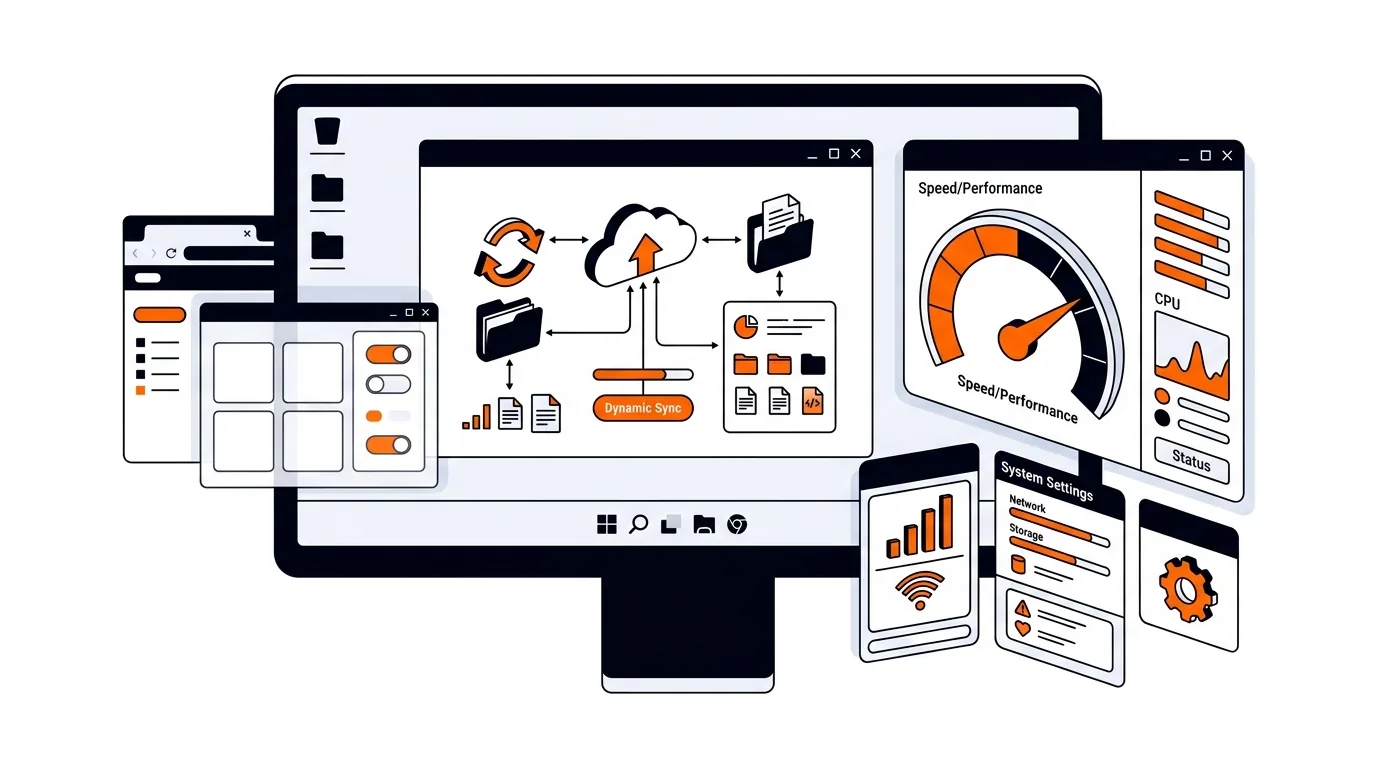
Your PC should not crawl every time cloud files start syncing. If you have noticed longer startup times, loud fan activity, lag while opening apps, or high CPU and disk usage, OneDrive may be working harder than it should. In this guide, you will learn how to stop OneDrive from slowing down your Windows PC using safe settings changes that reduce background load without putting your files at risk.
OneDrive is built to keep your files synced between your computer and Microsoft's cloud service. That is useful, but it can also create extra work in the background. Large folders, thousands of small files, photo libraries, desktop backup, and constant file changes can all trigger heavy syncing. On older PCs or systems with limited RAM and slower hard drives, that activity can noticeably reduce performance.
Another common cause is how OneDrive handles Files On-Demand, startup behavior, and backup settings. If OneDrive launches with Windows, scans many folders right away, and begins syncing while Windows is still loading updates and startup apps, your system can feel slow even when nothing is technically broken.
If OneDrive keeps slowing your system down after these changes, the issue may be tied to limited RAM, a nearly full drive, disk errors, or another startup app competing for resources. It can also happen when a Windows user profile or OneDrive configuration becomes corrupted. At that point, a deeper cleanup and performance review can save time and prevent accidental file-sync mistakes.
Yes. Pausing sync is generally safe for short periods and is a good way to test whether OneDrive is causing the slowdown. Just remember that new or changed files will not upload until syncing resumes.
Usually no. Uninstalling OneDrive is rarely necessary and may interrupt your backup routine. In most cases, adjusting backup folders, enabling Files On-Demand, and reducing the number of actively synced files will solve the problem without removing the app.
High CPU or disk usage usually means OneDrive is processing many file changes, rechecking a large folder, handling sync conflicts, or trying repeatedly to upload problem files. Reviewing your synced folders and clearing sync errors usually reduces the load.
If you want help diagnosing sync issues or improving system performance, call 247TechTeam at 888-549-0702 or request a secure remote session.
Our technicians can help remotely.
Stop Windows from repeatedly reinstalling the same printer driver by clearing old packages, pausing automatic updates, and reconnecting the printer cleanly.
Speed up boot time by finding and disabling unnecessary startup apps so your Windows PC reaches the desktop faster and feels responsive again.
If your PC feels slow after Patch Tuesday, this step-by-step fix can lower RAM usage, stop freezes, and help Windows run smoothly again.


Please sign in or create an account to interact with this article.