
How to Remove Old Drivers That Waste Disk Space on Windows
Learn how to safely remove old Windows driver packages, recover disk space, and avoid deleting the drivers your PC still needs.

Learn how to prevent Windows Update from replacing a stable driver, so you can stop recurring crashes, flickering, or device problems for good.
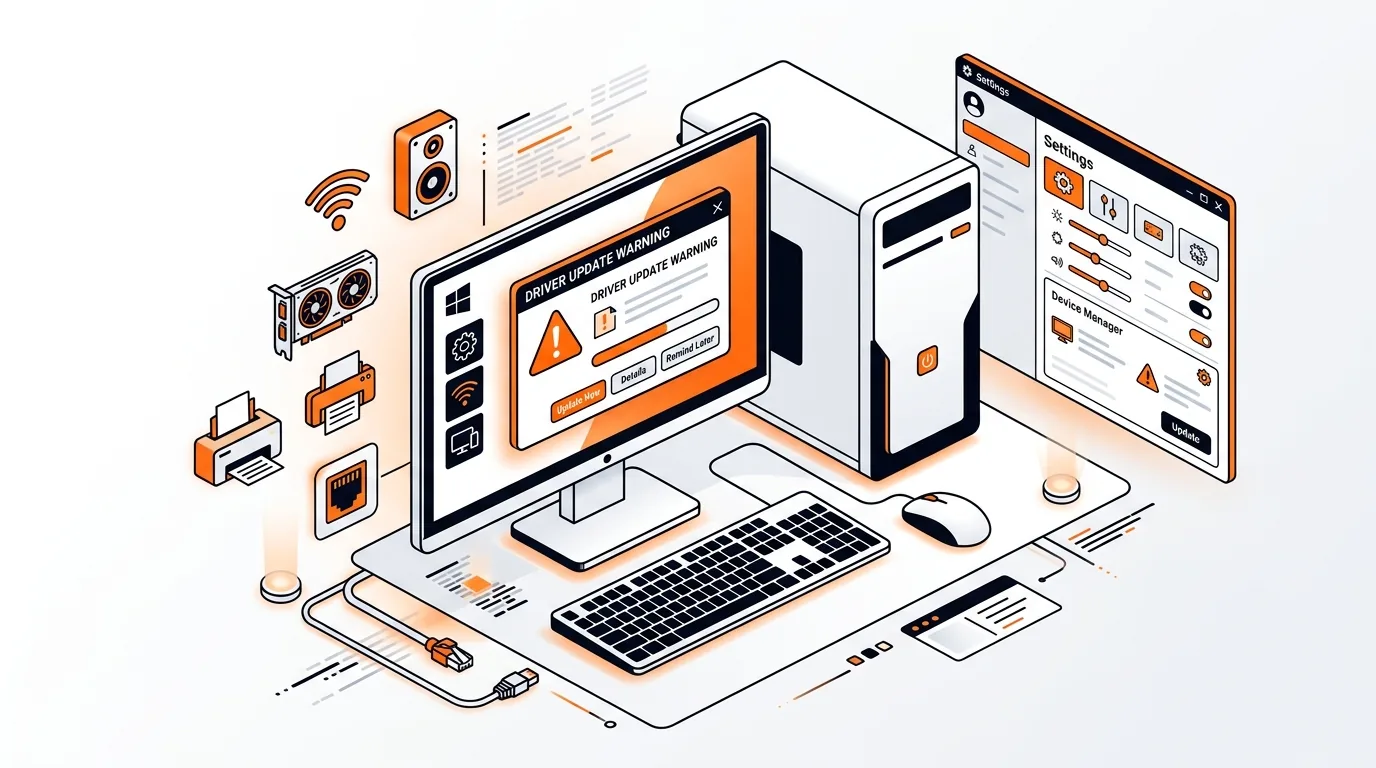
If your PC starts acting up right after an update, a bad driver may be the real problem. Screen flickering, missing audio, Wi-Fi dropouts, and printer failures often happen when Windows Update replaces a working driver with a newer but less stable one. In this guide, you’ll learn how to stop Windows Update from installing bad drivers, roll back to a stable version, and keep the issue from coming back.
Windows Update does more than install security patches. It can also deliver hardware drivers for graphics cards, printers, Wi-Fi adapters, Bluetooth, audio devices, and other components. In many cases that works well, but sometimes the newest driver is not the best one for your exact PC model or device revision.
This is especially common after major Windows feature updates, when Microsoft may automatically replace a manufacturer-tested driver with a generic or newer package. If that driver conflicts with your hardware, you may see repeated crashes, poor performance, or devices that stop working until you reinstall the older version.
⚠️ Device-specific update blocks can affect future hardware fixes. Double-check the hardware ID before applying the policy, and create a restore point first if you are unsure.
If you still cannot stop Windows Update from installing bad drivers, the issue may involve a deeper conflict between your hardware, BIOS or firmware version, and the available driver packages. In that case, check whether your PC maker offers a BIOS update or a newer chipset package, and make sure you are using drivers intended for your exact model. If the system is unstable, repeated trial and error can make things worse, so it may be smarter to get professional help before more devices are affected.
Yes, as long as you still install trusted drivers manually when needed. Blocking a bad driver can improve stability, but you should still keep security updates enabled and check periodically for a better driver from your PC or device manufacturer.
Windows Update may detect the older driver as outdated and replace it during its normal scan cycle. That is why rolling back the driver alone is often not enough. You usually need to hide the problematic update or change how driver updates are delivered.
For common hardware, Windows Update drivers are often fine. But for graphics, audio, networking, printers, and specialty devices, the manufacturer’s driver is usually the better choice if you need maximum stability or full features. Always match the driver to your exact model and version of Windows.
If you want help fixing a bad driver update or stopping repeat hardware problems, call 247TechTeam at 888-549-0702 or request a secure remote session.
Our technicians can help remotely.
Learn how to safely remove old Windows driver packages, recover disk space, and avoid deleting the drivers your PC still needs.
Stop Windows from repeatedly reinstalling the same printer driver by clearing old packages, pausing automatic updates, and reconnecting the printer cleanly.
Speed up boot time by finding and disabling unnecessary startup apps so your Windows PC reaches the desktop faster and feels responsive again.

Please sign in or create an account to interact with this article.