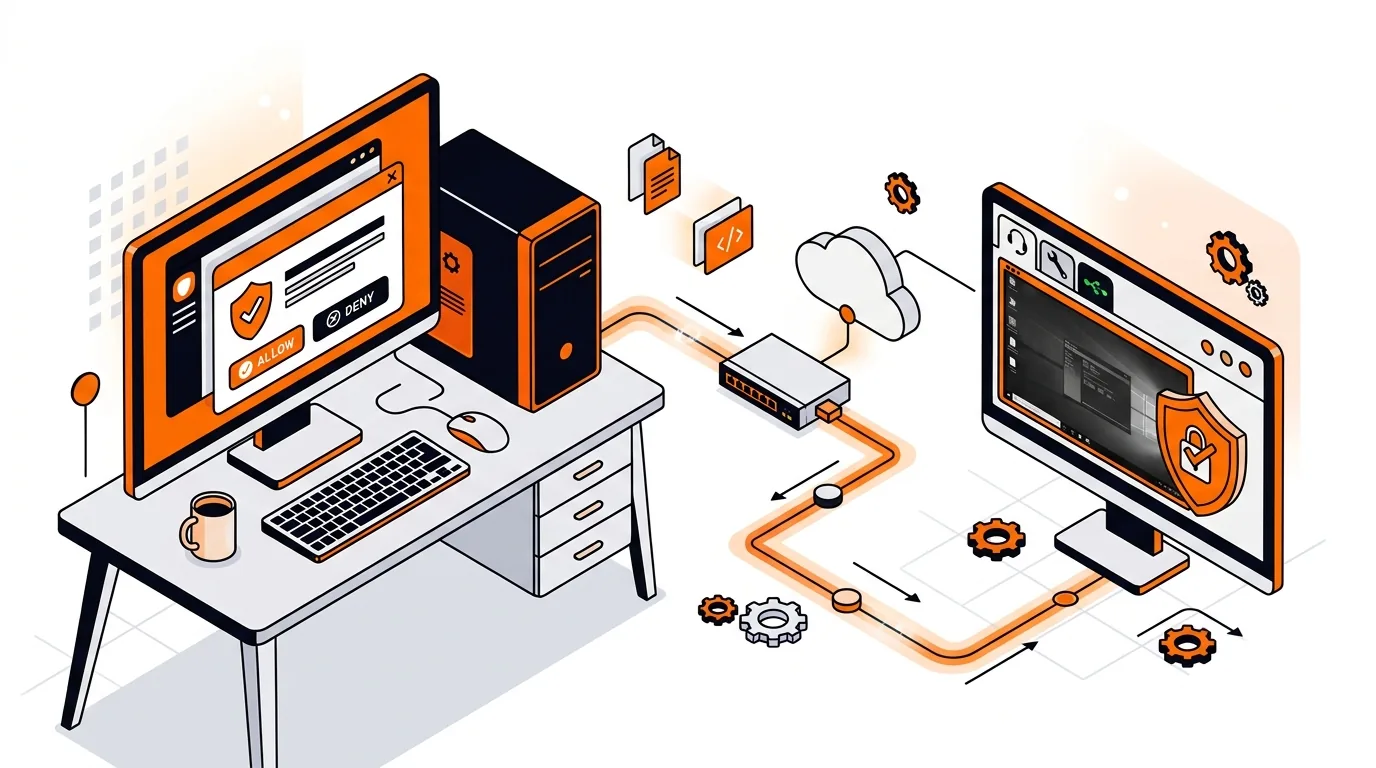
Remote Support Asking for Permission Repeatedly? Fix UAC
Stop repeated permission pop-ups during a remote session by adjusting UAC-friendly settings so your technician can work smoothly and securely.

If your remote support session shows a black screen, these steps can restore visibility fast so the technician can work without repeated disconnects.
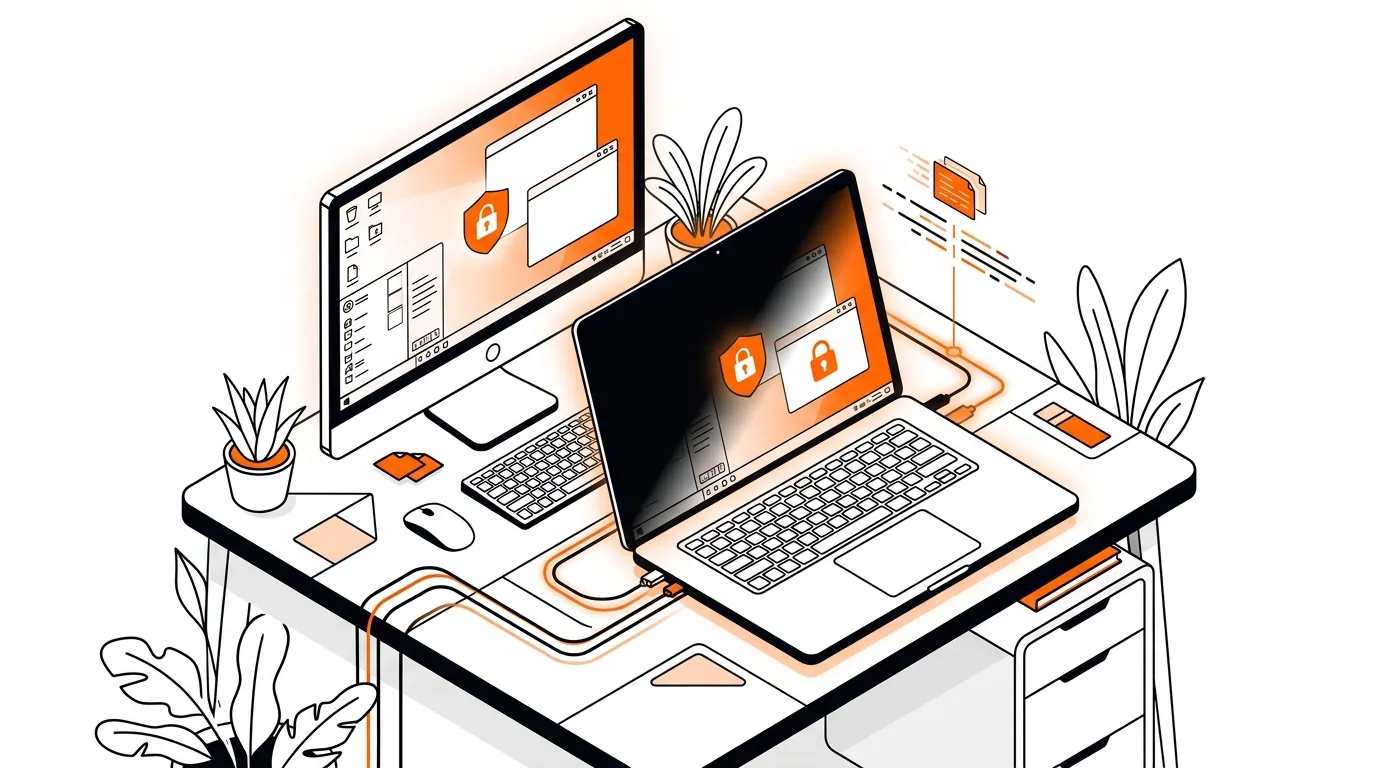
A black screen during a remote support session is frustrating for both you and the technician. The connection may be active, but if the desktop is not visible, troubleshooting slows down fast. This guide explains why the issue happens and how to perform a practical remote support black screen fix on Windows or Mac before your next session stalls.
In many cases, a black screen during remote support is caused by the computer's display system rather than the remote tool itself. A graphics driver may have crashed, the monitor may be switching resolution, the system may be using a GPU mode that does not render well remotely, or privacy and sleep settings may be blocking screen output.
It can also happen after a Windows update, graphics driver update, docking station change, or when using multiple monitors. On some PCs, a remote session connects successfully but shows a blank screen because the active display adapter temporarily stops sending a usable image.
If you repeatedly get a black screen during remote support, the root cause is often a faulty graphics driver, unstable docking station, multi-monitor conflict, or outdated operating system. Note whether it happens only after sleep, only on one monitor, or only with a specific remote tool. That pattern can help a technician isolate the exact cause faster and prevent future interruptions.
This usually means the session is active but the remote software cannot capture the desktop correctly. Common causes include a frozen graphics driver, inactive monitor, denied screen-recording permission on Mac, or display output switching to another screen.
Yes, especially if the problem started after a Windows update, monitor change, or docking station change. Updating the driver can improve compatibility, while rolling back may help if a newer driver introduced the issue.
Yes, as long as you started the session with a trusted provider and approved the connection yourself. Before reconnecting, close the old session, confirm the app name, and make sure you understand what access is being granted. If you want extra peace of mind, ask the technician to explain each step before proceeding.
If you want help with a remote support black screen fix, call 247TechTeam at 888-549-0702 or request a secure remote session.
Our technicians can help remotely.
Stop repeated permission pop-ups during a remote session by adjusting UAC-friendly settings so your technician can work smoothly and securely.
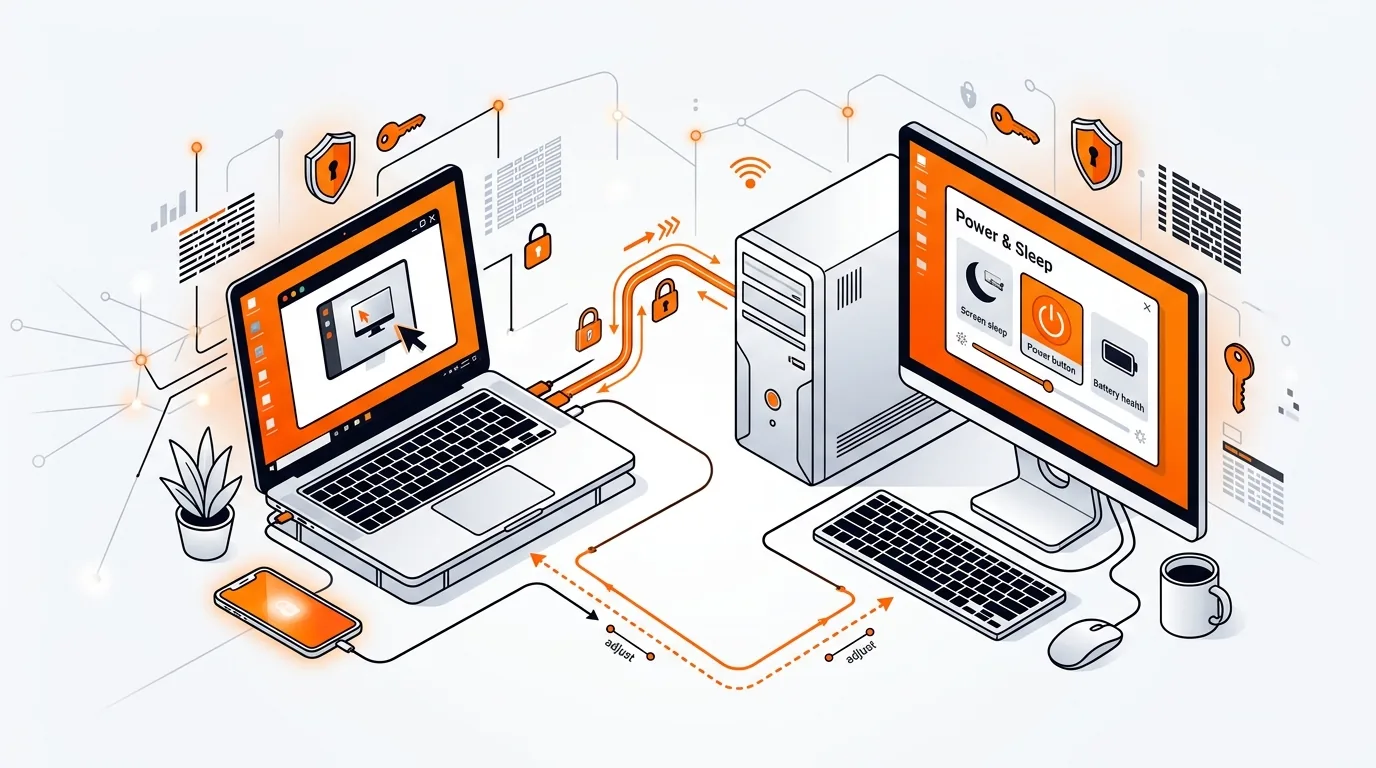
Keep your remote support session stable by preventing sleep, screen timeout, and lid-close settings from disconnecting your Windows or Mac mid-repair.
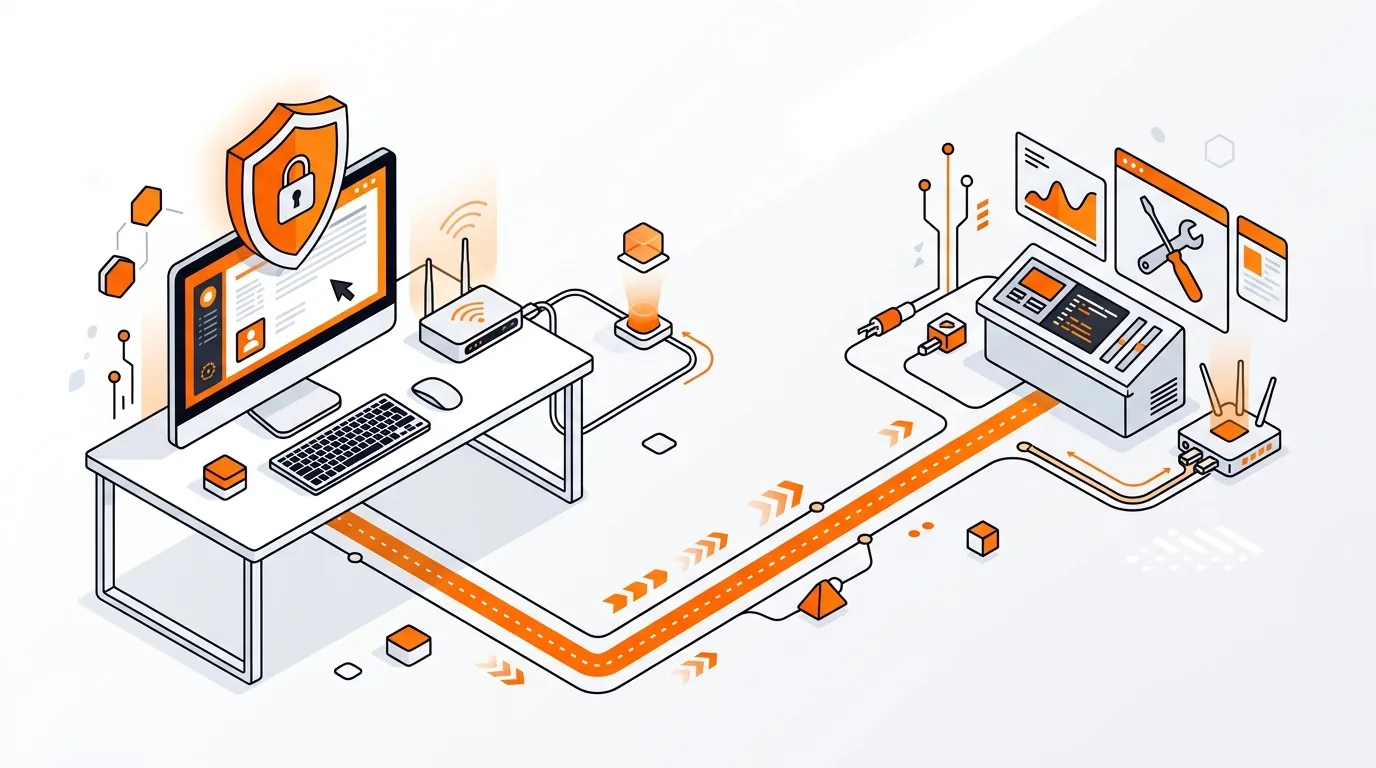
Learn how to fix a remote support session that will not connect by checking firewall, permissions, network, and security settings safely.

Please sign in or create an account to interact with this article.