
Remote Support Session Ends Early? Stop Sleep Mode Interruptions
Keep your remote support session stable by preventing sleep, screen timeout, and lid-close settings from disconnecting your Windows or Mac mid-repair.

Stop repeated permission pop-ups during a remote session by adjusting UAC-friendly settings so your technician can work smoothly and securely.
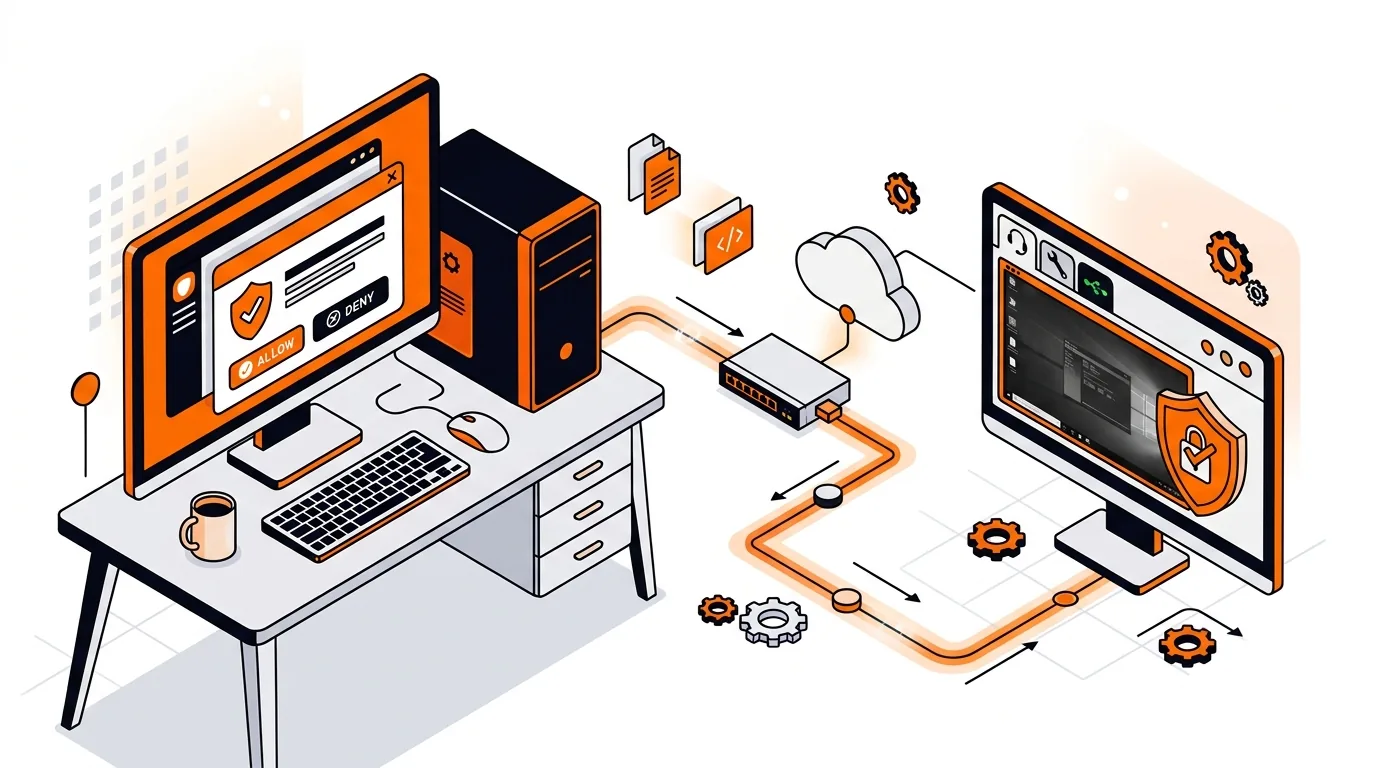
If your remote support session keeps stalling because Windows asks for permission over and over, you are not alone. A common reason is User Account Control, or UAC, which is designed to protect your PC but can interrupt a technician when elevated access is needed. In this guide, you will learn why this happens and how to fix it safely so remote support can continue without constant approval screens.
Windows uses UAC to stop apps from making important system changes without your approval. That is useful for security, but it can create a problem during remote support because many remote tools cannot click the secure permission prompt for you unless the session is running with the right privileges.
In practice, this means a technician may be able to view your screen and use basic controls, but the moment they try to install software, open certain settings, update drivers, or make repair changes, Windows pauses the process and waits for a local approval. If those prompts appear repeatedly, a simple task can turn into a frustrating stop-and-start session.
⚠️ Lowering User Account Control reduces protection against unwanted system changes. Only make this temporary change if you understand the risk, stay on the session, and restore the original setting as soon as the work is finished.
If remote support asking for permission repeatedly happens every time, the issue may be tied to how your Windows account is configured, a workplace security policy, or a third-party security program that overrides normal prompts. In that case, note exactly when the pop-up appears and what action triggers it, then share that information with your technician. A more permanent fix may involve account permissions, support tool settings, or security software adjustments that should be reviewed carefully rather than guessed.
Many UAC prompts appear on Windows secure desktop, which is intentionally isolated from normal apps and remote control tools. That protection helps stop malware or unauthorized users from approving system changes without your knowledge.
It is safer to keep UAC enabled and approve prompts as needed. If lowering it temporarily is the only practical option, do it only during the support session, make sure you trust the technician, and restore the original setting right afterward.
It can happen with many tools because the limitation comes from Windows security behavior, not just one app. Some tools handle elevation better than others, but administrator access and your approval are still important for tasks that affect the system.
Need help getting past repeated UAC prompts? Call 247TechTeam at 888-549-0702 or request a secure remote session.
Our technicians can help remotely.
Keep your remote support session stable by preventing sleep, screen timeout, and lid-close settings from disconnecting your Windows or Mac mid-repair.
Learn how to fix a remote support session that will not connect by checking firewall, permissions, network, and security settings safely.
If your phone or laptop clings to the wrong mesh node, these steps can improve roaming, boost speed, and stop dead-zone frustration.

Please sign in or create an account to interact with this article.