Remote Support Screen Is Black? Fix Display Driver Issues
If your remote support session shows a black screen, these steps can restore visibility fast so the technician can work without repeated disconnects.

Learn how to fix a remote support session that will not connect by checking firewall, permissions, network, and security settings safely.
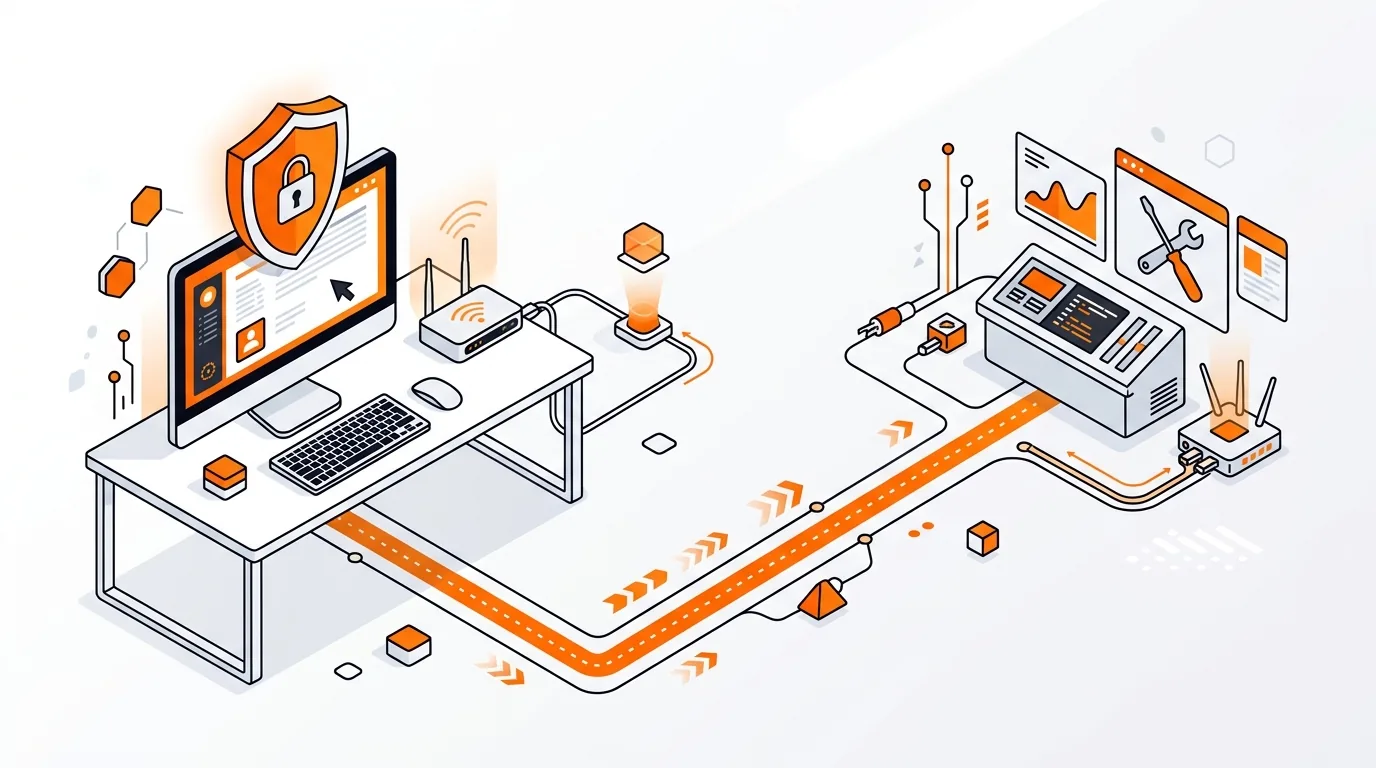
You are ready for help, but the remote support app refuses to connect or the technician cannot see your computer. That is frustrating, especially when the problem you need fixed is already slowing you down. This guide explains why remote support not connecting happens and walks you through safe, practical steps to get a secure session working again.
Most remote support connection problems come down to one of a few causes: the internet connection is unstable, the remote support app does not have the right permissions, the firewall blocks the session, or security software treats the connection as suspicious. Sometimes the issue is temporary, such as a stalled app process or a home router that needs a quick refresh.
In other cases, the computer is technically online, but something in Windows or macOS prevents screen sharing, downloads, or incoming session approval. The good news is that you can usually fix the problem without advanced tools or risky changes.
⚠️ Avoid disabling your antivirus or firewall completely unless a trusted technician specifically guides you, and turn protection back on immediately after testing.
If remote support not connecting becomes a repeat issue, the root cause may be a stricter firewall policy, unstable home internet, outdated operating system permissions, or leftover security software from a previous antivirus package. Keep note of any error messages, when the failure happens, and whether it occurs on Wi-Fi, Ethernet, or only with a VPN. That information makes it much easier for a technician to diagnose the problem quickly and help you prepare for remote support the right way.
Yes, remote support can be safe when you start the session yourself, use a trusted provider, and only grant access during the appointment. You should be able to see when the session is active and end it when you want.
A blank screen usually points to missing screen-sharing permissions, a graphics driver issue, or security software blocking display capture. Rechecking app permissions and restarting the computer often fixes it.
Usually no. It is better to allow the specific app through the firewall than to switch protection off entirely. If you are unsure which setting to change, get guidance from a trusted technician before making security changes.
Need help getting connected? Call 247TechTeam at 888-549-0702 or request a secure remote session.
Our technicians can help remotely.
If your remote support session shows a black screen, these steps can restore visibility fast so the technician can work without repeated disconnects.
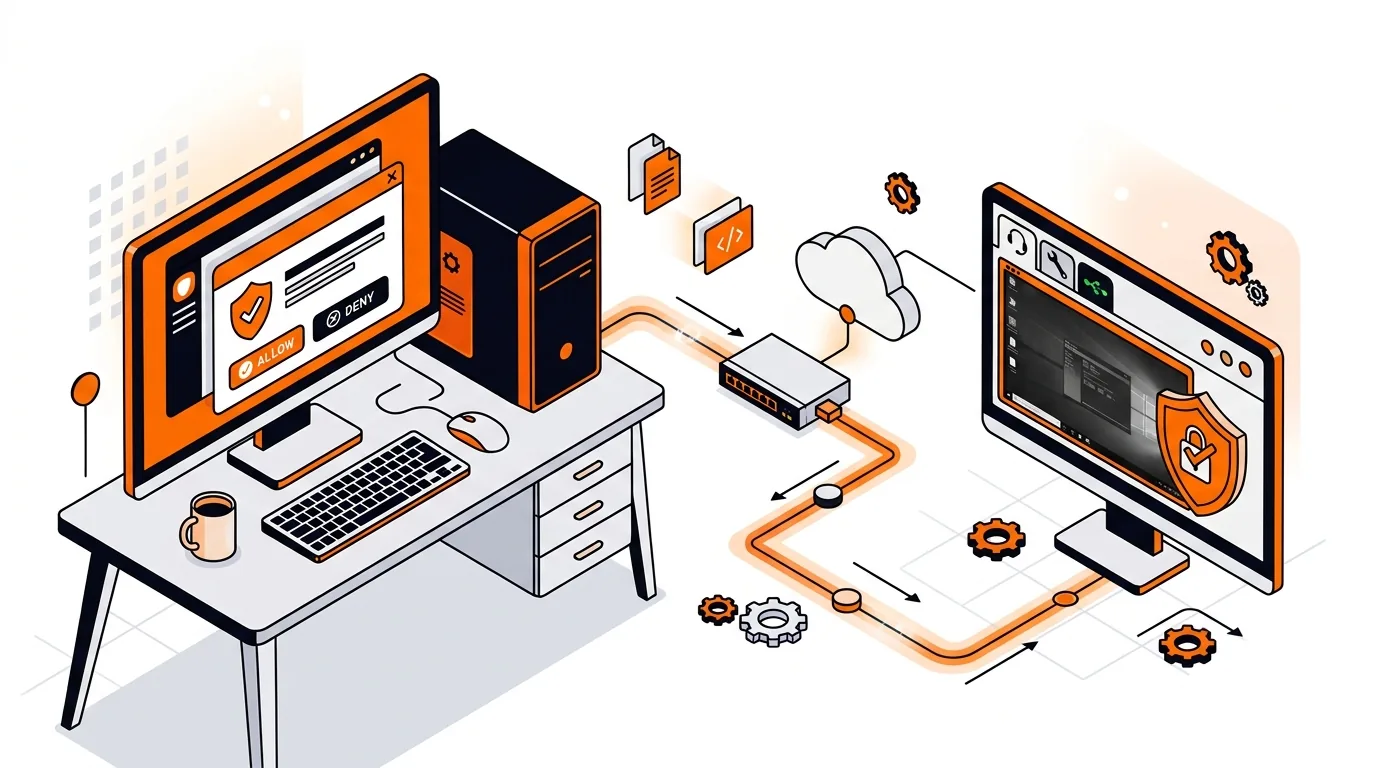
Stop repeated permission pop-ups during a remote session by adjusting UAC-friendly settings so your technician can work smoothly and securely.
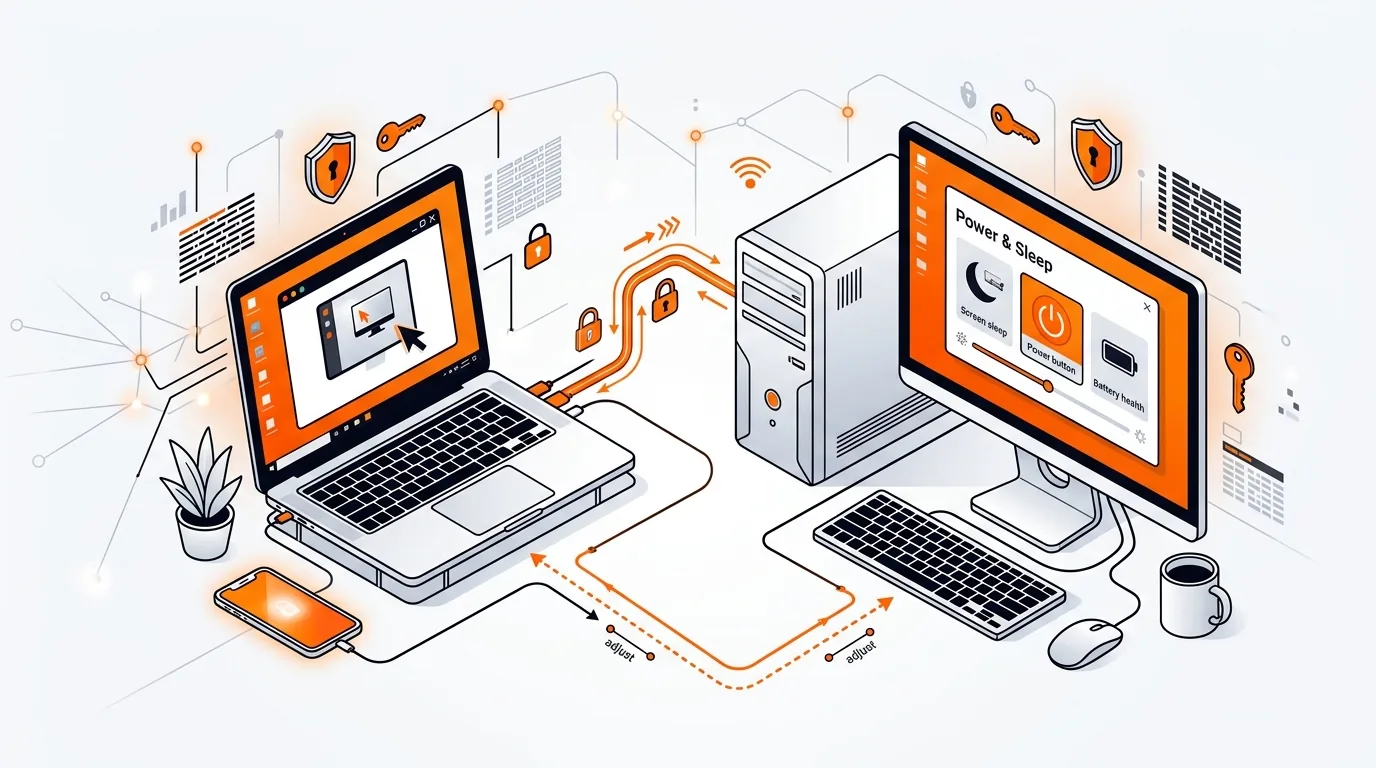
Keep your remote support session stable by preventing sleep, screen timeout, and lid-close settings from disconnecting your Windows or Mac mid-repair.

Please sign in or create an account to interact with this article.