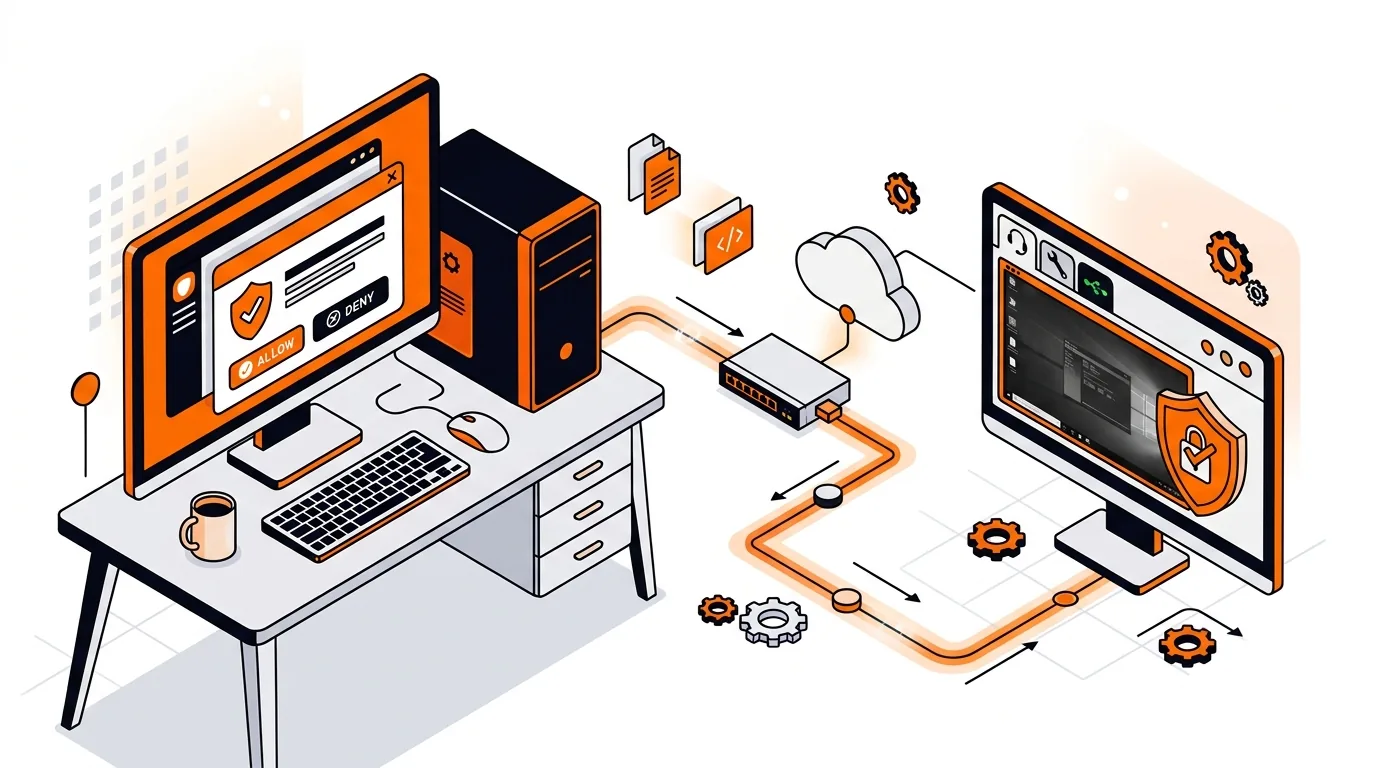
Remote Support Asking for Permission Repeatedly? Fix UAC
Stop repeated permission pop-ups during a remote session by adjusting UAC-friendly settings so your technician can work smoothly and securely.

Keep your remote support session stable by preventing sleep, screen timeout, and lid-close settings from disconnecting your Windows or Mac mid-repair.
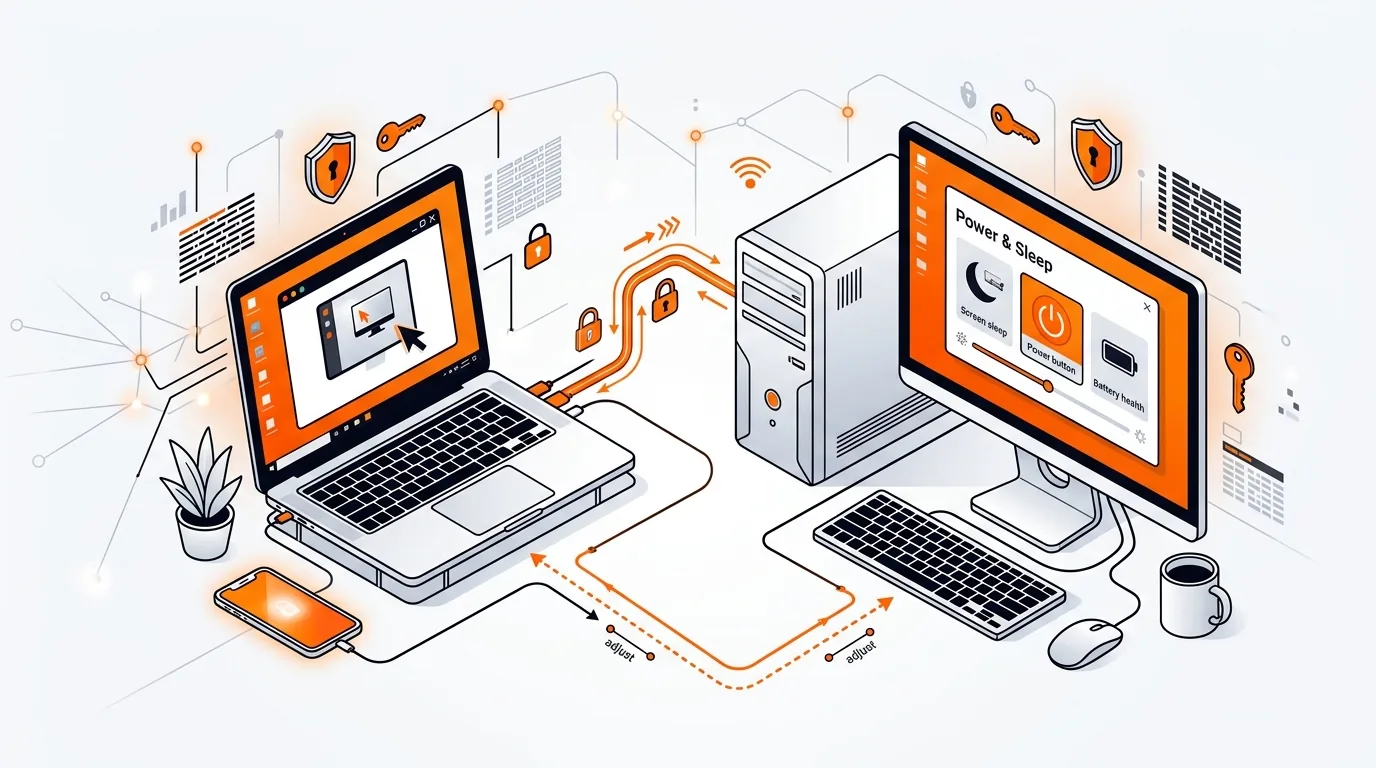
Your remote technician is connected, the repair is underway, and then the session suddenly drops. One of the most common reasons for remote support session disconnects is simple: your computer goes to sleep, turns off the display in a way that interrupts access, or closes network activity when the lid is shut.
The good news is that this is usually easy to fix. Below, you will learn why sleep-related settings interrupt remote support and how to adjust them safely on both Windows and Mac so the session can stay active long enough to finish the job.
Remote support depends on your computer staying awake, connected to the internet, and available for screen sharing or secure remote control. If the PC or Mac enters sleep mode, hibernation, or a power-saving state, the network adapter may pause, the session app may stop responding, and the technician may lose access.
This problem often shows up during longer repair tasks such as updates, malware scans, software installs, printer troubleshooting, or file transfers. It is also common on laptops, where closing the lid or running on battery can trigger aggressive power-saving settings that disconnect the remote session without warning.
If sleep settings look correct but your remote session keeps disconnecting, the cause may be a different power plan, a docking station issue, outdated network drivers, a VPN policy, or security software interfering with the connection. In that case, it helps to test a short remote session while plugged in, on a stable network, and with all updates installed. If you would rather not sort through those checks alone, 247TechTeam can help identify why your Windows or Mac keeps dropping a remote session and guide you through a secure fix.
Temporarily turning off sleep during a support appointment is generally fine. It simply keeps the computer awake long enough for the technician to work. After the session, you can restore your usual sleep settings.
Sometimes yes, but not always. A display timeout is less disruptive than full sleep, but certain systems, graphics settings, or remote tools may still behave unpredictably. For the most reliable result, prevent the computer itself from sleeping during the session.
Many laptops are set to sleep automatically when the lid closes. That shuts down the active session or pauses the network connection. Changing the lid-close action to Do nothing while plugged in can prevent that issue during remote support.
Need help keeping your session stable? Call 247TechTeam at 888-549-0702 or request a secure remote session.
Our technicians can help remotely.
Stop repeated permission pop-ups during a remote session by adjusting UAC-friendly settings so your technician can work smoothly and securely.
Learn how to fix a remote support session that will not connect by checking firewall, permissions, network, and security settings safely.
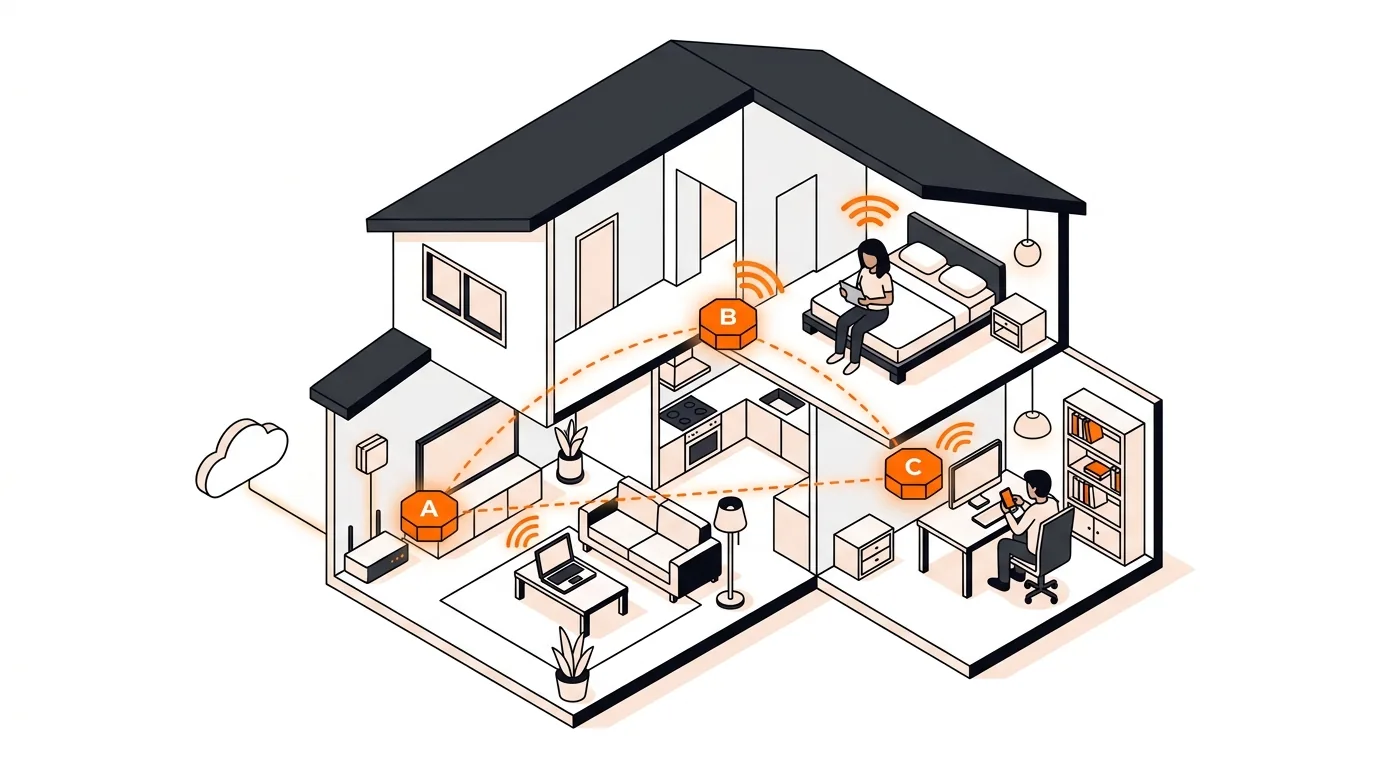
If your phone or laptop clings to the wrong mesh node, these steps can improve roaming, boost speed, and stop dead-zone frustration.

Please sign in or create an account to interact with this article.